Action Center
The home for organisation-wide follow-up in Aegis — today it hosts the Getting Started checklist, and it is deliberately not the same thing as Action Items or the Action Catalogue.
The Action Center is a top-level destination in the
GOVERNANCE group of the left menu. It is built as a
container for whole-programme surfaces, each in its own tab. Its first
tab — currently its only one — is Getting Started, the live
onboarding checklist that used to be a page of its own. While there is only one
tab, Aegis shows no tab strip at all: the checklist fills the working area
directly. More tabs will slot in as the Action Center grows, and the strip
appears as soon as there is a second one to choose. If that sounds thin for a
chapter, that is the point of this one: three similarly named things live in
Aegis, and this page exists partly so you can tell them apart.
One name, three different things
| Name | What it is | Where it lives |
|---|---|---|
| Action Center | This screen: a shell for whole-organisation surfaces, currently holding the Getting Started checklist. |
/action-center, in the GOVERNANCE group.
|
| Action Items | A working list of individual follow-up tasks, mostly created from AI findings — each with a status a person advances. See Action Items. |
A tab on the Roadmap page — the Action Items entry in
the same GOVERNANCE group deep-links to it.
|
| Action Catalogue | A reference document, not a screen: the appendix of this guide listing every action each role can perform. See Appendix A. | In this User Guide's appendices. There is no Aegis page for it. |
Setting the tenant up? Action Center. Working a task the AI surfaced? Action Items. Checking whether your role is allowed to do something? Action Catalogue.
Who uses it
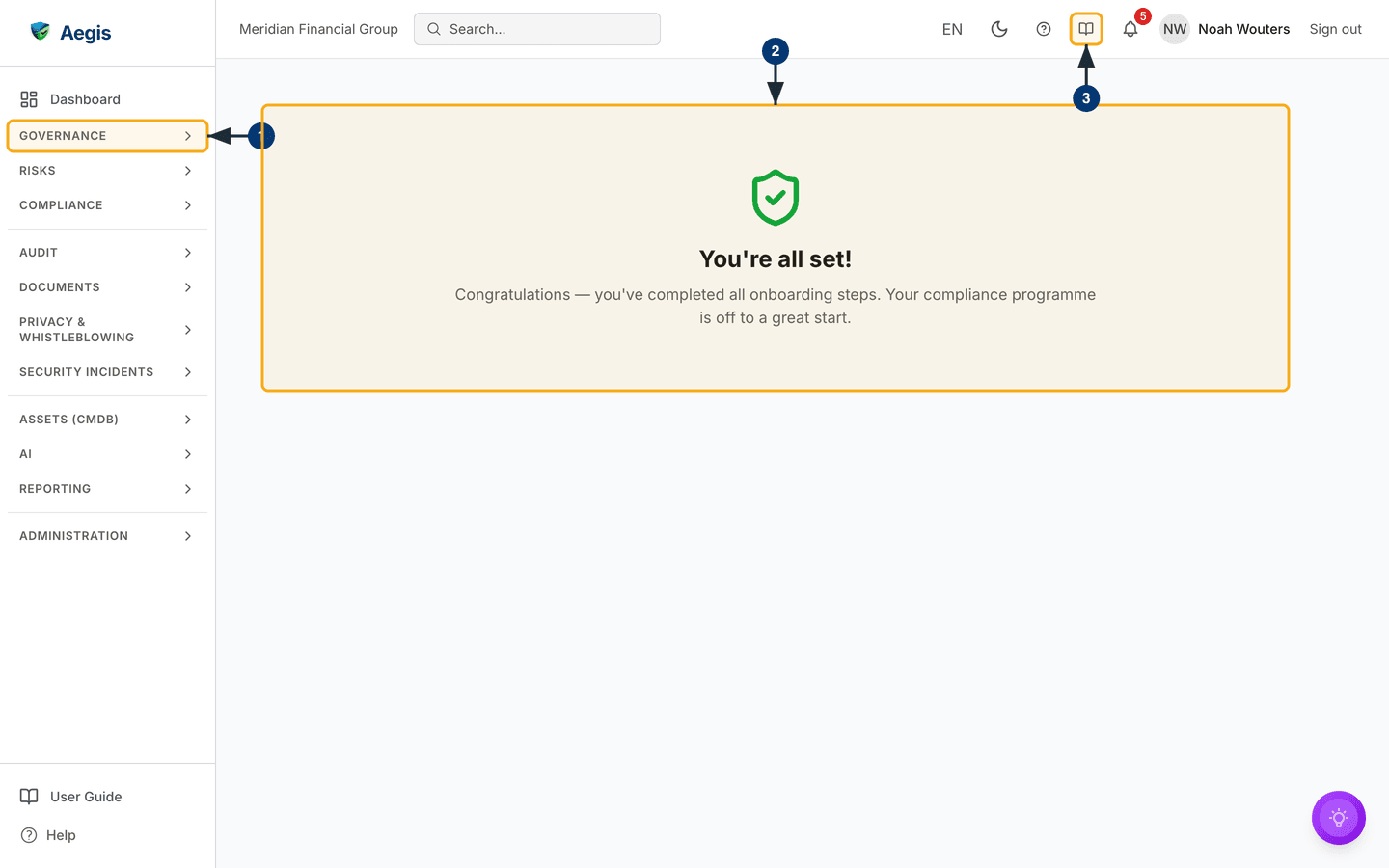
Any signed-in user can open the Action Center — there is no minimum role, so a Viewer can follow the organisation's onboarding progress read-only. The figure below was captured as a Viewer. What each role can do depends on the tab's content: for the Getting Started checklist, the role notes in Getting Started apply.
The usual Aegis entry checks run first, as on every page: you need an employee session, any multi-factor enrolment your role requires, and an organisation that has finished its first-time onboarding. A session that fails one of those is sent to the right place (sign-in, MFA enrolment or onboarding) instead of seeing the page. External collaborators are turned away, and while the platform is in maintenance mode only an Admin gets through.
What's on this screen
The page has no header bar or buttons of its own. Around it sit the standard
Aegis frame — the left menu and the top bar with your organisation's name,
search, language, theme, help, User Guide, notifications, your name and
Sign out. In the middle is one panel: the Getting Started content.
What that panel shows depends on where your organisation is in its onboarding:
| State | What the panel shows |
|---|---|
| Checklist still open |
A progress ring with the percentage done, the
Getting Started title with a count of the steps
completed out of the total, a badge for your primary framework, the
step cards (each open step with a Go link), the
Certification Roadmap for your framework where one
exists, and a Need help? Ask Aegis AI panel. Below that
sit any saved AI setup plans and the onboarding action items.
|
| Every step complete |
A green shield and the message You're all set!, with a
one-line congratulation. The checklist, roadmap and AI panel are no
longer shown.
|
| Checklist not available |
A single line:
Complete onboarding to access the getting started guide.
It appears when the organisation profile has no completed
onboarding, or when Aegis could not load the progress data.
|
-
In the left sidebar, open the
GOVERNANCEgroup and selectAction Center— it is the group's first entry, above the roadmap and governance bodies. The page opens with the Getting Started tab already showing. -
Read the panel in the middle of the page. On the captured
screen the demo organisation has completed every onboarding step, so the
panel shows the
You're all set!state. A tenant still working through onboarding sees the progress ring and checklist instead, all covered in their own chapter. - Need this page explained while you are on it? Select the User Guide button (the open-book icon) in the top bar. The in-app User Guide opens at the chapter for the screen you are on.
Tips and limits
-
Old links still work. Bookmarks to
/getting-startedredirect to/action-center?tab=getting-startedand land on the right tab. -
Links can name a tab. A link with
?tab=in it opens that tab directly; without it, Aegis reopens the tab you last used in this browser, and falls back to Getting Started. With a single tab today, every route ends on the same panel. - Tabs stay warm. Once there are several tabs, switching away from one does not reset it — scroll position and in-tab state survive until you leave the page.
-
A finished checklist stays finished on this screen. When
every step is complete the page shows only the
You're all set!message; the certification roadmap and the setup-plan button are not shown in that state. A finished checklist means the tenant is set up, not that your organisation is compliant. Look for follow-up work in Action Items and the Roadmap instead. - Expect this screen to grow. One tab today is a starting shape, not the destination; new whole-programme surfaces will appear as tabs rather than as new sidebar entries.
Where this connects
- Getting Started — the full walkthrough of the checklist this screen hosts.
- Action Items — the task list this screen is not, one entry further down the same sidebar group.
- Appendix A — The Action Catalogue — the role-by-role reference this screen is also not.
-
The left menu — where the
GOVERNANCEgroup and its entries are mapped out.