Data Loss
Follow up and prove what Microsoft Purview detects and blocks: Aegis pulls the data loss prevention events in, and you review, filter, investigate and export them here.
Data loss prevention (DLP — rules that stop sensitive information leaving the organisation) runs in Microsoft Purview. Purview detects a match, warns the employee or blocks the action. Aegis never blocks anything itself. It reads the events through a read-only connector, stores their metadata and gives you one place to see what happened, by channel, action and severity, with a link back to Purview for the detail.
Aegis stores metadata only, never the message or the file. The user is kept as their sign-in name, a file name only as a hash (a one-way fingerprint) and a recipient only as their e-mail domain.
Data Loss is part of the Professional and Enterprise licences. On Essentials
the menu entry is hidden, and opening
/compliance/data-loss directly shows a page that explains the
feature instead of the data.
Who uses it
- Viewer and Contributor read the overview, the events, the incidents, the destinations, the policies and the reports. They can open a dossier only when its owner has shared it with them.
- Manager reads the same views and also exports events and reports, starts and owns investigation dossiers, and records decisions on destinations (AI platforms, applications and websites).
-
Admin does all of that and alone
sees the
Source and settingstab: the Microsoft Purview connector, the retention terms and the dossier defaults. Only an Admin edits the DLP policy register and the weekly overview mail.
These are the default role permissions; your organisation can grant them to
other people through permission groups. Someone without the Data Loss read
permission sees a short
No access to Data Loss page instead of the module.
What's on this screen
Data Loss sits in the Compliance group of the left menu, after
Control Monitoring, and has a card on the
Control Measures page and an entry in global search. The page header reads
Data Loss, with the line “Follow up and prove what Microsoft
Purview detects and blocks. Aegis never blocks anything itself.” At the top
right a source chip says where the data comes from, whether the last sync
worked, how long ago it ran and the lag of the newest event; selecting it opens
the Connectors page. When the sensitivity labels could not be synced, the chip
adds a short warning.
Under the header a tab bar links every Data Loss view: Overview,
Events, Incidents, Exceptions,
Investigations, Destinations,
Policies and retention, Reports and
Source and settings. Exceptions has a dashed outline
and reads Coming soon when you point at it: it is planned and
cannot be opened yet. Source and settings appears only for an
Admin. The Open in Purview row links to the matching Purview pages
(DLP alerts, Activity explorer, DLP policies, Information protection and Audit
search), each in a new tab.
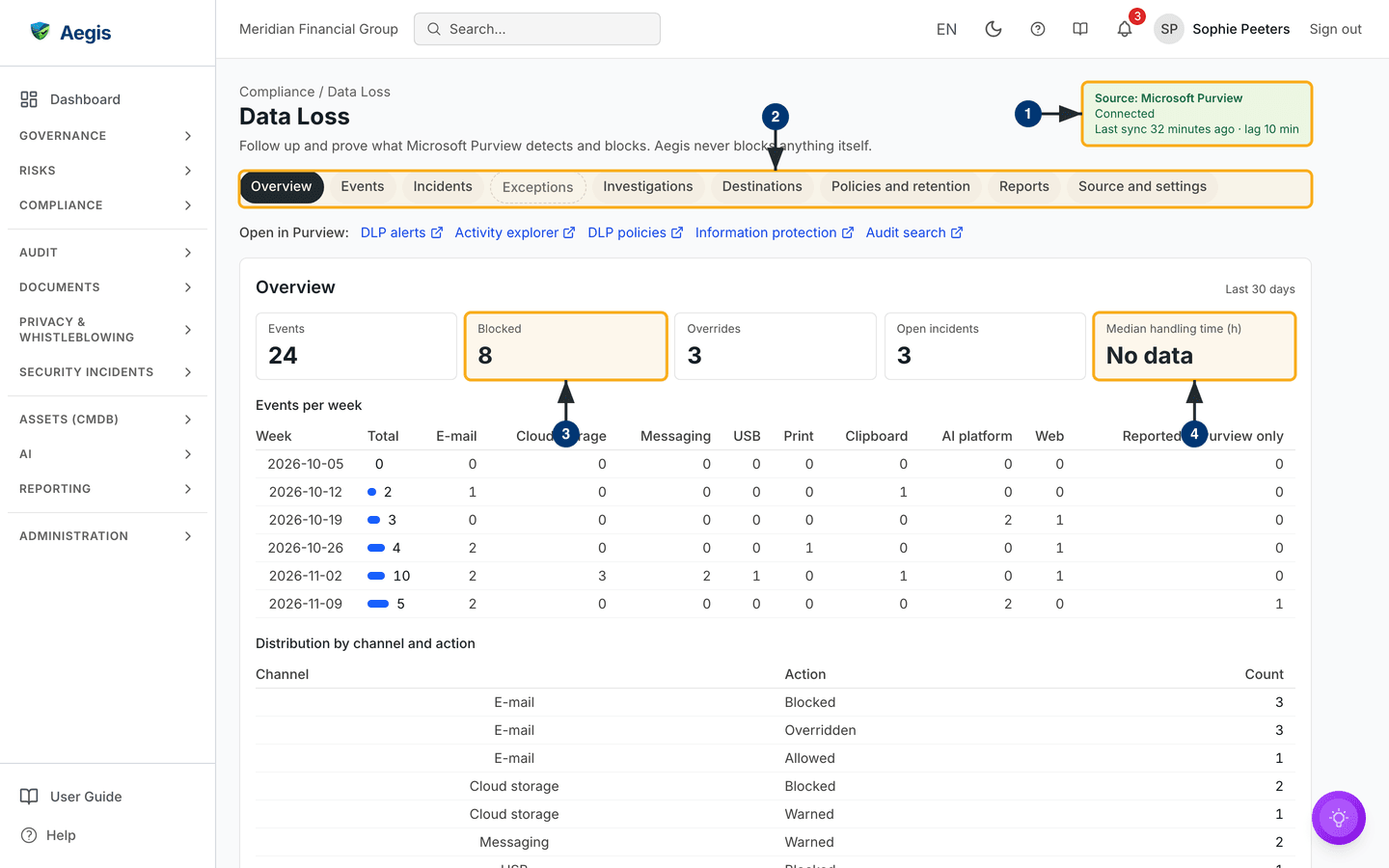
The Overview tab covers the last 30 days. It opens with five key
figures — Events, Blocked, Overrides,
Open incidents and Median handling time (h) — followed
by an Events per week table split by channel (e-mail, cloud
storage, messaging, USB, print, clipboard, AI platform, web and
Reported in Purview only) and a
Distribution by channel and action table. A period with no events
shows one line, “No Data Loss events in this period.”, instead of empty tables.
-
Read the source chip. Green with
Connectedmeans the last sync worked; the captured screen shows a sync 32 minutes ago with a lag of 10 minutes. - Use the tab bar to move between the views. The tab you are on is filled dark; a tab that is not available yet is shown but cannot be opened.
-
Read the key figures.
BlockedandOverridescount the events Purview blocked and the ones an employee overrode;Open incidentscounts the Data Loss incidents still open. -
Median handling time (h)is the median time from opening to closing an incident. It readsNo datawhen no incident was closed in the period — never zero.
Lower on the overview, the Queues panel lists the work of the last
30 days with its count: Overridden by employees,
Blocked by Purview, High and critical severity,
All DLP events and Unknown AI platforms. Select a
queue to open the Events view filtered on it, or for unknown AI platforms the
Destinations view. When Purview is not connected yet, or has sent no events, the
panel says so. The Related Aegis views panel links to the screens
where DLP work continues — such as Security Signals, Auto-Incident Rules, the
Exceptions register, Anomalies, Vendors, CMDB information, GDPR and the EU AI
Act — showing only those you may open.
Review the events
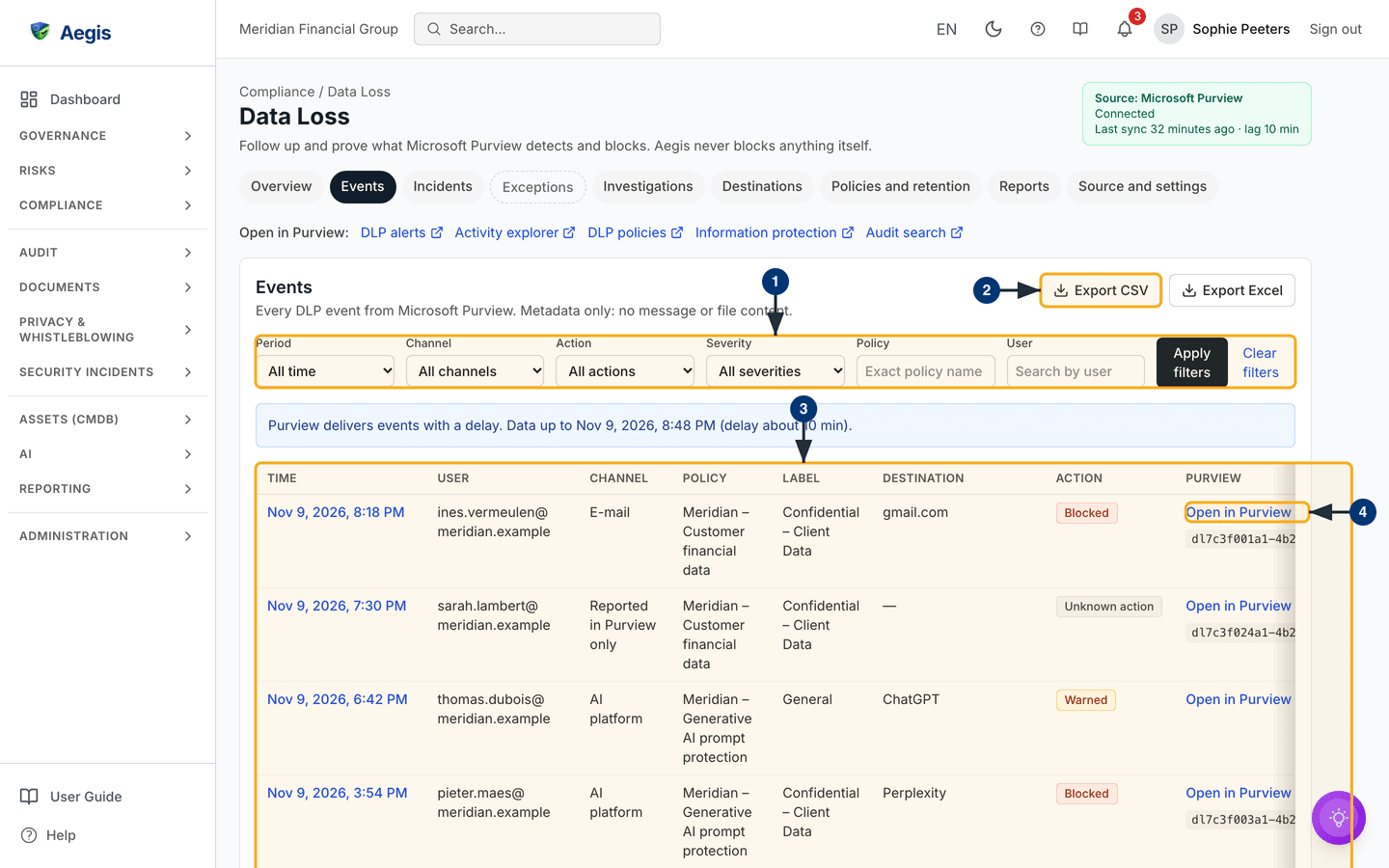
The Events tab lists every DLP event, newest first, with its time,
user, channel (e-mail, cloud storage, messaging, device and so on), policy,
sensitivity label, destination, action and a link to Purview. A note above the
table reminds you that Purview delivers events with a delay, and up to when the
data runs.
-
Narrow the list with the filter bar:
Period,Channel,Action,Severity(includingHigh and critical), the exactPolicyname or theUser. SelectApply filters;Clear filtersresets them. -
Select
Export CSVorExport Excel. The file holds the filtered events with the same metadata columns, including the Purview link. The buttons appear only for someone with the export permission (Manager and Admin by default). - Select the time of an event to open its detail page.
-
Select
Open in Purviewto continue in the Purview portal. Microsoft documents no link to a single alert, so Aegis opens the DLP alerts list and shows the Purview alert id next to it; select the copy button and paste the id into Purview's search.
Follow up incidents and signals
The Incidents tab gathers the Data Loss incidents and the Purview
signals waiting for a decision. Four segments split the list:
To review, Open, Handled and
All. In To review you select one or more signals and
choose Accept, Combine, Merge or
Dismiss; a dialog asks for a reason, which is required. A signal
can carry AI advice with a confidence figure, marked as advice only — you
decide. The Open segment adds filters on channel, action and owner,
and a New incident button that opens the incident form. Links lead
to the full Security Signals inbox and to
Auto-incident rules. This view has no
screenshot in this guide.
Investigation dossiers
When one event needs following up, open an
investigation dossier (a case file about a
subject — a person, an incident or a pattern of events). A dossier gathers a
merged timeline, your own notes and the evidence you link, in one place,
separate from the raw events. The Investigations tab lists the
dossiers you may see, newest first, under the heading
Investigation dossiers.
Starting and owning a dossier takes the investigate permission, which a
Manager and an
Admin hold by default; the
Start dossier button appears only for them. Each dossier has one
owner — the person who started it. A dossier that is not confidential can be
read by anyone with the investigate permission; anyone else, a Contributor or
Viewer included, reads a dossier only when its owner shares it with them.
-
Select
Start dossier. A dialog opens where you give the dossier aSubject, optionally tie it to aSource(from an incident, from a DLP event or about a user, with its identifier), and tickConfidentialto keep it to yourself and the people you later share it with. Whether that box starts ticked is an Admin setting. -
Narrow the list with the filter bar —
Status(Open,In investigationorClosed),OwnerandSubject. SelectApply;Resetclears the filters. -
Read the table. It shows each dossier's
Number,Subject,Status,Owner, theCreateddate and itsBadges(a purpleConfidentialmark, a greenSharedmark). - Select a dossier's subject to open it.
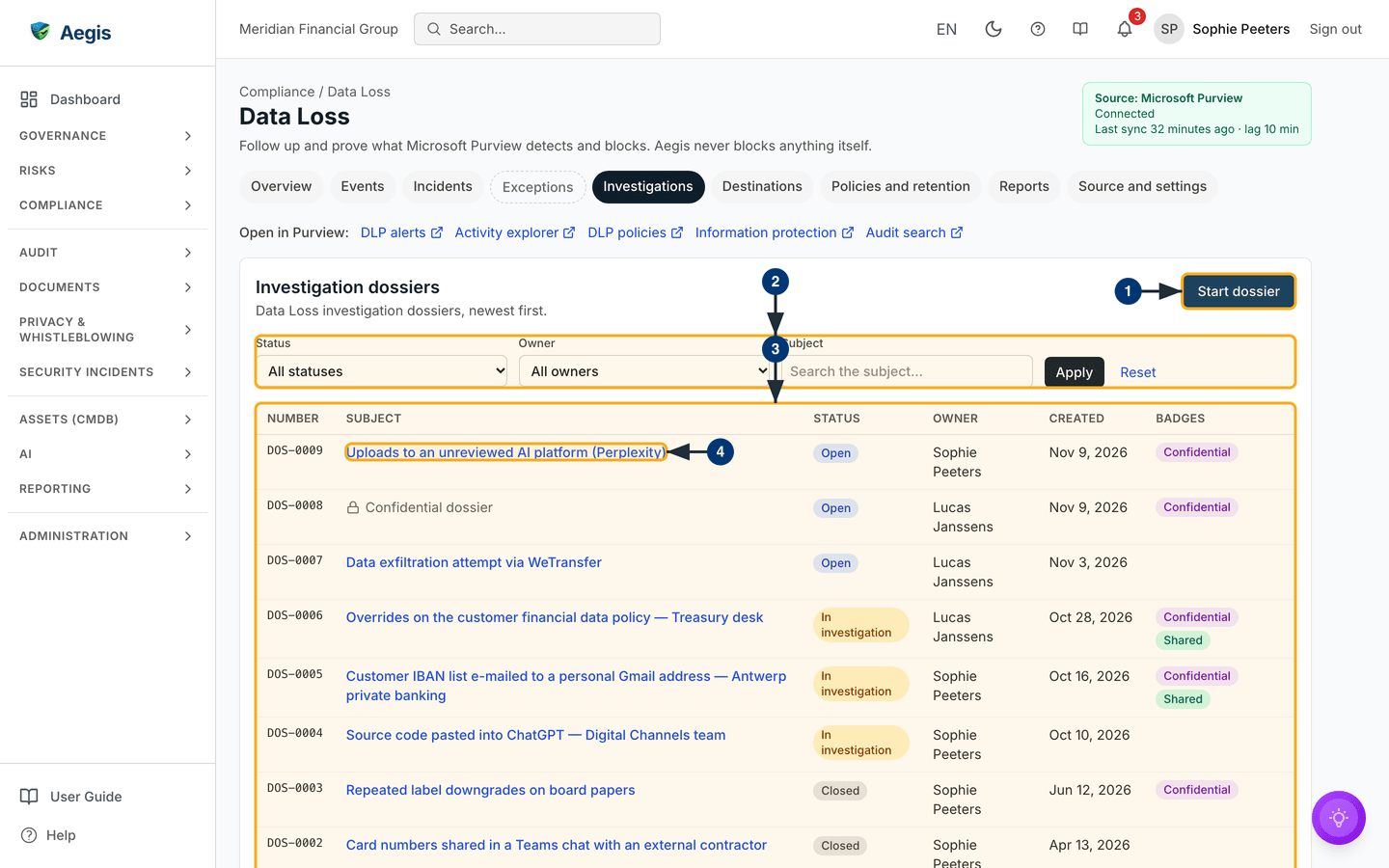
A dossier marked Confidential is readable only by its owner and
the people it is shared with. An administrator who is neither does not see
the subject or the contents: the row shows a locked
Confidential dossier label, so it is clear the dossier exists
without revealing what it is about — the captured screen shows one such row.
Opening its address directly returns the same existence-only view — number,
status, owner and created date — and nothing more.
Open and summarise a dossier
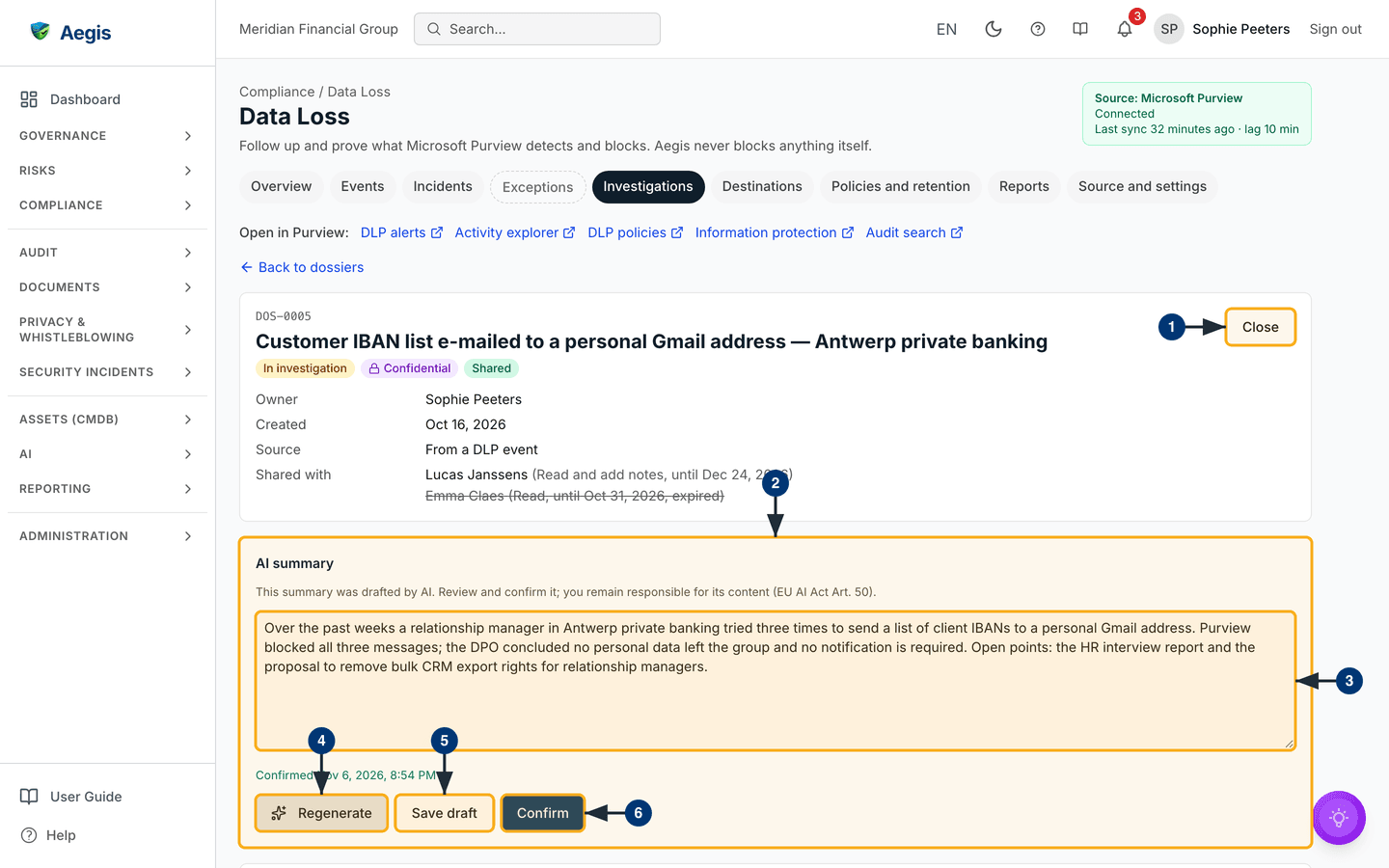
The dossier page opens with Back to dossiers and the header —
number, subject, status and any Confidential or
Shared badge — with the Owner,
Created date, Source and
Shared with lines. Below it come the AI summary panel,
the merged Timeline, the Notes and the linked
Evidence. Opening a dossier is itself recorded: one row is added to
the owner's access log and one row to the
audit log. A person the dossier is shared with sees
a blue note saying what their share lets them do.
The owner can summarise the dossier with AI. The draft is built from the dossier's own timeline, notes and linked evidence; you read it, change it and decide whether to keep it. Each draft is a metered AI action, recorded in the AI usage log. The first time, Aegis may ask you to acknowledge its AI transparency notice before the draft is made.
-
At the top right, the owner moves the dossier through its states:
Start investigationtakes an open dossier intoIn investigation,Closeasks you to confirm and then closes it (the retention term starts on closure), andReopenre-opens a closed one with a reason. The captured dossier is in investigation, so onlyCloseshows. -
The
AI summarypanel carries a notice that the summary was drafted by AI, that you review and confirm it, and that you remain responsible for its content (EU AI Act Art. 50). Once a summary is saved from an AI draft, a badge next to the heading marks itAI-generatedif you kept the draft as written orAI-assistedif you edited it; a summary you write yourself carries no AI mark. The captured summary shows no badge. - The text box holds the summary. Edit it in place. Under it, a confirmed summary shows its confirmed date.
-
Select
Generate with AI(it readsRegenerateonce there is text). A new draft replaces the text, and any earlier confirmation is cleared until you confirm again. - Select
Save draftto keep the text as a work in progress. -
Select
Confirmto mark it final — the panel then shows the confirmed date. A reader who the dossier is shared with sees only a confirmed summary, and only a confirmed summary can be exported.
Below the summary, the Timeline merges the dossier's audit entries,
DLP events, anomalies, incidents, evidence and notes into one list; the source
checkboxes show or hide each kind, and Show more pages through a
long history. The owner and anyone shared with
Read and add notes may add a note in Notes and edit
their own; a Read recipient sees the notes but cannot add one. The
owner links vault evidence to the dossier under Evidence; the link
points to the evidence record, which itself is never moved or copied. At the
bottom the owner sees the dossier's Access log: every opening and
every export, with the file hash of each export.
Share a dossier
Sharing is the owner's control alone, lower on the dossier page. You choose a
colleague, the right they get and a date the access ends, and you must give a
reason. The dossier's header and the Sharing panel both list who it
is shared with and until when; an expired share is shown struck through.
-
Select
Share dossier. A dialog opens with the recipient, right, date and reason. -
Choose the
Personand theRights—Read(read only) orRead and add notes. -
Set
Access until— a future date, at the earliest tomorrow and at most a year out — and write theReason. SelectShare. -
To end a share early, select
Revokenext to the person and confirm. Access stops at once.
Export a signed dossier
The owner can export the dossier as a fixed record — a PDF or a Word
(.docx) file frozen at an as-of date, for a hand-over, an audit or
a legal request. A recipient of a share never exports.
-
Select
Export dossier. A dialog opens with the export options. -
Choose the
Format(PDForWord (.docx)), theAs-of datethe record is frozen at, and which parts toInclude— the dossier header, timeline, notes and evidence list. -
Write the
Reasonfor the export; it is required and is kept with the record. SelectExport. -
The file downloads, and the panel shows its
File SHA-256— a fingerprint of the exact bytes exported, so anyone can later check the file was not altered. The same export, with its reason and hash, is written to the dossier's access log and the audit log.
The AI drafts a summary and nothing more — it never changes a status, shares a dossier or exports one. Every draft waits for you to read, edit and confirm it, and only a summary you have confirmed leaves the dossier in an export.
Destinations, policies and reports
Three more tabs complete the module. None of them has a screenshot in this guide.
-
Destinationsshows where data goes, in three views:AI platforms,ApplicationsandWebsites. Tiles count what wasSeen,Approved,Blocked,Unknownand needsAction neededin Purview; tables list each destination with its status, users, events, sensitive hits and target action. A Manager or Admin canStart reviewandDecide(approved, approved with conditions, or blocked, with a reason), and can send the overview byReport to Security and Compliance— counts and names only, no event detail. -
Policies and retentionholds the DLP policy register (kept by hand, because Purview offers no API for DLP policies) with its coverage — the share of policies linked to a GDPR control — the sensitivity labels with their CMDB class, and the information assets over their retention term, which Manager and Admin can export to Excel or CSV. Aegis reports assets over their term; it never deletes them. -
Reportsshows the key figures for a period and as-of date you choose, and four reports:Management report,GDPR audit evidence,Violations and exceptionsandAI risk and adoption. Manager and Admin export them, and add one to a board report where board reports are licensed. An Admin sets the recipients of the weekly overview mail, sent every Monday, or pauses it.
Connect Microsoft Purview
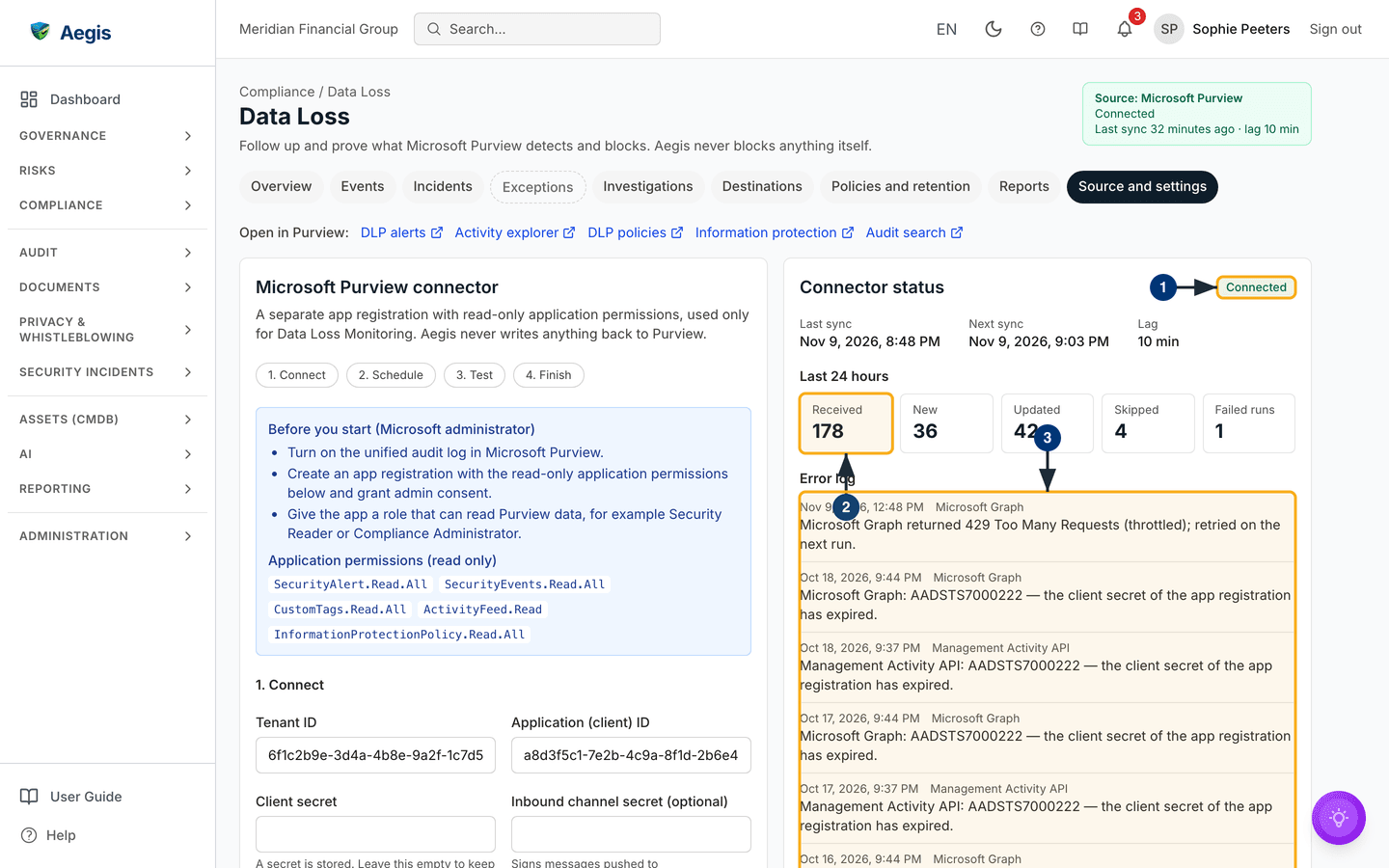
An Admin connects Purview once, on the Source and settings tab. The
left card, Microsoft Purview connector, is a wizard in four steps —
1. Connect, 2. Schedule, 3. Test and
4. Finish. The right card, Connector status, shows how
the connector is doing. Before you start, a Microsoft administrator turns on the
unified audit log, creates an app registration with the read-only application
permissions the wizard lists, grants admin consent and gives the app a role that
can read Purview data, such as Security Reader or Compliance Administrator.
Enter the tenant ID, the application (client) ID and the client secret, then
choose the sync interval (5 to 1440 minutes, default 15) and the initial
backfill (1 to 7 days, because Microsoft keeps the activity content for 7 days).
Select Save. The secret is stored encrypted and never shown again;
leave the field empty later to keep it. Select Test connection: the
wizard reports every permission and every Microsoft prerequisite — unified audit
log, the DLP.All subscription and the Purview role — as Ready,
Missing or Not checked. When the DLP.All subscription
is missing, the wizard offers Start the DLP.All subscription; the
first content can take up to 12 hours to arrive. Only a test that passes marks
the connector Connected; then select
Finish and start syncing, which stays unavailable until every item
is ready.
-
Check the status badge:
Connected,Erroror not connected. -
Read the counters of the last 24 hours:
Received,New,Updated(the same event delivered again is updated, never stored twice),SkippedandFailed runs. Last sync, next sync and the lag sit directly above them. -
Read the
Error log: each failed run with its time, the source (Microsoft Graph or the Management Activity API) and the reason — in the captured screen, a throttled request and an expired client secret.
Every sync batch is written to the audit log with
Microsoft Purview as the actor, with its counts and time window.
Retention and dossier defaults
Lower on the same tab, two cards hold the module's retention settings.
-
Event retentionsets how many months DLP events are kept in full. After that term an event loses its personal fields (user, device, file name hash, recipient domains) and leaves the lists, while channel, action, severity, policy and time stay, so the figures for older periods do not change. Events linked to an open incident, an active exception or a dossier are kept until that record closes or ends. Shortening the term asks you to confirm, because the next nightly run removes those fields for good. Retention in Purview itself is not changed. -
Confidential dossierssets how many years a closed dossier is kept, and whether new dossiers are confidential by default. The term is fixed on a dossier when it is closed, so a change here never rewrites dossiers already closed.
When the sync fails
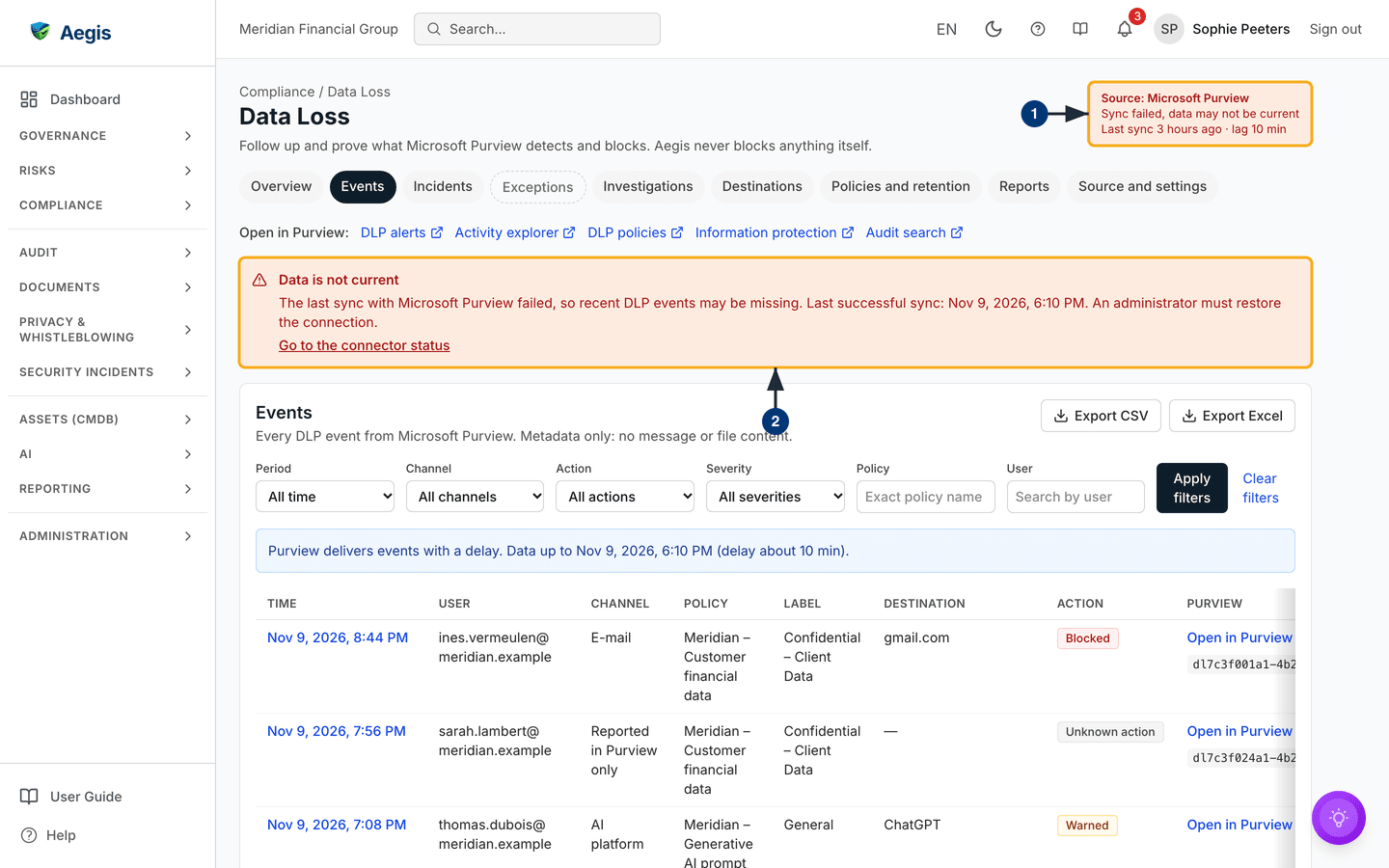
If a sync fails — the secret expired, a permission was withdrawn or Microsoft is
throttling — the connector turns to Error. Every Admin receives one
e-mail, “Purview connection disrupted”, for the whole outage, not one per failed
run.
-
The source chip turns red and reads
Sync failed, data may not be current. -
The Events view, each event's detail page, the investigation list and each
dossier show the
Data is not currentbanner with the time of the last successful sync. An Admin also sees aGo to the connector statuslink. The events already stored stay readable.
Recover after an outage
Fix the cause in Microsoft (a new secret, the consent, the audit log), enter the
new secret if it changed, and select Test connection. The next sync
continues from the last successful point and fetches the missed period, so a
short outage leaves no hole. The red banner disappears as soon as a sync
succeeds again.
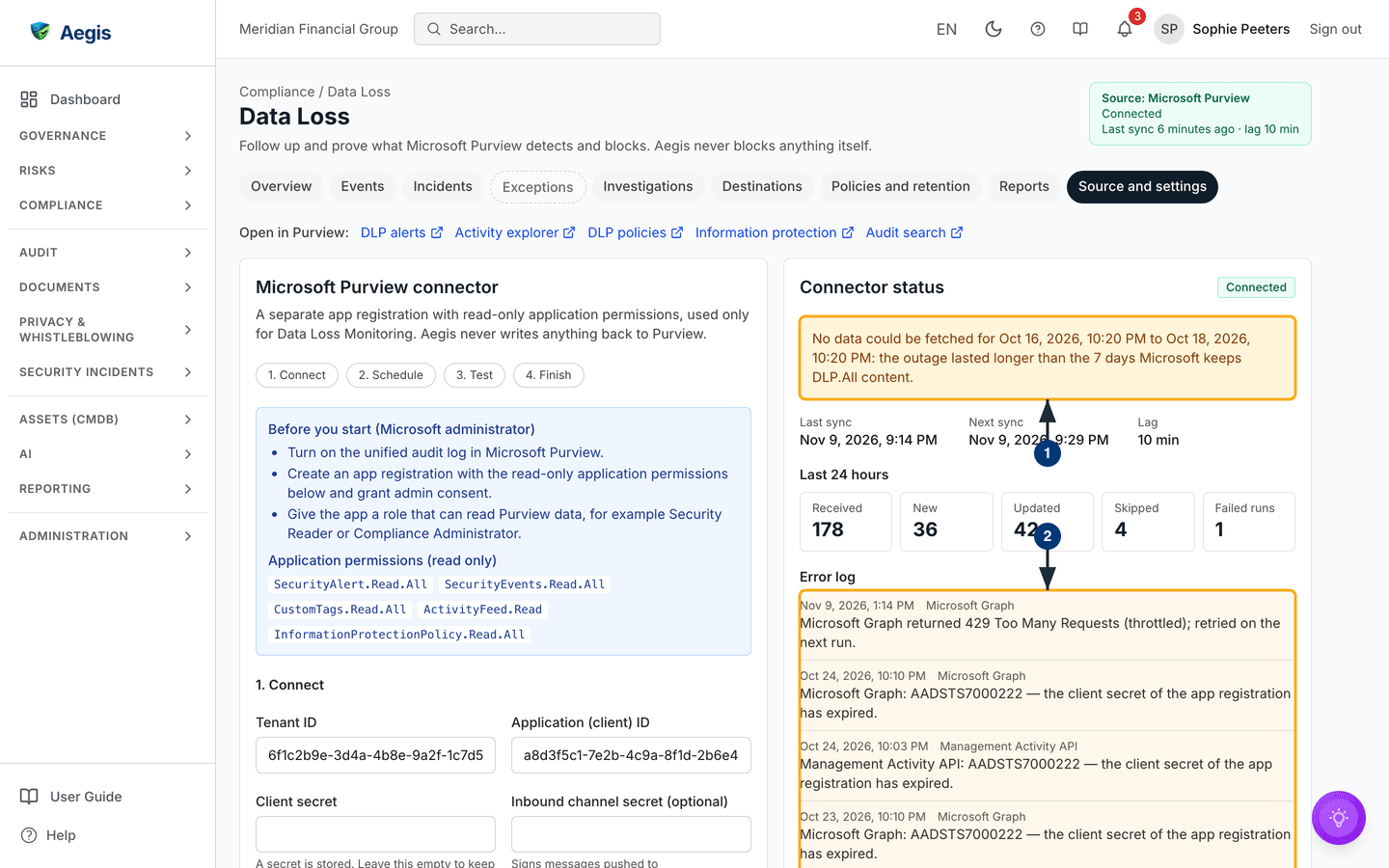
- If the outage lasted longer than the 7 days Microsoft keeps DLP.All content, a notice names the period that could not be fetched. It stays visible as a record of the gap; check that period in Purview itself. The Events view shows the same notice whenever your filter period overlaps the gap, because those events are missing from Aegis and from every export.
- The error log keeps the failed runs of the outage.
Tips and limits
- Purview delivers events with a delay; the newest events can take some time to appear. The lag on the status page and in the source chip shows how far behind the data is.
- Aegis never writes anything back to Purview: closing or classifying an alert happens in Purview.
-
An event that Purview reports only as an alert, without the matching
activity record, shows the channel
Reported in Purview onlyand can showUnknown actionuntil the activity record arrives; the full detail is in Purview. An endpoint (device) event whose exact gesture is not in the feed shows the channelDevice (endpoint). -
An optional inbound channel lets a Logic App, Sentinel rule or Power
Automate flow push signed events for faster delivery; its secret is the
Inbound channel secret (optional)field of the wizard. The scheduled sync stays the source of record. -
The
Exceptionstab is planned and cannot be opened yet; overrides and policy exceptions are handled in the Exceptions register.
Where this connects
- DLP events become signals or incidents: see Incidents and Auto-incident rules.
- Overrides and policy exceptions: see the Exceptions register.
- AI platforms seen in Purview: see the EU AI Act register; sensitivity labels and information assets: see CMDB information.
- Reports for the board: see Board reports.
- Other Microsoft connectors: Entra ID and Azure.