Software Bill of Materials (SBOM)
A register for the component inventories of the software you build and run, with a licence-risk reading of every package, a current-or-superseded status for each revision, and a vulnerability check you trigger yourself.
An SBOM (software bill of materials — a machine-readable list of every component inside a piece of software, including the libraries it depends on) is now routinely asked for under laws such as the EU Cyber Resilience Act (a European law on the security of products with digital elements), and by enterprise procurement teams before they will sign. This module is where those files live: you upload what your build produces, and Aegis parses the component list, classifies each package's licence, and records how many known vulnerabilities a scan matched.
Producing an SBOM from your source code is the job of tools such as Syft, Trivy or cdxgen, or the SBOM output built into many CI/CD pipelines. Aegis is the register on top of them, so you can show an auditor or a customer that you know what you ship.
Who uses it
Everyone with an account can read this register. A
Viewer holds
sbom:read — they can search it and browse any record's components,
but the Upload SBOM, Scan and
Delete controls are hidden for them rather than shown and then
refused. A Contributor adds
sbom:create, covering both uploading and scanning; only a
Manager or
Admin holds
sbom:delete.
Triage with AI needs two things: sbom:read and the
right to run AI actions. Contributors, Managers and Admins have both. A Viewer
does not see the button at all, because running an AI action spends one of your
organisation's AI credits, and read-only roles are deliberately kept from
spending them. The button is also hidden while the AI assist is switched off for
your tenant.
The module also sits behind the SBOM_MANAGEMENT licence feature. If
your plan does not include it, /sbom shows a short
SBOM Management notice in place of the table, telling you to
upgrade.
What's on this screen
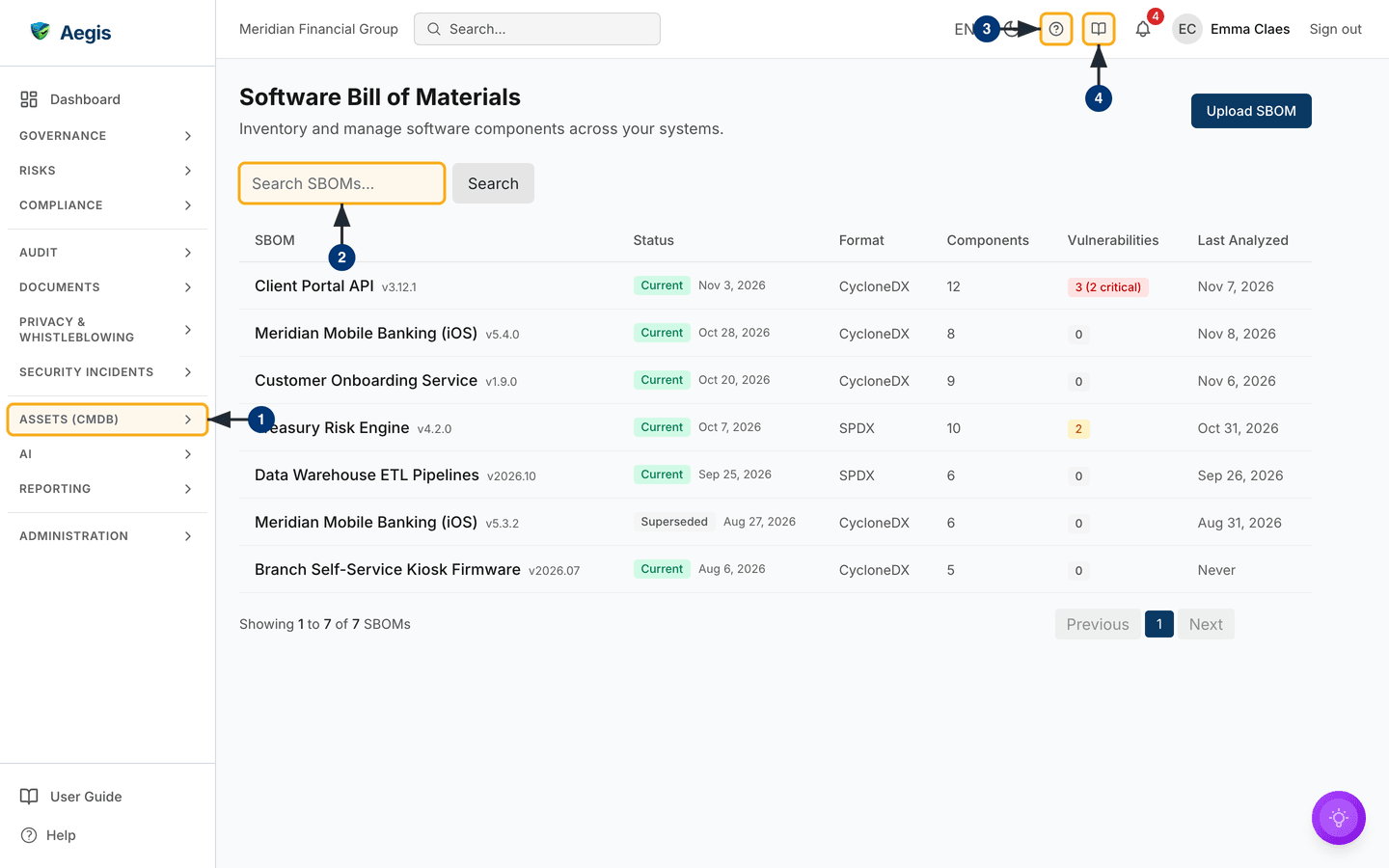
Open /sbom and you get a single table view, nothing more. The
header on the left reads Software Bill of Materials over the line
"Inventory and manage software components across your systems"; the primary
action, Upload SBOM, sits opposite it at the right-hand edge. Under
the header is one filter — a box with the placeholder
Search SBOMs... and a Search button beside it,
matching the record name and its version. There are no status, format or date
filters here.
The table has six columns:
| Column | What it shows |
|---|---|
SBOM |
The record name, with the version in small grey text beside it. |
Status |
A green Current or grey Superseded badge,
followed by the build date the document itself declares (its BOM
timestamp), where it has one.
|
Format |
CycloneDX or SPDX. |
Components |
How many packages Aegis parsed out of the file. |
Vulnerabilities |
A count in a coloured badge: grey at zero, amber for one to five, orange above five, and red once there is a critical finding, with the critical figure in brackets. |
Last Analyzed |
The date of the last scan, or Never. |
Records are listed newest first by the document's own BOM timestamp, then by
upload time, twenty to a page. A line under the table reads "Showing 1 to 7 of 7
SBOMs" on the captured screen, with
Previous, page-number and Next buttons opposite it.
Selecting a row opens the record in a detail window over the table — there is no
separate detail page and no row-level menu.
The captured screen shows the demo register with seven records, including two
revisions of the same mobile app: the newer one marked Current, the
older one Superseded. One record shows a red critical badge, one an
amber count, and one has never been scanned. In the left menu the module sits at
the foot of the ASSETS (CMDB) group, below
External Services.
-
In the left menu, open the
ASSETS (CMDB)group and selectSBOM, the last entry in it. The entry highlights and the register loads at/sbom. -
Type a product name or version into
Search SBOMs.... The table narrows a moment after you stop typing, matching the record name and its version; theSearchbutton beside the box only submits the form, so the list has already caught up by the time you reach it. Clearing the box restores the full list. Superseded revisions stay in the results — the search does not hide them. -
For quick help without leaving the page, select the
?icon in the top bar. A help panel slides in from the side with topics for the page you are on and a search box. - For this full chapter, select the open-book icon beside it. It opens the user guide at the chapter for the page you are on.
In a fresh tenant the register is empty. The table is replaced by a shield icon,
the heading
No SBOMs uploaded, a line of guidance, and a second
Upload SBOM button that opens the same form as the header one.
Upload an SBOM
Generate the file in your build first, then bring it into Aegis. The upload form opens over the table and has four fields, two of them required.
-
Produce the SBOM in your pipeline — for example
syft packages dir:. -o cyclonedx-json > sbom.json. -
On
/sbom, selectUpload SBOM. A window of that name opens, withSBOM Fileas its first and required field. -
Choose the file under
SBOM File. The help text reads "JSON format (CycloneDX 1.4+). Maximum 5 MB." A valid choice fills an emptyNamefield with the filename minus its extension, and never overwrites a name you have typed. Anything that is not.jsonclears the selection, shows "Only JSON files are supported (.json)" and disablesUploaduntil you pick another file. -
Confirm or overwrite
Name(required — the placeholder suggestse.g. aegis-web), add aVersionif you have one, and setFormattoCYCLONEDXorSPDXto match the document. Your choice decides which parser reads the file, so an SPDX document left onCYCLONEDXis rejected rather than half-read. -
Select
Upload. Aegis parses the document, writes one row per component, and the record appears in the table with itsComponentscount filled in. If the file is not valid JSON, is over the size limit, or cannot be parsed as an SBOM, the window stays open with an error and nothing is saved — you never end up with an empty record.Cancelcloses the window and clears the form.
If your toolchain emits XML, RDF or an SPDX tag-value file, convert it to
JSON first — for example with cyclonedx-cli. CycloneDX
documents below spec version 1.4 are refused, and the
Format dropdown is not a hint: the file is parsed as whatever
you select there.
Uploading the same file twice, and uploading a new release
Aegis recognises a document it has already stored. If you upload a file whose content is identical to one already in the register, no second record is created: the window stays open with an amber notice — "This document was already ingested — the existing SBOM was returned and no duplicate was created."
A new release is different. Records uploaded through this form are grouped by
Name, so give each release of a product the same name and a new
Version. After each upload Aegis marks the newest revision in that
group Current and every older one Superseded. "Newest"
means the build date declared inside the document; where a document declares
none, the upload time is used, so a back-dated file uploaded today does not jump
ahead of a later build. Superseded records are not deleted — they stay in the
list and open like any other.
Open a record and run the vulnerability scan
A freshly uploaded record opens with 0 vulnerabilities and
Last Analyzed: Never: parsing and scanning are separate steps, and
the scan is one you start. Until then an amber banner at the top of the window
reads "This SBOM has never been scanned. The counts below mean no data has been
collected yet, not that no vulnerabilities exist."
-
Select a row. The detail window opens with the SBOM name as its title and a
summary strip across the top: the vulnerability badge (for example "3
vulnerabilities (1 critical)"), the component count, and — where any
component carries a strong-copyleft, commercial or unrecognised licence — a
purple
Licensing Issuescount. -
Read the
Overviewblock:FormatandVersionas you set them at upload, thenSpec Version, which Aegis reads out of the document itself — for example1.5for a CycloneDX file orSPDX-2.3for an SPDX one.VersionandSpec Versionappear only when they hold a value. Below them sitComponents,Last AnalyzedandScan source, which says where the last scan's figures came from:OSV.dev advisory feed,Offline fallback data, a "Partly OSV.dev" line naming how many components fell back, orNever scanned. -
Scroll the
Componentssection, headed with the count. Each package shows its full name (including its group or namespace, such asgroup:artifact, so two packages with the same short name stay distinct), its version in a small code chip, its declared licence, its supplier where the document names one, and a licence-risk badge —Permissive,Weak Copyleft,Strong Copyleft,CommercialorUnknown. After a scan, a package whose result did not come from OSV.dev carries an extra pill — amberOffline dataor greyNot checked. A package with matches carries a red "vulns" badge at the right. -
Select
Scanat the foot of the window. The button readsScanning…while it runs. When it finishes, a line above the buttons says how it went — "Scan complete — components checked against the OSV.dev advisory feed", or a "Scan degraded" message naming how many components fell back to offline data. The summary badge, the per-component badges,Last AnalyzedandScan sourceall update in place and the row behind refreshes. Run it again whenever you want a fresh reading. -
A Manager or
Admin also sees
Delete. It opens a confirmation asking "Are you sure you want to delete this SBOM?"; confirming removes the record and its component rows and closes the window.
Further down the window, any AI triage you have saved for this SBOM is listed
(see below), and a
Metadata block carries the Created and
Last Updated dates.
Scan looks each component up in the public OSV.dev advisory
feed. Where OSV.dev cannot be reached for a component — no connection, an
error, or no answer within a few seconds — Aegis falls back to a small
built-in list of well-known vulnerable package versions for that component.
A scan that fell back for any component shows an amber banner saying the
counts are incomplete and should be re-scanned once connectivity is
restored. Every scan is logged. Keep your pipeline scanner for remediation
triage: a low count here, especially a degraded one, does not mean a clean
product.
The AI assist
The detail window carries one AI action, Triage with AI, at the
right of the summary strip. It opens SBOM Vulnerability Triage,
with this SBOM's own name beneath the title.
-
Select
Triage with AI. It opens on an introduction listing what the analysis covers: a severity-ranked list of CVEs, each tied to a component and version with its CVSS score, and a summary of components whose licence is a risk. A box beneath states which scan the triage will read — one that reached OSV.dev for every component, one that did not (shown in amber, with a warning that the findings are incomplete), or none at all, in which case it tells you to run a scan first. -
Select
Run Vulnerability Triage. Progress lines appear in turn — reading the components, cross-referencing known CVEs, ranking by severity and CVSS, drafting the triage — and the narrative streams in as it is written. -
When it finishes, act on it.
Copy,Export DOCXandExport PDFtake it away;Save as recordattaches the narrative to this SBOM, where it then appears in the record's detail window;Create action itemraises one action item;Create work itemsseeds roadmap work items, one per point, which you edit or de-select first. The last two appear only for roles that may create those records, andRun againclears the result and runs the analysis afresh.
The ranking is deterministic. Aegis reads the findings the last scan stored against each component — it makes no fresh lookup and changes nothing — then hands the model a fixed briefing: the 25 highest-ranked CVEs, an upgrade target Aegis has worked out for each vulnerable component from the fixed versions listed in its CVEs, and up to 25 components with a risky licence. The model narrates that briefing; it invents no CVEs, versions or scores, and changes nothing in the record. A person reviews the output and decides what to remediate. Each run counts against your tenant's AI allowance.
Tips and limits
-
Uploading parses; scanning counts.
Last AnalyzedstaysNeveruntil someone selectsScan, however long the record has been in the register — and the AI triage of an unscanned record has nothing to work from. -
Check
Scan sourcebefore you quote a count. A result from offline fallback data covers only a handful of well-known packages; re-scan when OSV.dev is reachable. - The licence-risk badges are a first pass for spotting copyleft, commercial and unrecognised licences. Confirm anything material against the component's own licence.
-
The upload form has no field to link a record to a CMDB asset, so revisions
are grouped by name. Keep the name identical across releases of one product,
or the
Current/Supersededstatus will not line up. - This build has no per-CVE acknowledgement, no version-to-version diff, no import-history timeline, no in-app export of the SBOM file itself, and no "attach to evidence" button. Export the AI triage, or raise a risk or action item, to carry a finding forward.
- Searching matches the record name and version only, so name each upload for the product you will want to find a year from now, and keep that naming consistent across releases.
Where this connects
SBOMs describe what runs on the assets you track in the CMDB, alongside the Software register, and they support your wider compliance evidence. Findings worth carrying forward become risks or action items. Every upload, scan and deletion is written to the audit log, and what each role may do here is set out in Part 3 — What each role can do.