Scenario: onboarding and assessing a new vendor
Follow one person, end to end, as she adds a new cloud provider to the register, sends it a security questionnaire request, runs an AI investigation, turns a finding into a tracked risk, and links the proof an auditor will ask for.
Third-party risk — the chance that a supplier's weakness becomes yours — is a named requirement in ISO 27001 (an information-security standard), NIS2 (a European cybersecurity law) and DORA (a European financial-sector resilience law). This chapter is one journey across four modules: Vendors, Questionnaires, Risks and Evidence. It follows Aisha, a Contributor, as she onboards a provider called "DataNest" — from a blank record to a finding she can defend in an audit. Each module's own chapter carries the full detail; this one shows the order the work happens in.
Who can do this
The whole journey is within reach of a
Contributor: adding and
importing vendors, sending questionnaire requests, running the AI investigation,
recording assessments, raising risks and linking evidence. A
Viewer can read the register and
open a vendor's detail page, but the Import and
Add Vendor buttons are not rendered for them, and the three row
action icons are replaced by a single View details icon. The AI
investigation icon also needs the right to run AI actions, which a Contributor
holds. Deleting a vendor — the bulk Delete — is reserved for a
Manager or
Admin, and so are unlinking evidence
from a vendor, deleting a recorded assessment and sending a questionnaire
campaign. Changing status, singly or in bulk, needs update rights, which a
Contributor has. The full matrix is in
What each role can do.
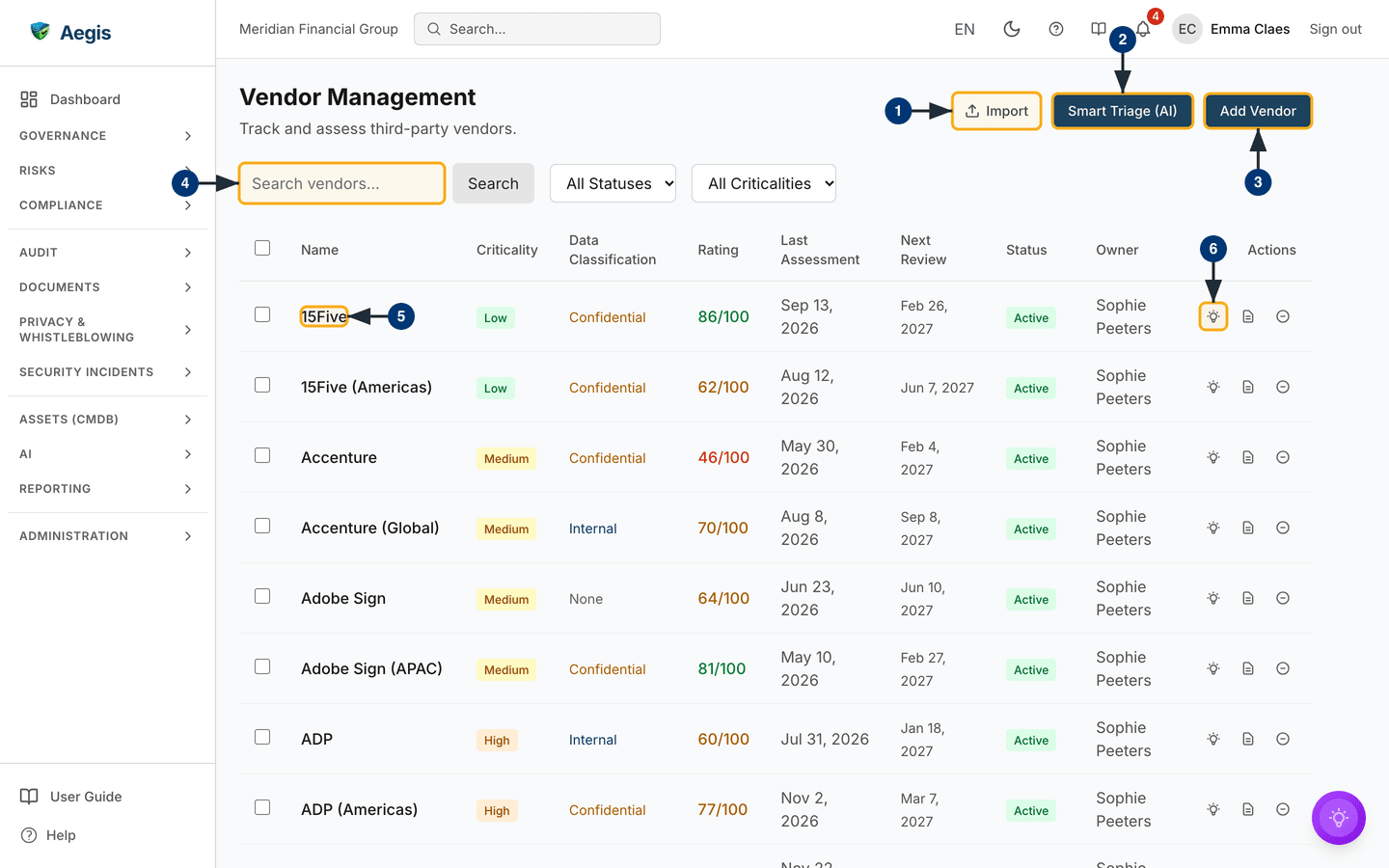
What's on this screen
The journey starts at /vendors, reached from the
RISKS group in the left sidebar. The heading reads
Vendor Management with the subtitle "Track and assess
third-party vendors." On the same line, to the right, sit three buttons: the
outlined Import, the dark Smart Triage (AI) and the
dark Add Vendor. Below the heading comes the filter bar — a
Search vendors… box with its own Search button, then
two dropdowns, All Statuses and All Criticalities.
The table beneath has a select checkbox on every row, then the columns
Name, Criticality, Data Classification,
Rating, Last Assessment, Next Review,
Status, Owner and Actions. The captured
screen shows demo suppliers listed alphabetically, several with a regional
variant beside them — 15Five and 15Five (Americas), Accenture and Accenture
(Global), Adobe Sign and Adobe Sign (APAC), ADP and ADP (Americas) — at
Low, Medium and High criticality.
Criticality is a coloured chip; data classification is coloured text. Ratings
are coloured by band — in the captured screen from a green
86/100 down to a red 46/100. A supplier nobody has
assessed shows a dash under both Rating and
Last Assessment, and one without a scheduled review shows
Not scheduled in grey italics under Next Review; every
row in this capture has been assessed and scheduled. Status is a
badge — green Active or grey Inactive — and
Owner names the person who holds the relationship. Each row ends
with three icons under Actions: a lightbulb (AI Investigation), a document (Send Assessment Questionnaire) and a circle with a
minus sign (Deactivate), which becomes a circle with a tick
(Activate) on an inactive vendor.
Ticking row checkboxes reveals a bulk bar, and what it offers depends on your
rights: each action is hidden from anyone without the matching permission. A
Contributor such as Aisha sees
only Change Status; Delete and
Export need delete and export rights respectively and do not appear
for her at all. Export downloads the selected rows as a CSV file.
Below the part the screenshot shows, the page continues with a portfolio report
card, a concentration-risk map, and panels for saved AI briefings and action
items.
Stage 1 — Get your bearings on the register
Before adding anything, Aisha takes stock of what is already there. These six controls are the ones she returns to throughout the journey.
-
Bring in an existing list with
Import. TheImport vendorsdialog opens: selectDownload template, fill it in, upload it, and selectValidatebefore committing. A summary reports how many rows are valid and how many carry errors, and how many would be created and how many updated; only rows with no errors are imported, and the import button names how many valid rows it will bring in. -
Ask for a ranked starting point with
Smart Triage (AI). TheVendor Portfolio Smart Triagepanel opens; selectingRun Smart Triagestreams a briefing on the active vendors most in need of reassessment. Aegis computes the order — criticality, overdue review, never assessed, then rating — and the AI narrates it rather than inventing one. It reads your active vendors only, uses no external data and changes nothing. -
Start the new record with
Add Vendor. The button opens the full-page formAdd New Vendorat/vendors/new. This is where Stage 2 begins. -
Find a row with the search box. Type part of a name into
Search vendors…and selectSearch; the table reloads filtered to matching names. The two dropdowns beside it narrow the list by status and by criticality. - Open a supplier by selecting its name. The name is a link to that vendor's detail page, which holds the rating panel, the assessment history, questionnaire requests, linked evidence and linked risks.
- Use the row action icons for assessment work. The lightbulb starts an AI investigation of that supplier, the document icon opens the questionnaire dialog, and the circle icon deactivates (or reactivates) the vendor after a confirmation. All three appear for a Contributor and above.
Stage 2 — Add DataNest to the register
-
Open the create page. Aisha selects
Add Vendor. TheAdd New Vendorpage opens with a breadcrumb back toVendorsand three cards:Vendor details,Company detailsandPrivacy & security (GDPR/NIS2). -
Fill in the three required fields. In
Vendor detailsshe types "DataNest" intoVendor Name, setsCriticalitytoHighbecause the provider will hold sensitive data, and setsData ClassificationtoRestricted. Both dropdowns carry a line of help text underneath — "How critical is this vendor to your operations?" and "What level of data does this vendor have access to?" — and both default to the lowest tier until you change them. Saving without a name shows "Vendor name is required". -
Add the company details you have. The optional
Company detailscard takes master data — external reference, VAT or registration number, category, address, city, postal code, country, phone, language, spend currency, purchaser code, VAT posting group andAnnual spend— plus anIn scope for supplier assessmentcheckbox. -
Record what you know about data protection. The optional
Privacy & security (GDPR/NIS2)card takes the supplier's website, contact name and email, the service provided, whether a data processing agreement is in place and when it was signed, processing locations, whether data is transferred outside the EEA and on what basis, certifications held, an exit plan and notes. Anything left blank in either optional card can be filled in later from the vendor's detail page. -
Save. She selects
Add Vendorat the foot of the form (Cancelreturns to the register without saving). "Vendor created successfully" appears and Aegis opens DataNest's new detail page, where the rating reads as not yet assessed. Back on the register, DataNest shows a dash underRatingandNot scheduledunderNext Review.
The two tiering fields she set in step 2 are the ones the rest of the journey keys off:
| Field | Values | What it drives |
|---|---|---|
Criticality |
Low, Medium, High,
Critical
|
Triage order, the default review interval when you schedule one, and how heavily the risk score weights this supplier |
Data Classification |
None, Internal, Confidential,
Restricted
|
Which questionnaire is appropriate, and whether GDPR obligations such as a data processing agreement apply |
Status |
Active, Inactive |
Whether the vendor is counted in the portfolio metrics and considered by Smart Triage |
Aegis does not invent a score for a new supplier. Until an assessment exists
the register shows a dash, and Smart Triage ranks the vendor high precisely
because it has never been assessed. Next Review fills in once a
review is scheduled from the detail page; when that date passes, the cell
turns red and gains an (Overdue) marker.
Stage 3 — Send a security questionnaire request
-
Open the questionnaire dialog. On DataNest's row, Aisha
selects the document icon under
Actions.Send Assessment Questionnaireopens, with "Sending to:" and the vendor's name at the top. -
Choose a template. Under
Select Questionnaire Templatefive are offered:Standard,Critical Vendor,SaaS Provider,Data ProcessorandQuick Review. Each shows a one-line description; for a cloud provider she picksSaaS Provider, the cloud-specific assessment focused on multi-tenancy and availability. -
Add the recipient and a note. She types DataNest's contact
address into
Recipient Email— the address is format-checked, and a malformed one is rejected — and adds a line underCustom Message (Optional)explaining the deadline.Send Questionnairestays unavailable until a template and an address are both filled in. -
Send it. She selects
Send Questionnaire. Aegis records the request and makes one attempt to email it. The dialog stays open and reports the outcome with aRequest reference— for example "Accepted by the email service; recipient delivery is not confirmed." An uncertain outcome is never resent automatically;Start new requestpermits another attempt once you have checked.
The request now appears in the Questionnaire requests panel on
DataNest's detail page, with its template, reference and delivery state, and a
Refresh requests
button. As the dialog itself says, a request is not a completed assessment: it
does not change the rating or the review dates.
Sending is automated; receiving is not. When the supplier replies, nothing
files itself against the vendor row. Record the result on DataNest's detail
page with
+ Add Assessment — a summary and a score, or an assessment
template whose answers compute the score — and link the returned document as
evidence (Stage 6). Where questionnaire automation is licensed, a
Manager can instead send a
campaign from the vendor's Questionnaires panel; the supplier
then answers through the vendor portal, and the rounds, review scores and
rating suggestions appear in that panel. See
Questionnaires.
Stage 4 — Run the AI investigation
-
Start it from the row. Aisha selects the lightbulb icon.
AI Vendor Investigationopens with the vendor's name as its subtitle and lists what it will analyse: risk factors from criticality and data classification, compliance gaps across GDPR, NIS2 and security standards, data processing agreement status, assessment history and trend, and recommendations. -
Select
Start Investigationand wait. The panel narrates six steps while it searches external sources for breach history, certifications and security incidents, then combines those with DataNest's internal record. It usually takes 30 to 90 seconds. -
Read it, then decide what to keep. Nothing is written to
the vendor on the AI's own authority. The finished report offers Copy,
Export to DOCX or PDF,
Save as recordagainst this vendor,Create action item, andRun Again. Aisha saves the report to DataNest and raises an action item for the one thing that needs chasing.
Between the questionnaire and the investigation, a real gap surfaces: DataNest cannot show that it tests its backups. That finding is what becomes a tracked risk next.
Stage 5 — Turn the finding into a tracked risk
-
Create the risk. Aisha opens
Risks and selects
New risk (guided), the wizard that walks the whole record in one pass — from a methodology template through describing, scoring and treating the risk to a final review step. (Add Riskopens a shorter three-step page at/risks/new— Basics, Assessment with a live score preview and the category-appetite verdict, and Review — without the methodology template.) She describes the exposure — "DataNest cannot evidence backup testing" — and chooses a category. - Score it. She picks a likelihood level, then an impact level for each dimension her methodology defines; Aegis aggregates those into one overall impact. The score step then shows the inherent score and its band, marks that cell on the methodology matrix, and says whether the risk sits within or above the appetite set for its category. How the score is derived depends on the methodology — either likelihood multiplied by impact, or a value read from the matrix.
- Treat it, then set the review date. The treatment step records how she plans to handle the exposure, and asks for a sign-off tick where the score band demands one. The final step takes a next-review date. The same step asks for the owner. Creating a risk does not make Aisha its owner, because as a Contributor she does not hold risk-acceptance authority, so she names the accountable manager; reassigning it later happens on the risk's own page. The supplier weakness is now a managed item with an owner and a date against it.
A vendor's detail page has a Linked Risks panel, and it reads
the vendor field on the risk record. No form in the Risks module writes that
field today, so a risk you raise in the interface will not appear there —
the panel keeps reading "No risks are attributed to this vendor yet." The
risk detail view no longer offers a way to link a risk to a vendor either.
Governance links recorded before that panel was removed still show,
read-only, in a second Linked Risks card that appears only when
such a link exists. Until the two meet, keep the connection legible in the
risk's own description and in the evidence you link in Stage 6.
Stage 6 — Link the evidence for the audit trail
-
Open the vendor's detail page. Aisha selects DataNest's
name. The page opens with a breadcrumb back to the register, the vendor's
name and status badge, and the header actions. Below come a compliance
roll-up, the supply-chain graph and its relationships, then the
Current Ratingpanel,Assessments,Questionnaire requests,Contact persons,Linked EvidenceandLinked Risks, followed by business services, security standards and data flows. The side column holdsDetails,Statistics, the company and privacy details, andDates. -
Link the proof. In the
Linked Evidencepanel she selects+ Link Evidence, searches the Evidence library for the questionnaire result and DataNest's security certificate, and attaches both. Only evidence not already tied to a vendor appears in that search.Bulk Importbeside it takes several records at once. Removing a link again needs Manager rights or above, so the unlink icon is not shown to Aisha. -
Set the review cadence. From the header she selects
Schedule review. TheSchedule vendor reviewdialog asks for aReview interval (days); leaving it empty derives the interval from the vendor's criticality. Confirming fillsNext Reviewon the register.Download reportbeside it streams a PDF due-diligence report — profile, risk, data flows, security standards, agreements and linked evidence in one document.Recompute risk scorerecalculates the rating on demand.
With that, most of the chain is on the page for an auditor to follow: the vendor, its assessments and questionnaire requests, the evidence behind the due diligence you carried out, and the audit-log entries for each step. The risk is the one hop you still have to point to by hand, for the reason given above.
The AI assist
AI appears at several points in this journey and decides nothing at any of them.
Smart Triage (AI) narrates a ranking Aegis computed itself, over
your active vendors only. The investigation searches public sources and reads
the internal record, then hands you a report you choose to keep, export or
discard. The detail page offers its own AI Analysis and
Deep Investigation for someone with update rights. Where
questionnaire automation is licensed, the AI review assistant proposes a verdict
for each answer a supplier submits, and nothing is applied until a reviewer
accepts the proposals. Every run is metered against your tenant's AI credits.
Tips and limits
-
Ratingis a single current figure, not an average. Recording an assessment sets it from the latest assessment;Recompute risk scorerecalculates it from the vendor's own attributes, its latest assessment and whether a data processing agreement exists. A questionnaire request leaves it untouched. Older assessments stay in the history on the detail page, so read the trend there rather than the one number. -
Recording an assessment moves the review date on. Where a
review interval is set, a new assessment sets
Next Reviewthat many days after it. A questionnaire request never does. - The investigation favours well-known providers. For a small or private supplier it may return little of substance. In that case, record your own due-diligence checks as evidence and link them to the vendor.
- SOC 2 is not a built-in framework. None of the five questionnaire templates is SOC 2-specific; you can still store a supplier's SOC 2 report as evidence and link it. A built-in SOC 2 compliance framework is on the roadmap, not shipped.
- DORA keeps its own registry. If your tenant has DORA enabled, its third-party-provider registry is separate from this general vendor register. Organisations subject to DORA often maintain both.
-
Overdue reviews are shown, not necessarily pushed. An
overdue
Next Reviewappears in red with an(Overdue)marker; whether anyone is also notified depends on how notifications are configured for your tenant. - Import can update as well as create. A row whose external reference — or, failing that, registration number — matches an existing vendor updates that vendor, and its blank cells keep the stored values. A row with neither key matching creates a new vendor, so re-importing a list without those keys produces duplicates.
-
Deactivating is reversible; deleting is not. The circle
icon on the row, or
Deactivateon the detail page, sets the vendor toInactiveafter a confirmation. It keeps all its data and history, stays readable under theAll Statusesfilter, and is left out of active-vendor lists and reporting.Activatein the same places, or bulkChange Status, brings it back. BulkDeleteremoves it, and needs Manager rights or above.
Where this connects
Each module here has its own chapter: Vendors, Questionnaires, Risks and Evidence. Action items raised from an AI report are tracked in Action items, and every create, status change and send is written to the Audit log. A vendor's data processing agreement can also be held in GDPR, where that record takes precedence over the DPA fields on the vendor. For who may do what, see What each role can do; for the audit that draws on the evidence linked in Stage 6, see Scenario: preparing for an external audit.