Collaboration
A noticeboard that gathers the document reviews waiting on you and the newest unresolved comments from across your compliance records, each with a link to the record where the work actually happens.
While people draft policies, procedures, compliance documents and evidence, they leave notes for one another and ask a colleague to check a document before it is approved. Those conversations live on each record's own detail page, so a request can sit unread for weeks in a corner of Aegis you rarely open. The Collaboration page pulls two of those streams into one place — the reviews (requests to check a document before it is approved) where you are the named reviewer, and the most recent open comments (notes left on a record that nobody has marked as resolved) from anywhere in the team.
Read it as a noticeboard rather than a workspace: it lists and links, while the
reading, replying and deciding happen on the record you open from here. You
reach it from the
Collaboration entry in the Documents group of the left
sidebar, at /collaboration.
Who uses it
Opening the page needs the View Comments permission
(collab:comment:read), which all four standard roles hold, so
Admin,
Manager,
Contributor and
Viewer all see the same two lists.
Anyone without it is sent to /unauthorized rather than shown a
blank page. Collaboration is also an operator-provisioned module: if your tenant
does not have it switched on, the sidebar entry does not appear and the route
refuses the request.
What you can then do on the record you open differs sharply by role:
| Role | On the collaboration panel of a record opened from this page |
|---|---|
| Admin |
Read the thread, post a comment, Resolve,
Reopen or Delete a comment, request a
review, cancel any open review, and record a decision —
Approve, Request changes or
Reject — on a review assigned to them.
|
| Manager |
The same as Admin. A Manager and an Admin can also open
External collaborators from the header of this page
(see below).
|
| Contributor | Read the thread, post a comment, see the reviews list, request a review and cancel a review they requested — but not decide a review, and not resolve or delete a comment. Those buttons are not rendered. |
| Viewer |
Read the comment thread and the reviews list only. No comment box,
no
Request review button and no decision buttons.
|
Recording a decision needs the Review & Decide permission
(collab:review:decide), which only
Manager and
Admin hold. That permission
alone is not enough: the decision buttons appear only for the person the
review is assigned to, and never for the person who asked for it. There is
no override, not even for an Admin. When you request a review, the reviewer
picker therefore offers only colleagues who can decide one, and leaves you
out.
What's on this screen
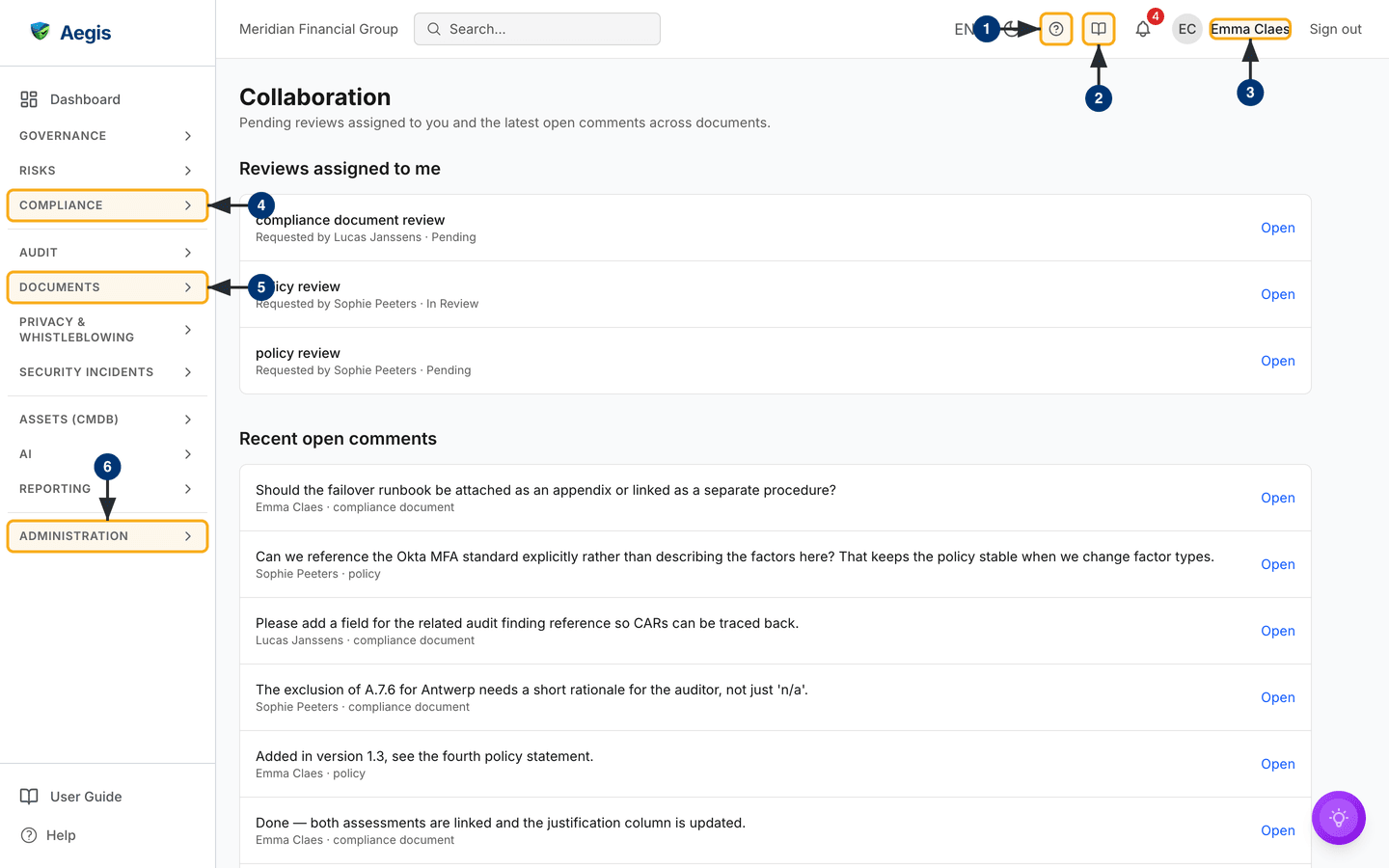
The page is deliberately plain. A header carries the title
Collaboration over a one-line description — "Pending reviews
assigned to you and the latest open comments across documents." There is no
create button, no filter bar, no search box and no export on the page itself. A
Manager or
Admin also sees an
External collaborators button at the right of the header; the
captured screen is a
Contributor's, so it is not
shown there. Everything else you can select sits in the frame around the page:
the left sidebar and the top bar.
Below the header sit two stacked sections, each a bordered panel:
-
Reviews assigned to me — document reviews where you are the
named reviewer and the review is still
PendingorIn Review. Each row shows the record type followed by the word review —policy review,compliance document reviewand so on — over a second line readingRequested by, the requester's name, a middle dot and the review status. AnOpenlink sits at the right-hand end of the row. -
Recent open comments — unresolved comments from across the
whole team, not only yours. Each row shows the comment text on one line,
truncated to the width of the panel, over its author and the kind of record
it sits on joined by a middle dot, and an
Openlink at the right.
Both lists are read once when the page loads, ordered newest first, and capped
at the 25 most recent items. A row whose record has since been deleted is left
out, so every
Open link leads to a record that still exists. On the captured
screen both sections are filled: Reviews assigned to me holds
three rows — one compliance document review at Pending and two
policy reviews, one Pending and one In Review — and
Recent open comments runs past the bottom of the window, with
comments on policies and compliance documents from several colleagues. The
signed-in account is a
Contributor.
When a section has nothing in it, it shows a message in place of a list. For reviews: "No reviews assigned to you. Comments and review requests on policies, procedures, compliance documents, and evidence will appear here." For comments: "No open comments. Threads opened on policies, procedures, documents, or evidence will surface here."
Because the page has no controls of its own beyond those
Open links, the numbered callouts below point at the frame around
it.
- The circled question mark in the top bar opens the help panel, with help for the screen you are on, without leaving the page.
- The book icon beside it opens the in-app User Guide at the chapter for this screen. It is a link rather than a panel, so you leave the page and return with your browser's back control.
- Read the signed-in name at the top right. Reviews assigned to me is filtered to exactly this account, so this is where you confirm you are clearing your own queue and not a colleague's.
-
Select the
Compliancegroup in the sidebar to expand it. It holds three of the four record types these lists draw from —Policies,ProceduresandEvidence— for when you would rather browse a register than follow a link. -
The
Documentsgroup holds the fourth type,Compliance Documents, together withTo readand theCollaborationentry that brought you to this page. The group stays collapsed until you select it. -
Administrationat the foot of the sidebar holdsSettings, whoseUserstab (shown to an Admin only) is where roles are assigned. If a review needs someone who can decide it, that is put right there — read Roles overview first.
Working through a review assigned to you
Open it at the start of a session: read what is yours, clear it on the record, come back.
-
Read the row in Reviews assigned to me. It names the record
type, who requested the review, and where the review has got to —
Pendingif nobody has picked it up,In Reviewif someone has. -
Select
Openat the right of the row. For all four record types — policy, procedure, compliance document and evidence — you land on the detail page scrolled straight to its Collaboration panel. -
In the panel, read the
Reviewssection. Each entry showsRequested byand the requester's name, the current status as a small grey badge, aReviewer:line where a reviewer is named, and any note stored with the request. -
If you hold Manager or
Admin and the review is assigned
to you, choose
Approve,Request changesorReject. All three buttons grey out while the decision is saved, a short "Decision recorded." confirmation appears, and the entry's status badge updates in place. The buttons only appear on reviews still atPendingorIn Review. -
Return to
/collaborationand reload. A review that is no longerPendingorIn Reviewhas dropped off the list, so what remains is what is still outstanding.
Aegis stores your choice of Request changes as its own
decision, but the review itself only has five states — Pending,
In Review, Approved, Rejected and
Cancelled — and both Request changes and
Reject move it to Rejected. There is no "changes
requested" status and no way to reopen the review, so put what you want
changed in a comment on the record, and request a fresh review once it is
done.
The captured
Contributor has three
reviews waiting, but on the record no decision buttons appear for them.
Aegis refuses a new request to anyone without
Review & Decide, yet a review raised before the reviewer's
role changed stays on their list. If that happens, the requester — or a
Manager or Admin — cancels it and requests a new one from someone who can
decide.
Requesting a review
Requests are raised on the record itself, not on this page. You need Contributor or above.
-
Open the policy, procedure, compliance document or evidence item and scroll
to its
Collaboration panel. Select
Request reviewbeside theReviewsheading. A small form opens below it. -
Choose a person in
Reviewer. The list shows only colleagues who can decide a review, and never you. - Optionally set
Due date (optional). -
Select
Send request. It readsSending…while it saves, then "Review requested." appears, the form closes and the new entry joins the list atPending. It now appears in the reviewer's Reviews assigned to me.
To withdraw a request, select Cancel request on its entry. A
confirmation asks "Cancel this review request? The reviewer will no longer be
able to decide it." Choose Cancel request to confirm or
Keep request to back out. The button shows for the person who asked
and for a Manager or Admin, on reviews still open.
Following an open comment
The second list is team-wide, so a row may sit on a record somebody else owns. Scan it for what touches your work rather than trying to clear all of it.
-
Read the comment row. The first line is the comment text, cut off at the
width of the panel if it is long; the second line names the author and the
record type, so a row ending in
· policyis a comment left on a policy. -
Select
Opento go to that record. The full comment and any replies sit in theCommentssection of its Collaboration panel, each entry showing the author, a short date and time, and the complete text. Replies are indented beneath the comment they answer. -
To add your own, type in the
Add a commentbox below the thread — it takes up to 10,000 characters — then selectPost comment. The button stays disabled until you have typed something, then readsPosting…while it saves; the thread refreshes and "Comment added." appears. The box is only rendered for roles that may comment, so a Viewer will not see it. -
When the point is settled, a
Manager or
Admin selects
Resolveunder the comment. A greenResolvedbadge appears beside its date, "Comment resolved." confirms it, and it leaves Recent open comments the next time the page loads.Reopenputs it back.
The box always posts a new top-level comment. There is no control for replying
to a particular comment, so make it clear in your text which point you are
answering. A Manager or Admin can also Delete a comment; a
confirmation warns "Delete this comment? This cannot be undone." before it goes.
Where each Open link takes you
Aegis collects comments and reviews on four kinds of record:
| Record type shown in the row | Where Open lands |
|---|---|
policy |
The policy detail page, scrolled to its collaboration panel. |
compliance document |
The compliance document detail page, scrolled to its collaboration panel. |
procedure |
The procedure detail page, scrolled to its collaboration panel. |
evidence |
The evidence detail page, scrolled to its collaboration panel. |
How the two lists fill and empty
A review joins the first list when someone names you as its reviewer, and leaves
once its status moves past Pending or In Review — once
it is approved, rejected or cancelled. A comment joins the second list when it
is posted and leaves once a Manager or Admin resolves or deletes it. A row also
drops out when its record is deleted. The two sections are independent, so one
can be full while the other shows its empty message. An empty
Reviews assigned to me means you are up to date, not that
something has gone wrong.
Inviting people from outside the organisation
A Manager or
Admin holds the
external-collaborator:invite permission and sees
External collaborators in this page's header. It opens
/collaboration/external-collaborators, where you give someone
outside Aegis time-limited access to one document review or one whistleblowing
case, see every grant, and revoke access. Other roles are sent to
/unauthorized. There is no screenshot of this page in this guide.
-
Under Invite an external collaborator, enter the
Email addressand chooseAccess to:Document revieworWhistleblowing case. -
For a document review, pick the
Document register(policy, procedure, compliance document or evidence), then theRecord. For a case, pick the case. -
Tick the
Capabilities. A document review offersRead,CommentandApprove; a case offersRead caseandMessage reporter. The read capability is always on and cannot be unticked. -
Set
Access duration (days, max 90)— it starts at 14 — and selectSend invite. Aegis emails a sign-in link and the grant appears in the table below. If the email cannot be sent, no access is granted and a message says so. A second invite for the same person and record is refused until you revoke the first. -
In Access grants, each row shows the collaborator, the
record, the capabilities, a status of
Active,RevokedorExpired, the expiry date and who issued it. SelectRevokeon an active grant and confirm; the link stops working at once.
The table also lists grants issued elsewhere, such as external auditors invited from an audit and supplier evidence requests. For how invitees experience their access, see Access from outside Aegis.
Tips and limits
- Each list shows only the 25 most recent items. For the full comment history on a particular record, open that record rather than relying on this page.
- The lists reflect the moment the page loaded. Reload after deciding a review, resolving or posting a comment to see the change here.
- The reviews list is personal; the comments list is shared across the tenant. Do not read the comments list as a to-do list for you.
- Only policies, procedures, compliance documents and evidence are covered. Discussion on risks, incidents, vendors and the other registers is not gathered here.
-
The panel on a detail page also needs the
Document Collaborationlicence feature. If your tenant has the Collaboration module switched on but that feature is off, this page will still list rows while the panel on the record does not appear at all — the detail page renders without it rather than showing an error. Ask your administrator to check the licence before assuming the record is broken. - There is no AI assistance on this page. It is a plain index of what people have written and asked for.
Where this connects
The records these lists point at are covered in Policies, Procedures, Compliance documents and Evidence. For who may comment, request a review and decide one, see Roles overview. For invitees outside your organisation, see Access from outside Aegis. For the sidebar groups the callouts point at, see The left menu; for other work waiting on you, see Action items and the Dashboard.