Healthcare (NEN 7510)
One page for Dutch healthcare information security: coverage of NEN 7510, NEN 7512, NEN 7513 and the Cbw, the Statement of Applicability, reporting duties, periodic reviews, the emergency-access register, medical devices and the certification cycle.
NEN 7510 (the Dutch standard for information
security in healthcare, legally required for care providers) comes with three
companions: NEN 7512 (trust for electronic data exchange), NEN 7513 (logging of
access to patient records) and the Cbw (the
Dutch Cyber Security Act, which sets a duty of care and incident reporting). The
hub does not hold data of its own. Each tile reads from the module that owns the
record and links straight to it. NEN 7510 is a pay-per-framework module: without
the entitlement on your licence, the page shows
NEN 7510 Not Available; when an administrator has switched the
framework off in Settings, it shows
NEN 7510 is switched off instead, and the data stays in place. The
emergency-access register follows the same two rules.
Who uses it
Open the hub from COMPLIANCE →
Healthcare (NEN 7510) in the left menu, or at
/compliance/nen-7510. Anyone with compliance read access can open
it, Viewer included. The framework tiles and
Set up incident reporting always show. Every other tile, the two
actions and the certification timeline appear only when you may read the module
behind them and that module is switched on for your organisation, so two people
can see a different set of tiles.
| Role | What they can do here |
|---|---|
| Admin |
Everything below, plus the link to
Settings → Frameworks on the switched-off card.
|
| Manager |
Read every tile, create the recommended reviews, apply the
healthcare risk methodology, log, review and delete emergency-access
uses, and follow the link to set the NIS2 sector. The
Reporting duties tile opens the reporting dashboard for
Admins and Managers.
|
| Contributor |
Read the hub and log emergency-access uses. Reviewing a use is a
Manager judgement. The Reporting duties tile opens the
incident list instead of the dashboard.
|
| Viewer | Read the hub and the emergency-access register, nothing more. |
What's on this screen
The heading Healthcare (NEN 7510) carries the subtitle
Information security for Dutch healthcare: NEN 7510, NEN 7512, NEN 7513 and
                        the Cbw duty of care.
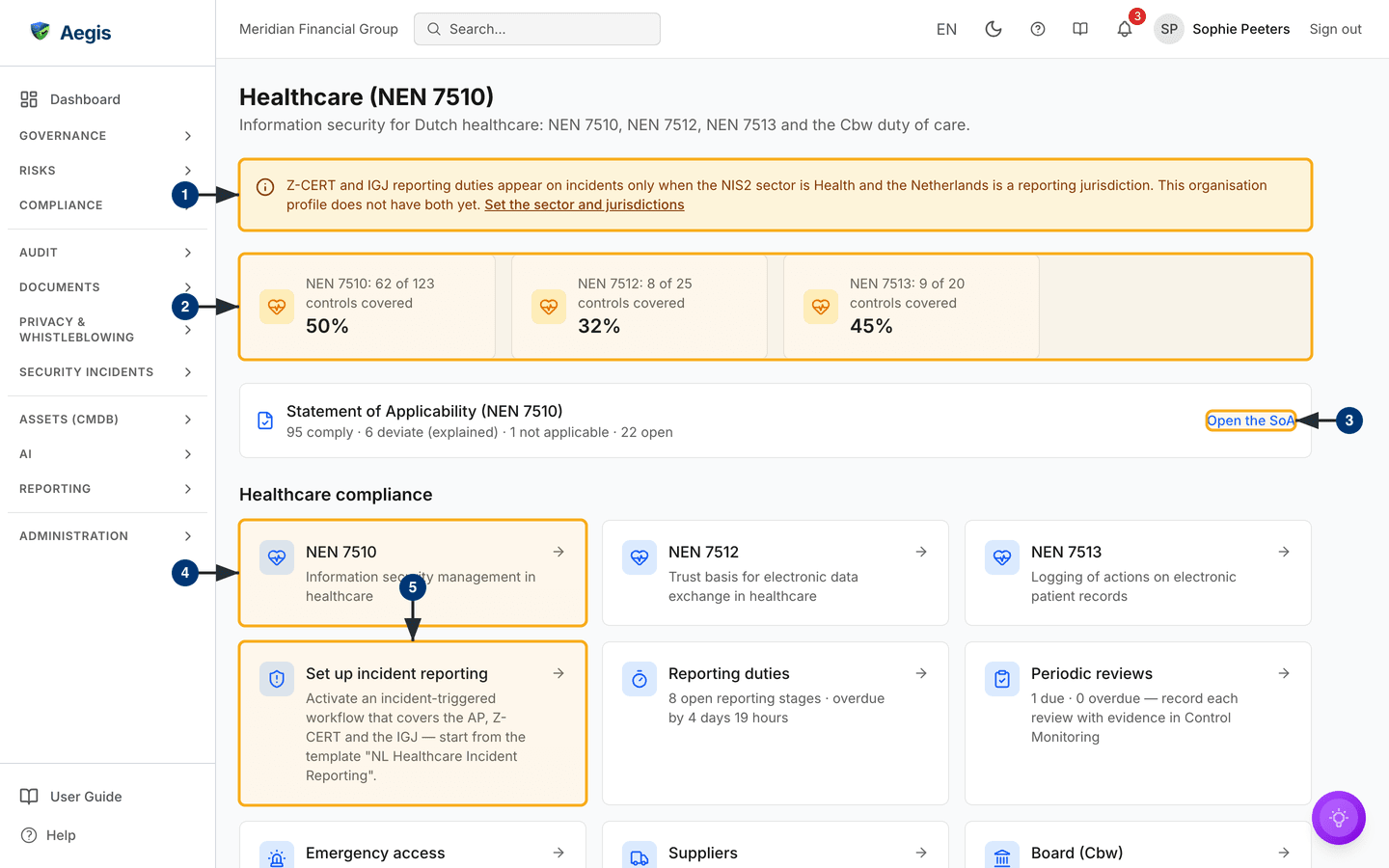
Under it an amber note may appear. It says that the Z-CERT and IGJ reporting
duties show on incidents only when your NIS2 sector is Health and
the Netherlands is one of your reporting jurisdictions; an Admin or Manager gets
the link Set the sector and jurisdictions. Below it, one coverage
card per healthcare framework you hold reads, for example,
NEN 7510: 62 of 123 controls covered with the percentage
underneath; the captured screen shows three cards, for NEN 7510, NEN 7512 and
NEN 7513. The Statement of Applicability (NEN 7510) row counts your
comply-or-explain decisions. The Healthcare compliance grid then
holds the tiles, followed by two actions, the
Certification cycle timeline and three notes:
2024 Edition Transition, Legal applicability and
Define ISMS Scope (the scope of your information security
management system).
Read the top of the hub
-
Read the amber note, if it is there. Select
Set the sector and jurisdictionsto openSettings → Organization, where you set the NIS2 sector and add the Netherlands as a reporting jurisdiction. The note disappears once both are saved. - Check the coverage cards. Each counts the controls with approved, current evidence linked. The card turns green from 75%, amber from 25% and red below that.
-
Read the
Statement of Applicability (NEN 7510)line; on the captured screen it reads95 comply · 6 deviate (explained) · 1 not applicable · 22 open. The row appears once the framework has controls to decide. SelectOpen the SoAto go to the NEN 7510 framework page, where every control is decided. -
Select a framework tile such as
NEN 7510to open that framework's control list and Statement of Applicability. -
Select
Set up incident reporting. It opens Workflows, where you activate theNL Healthcare Incident Reportingtemplate so every new incident reminds its owner of the AP, Z-CERT and IGJ duties. Next to it,Reporting dutiescounts the open reporting stages on your incidents and the time left, or how long they are overdue (the captured screen shows8 open reporting stages · overdue by 4 days 19 hours). With nothing open it readsNo open reporting deadlines on your open incidents.
Work the tiles and actions further down
-
The
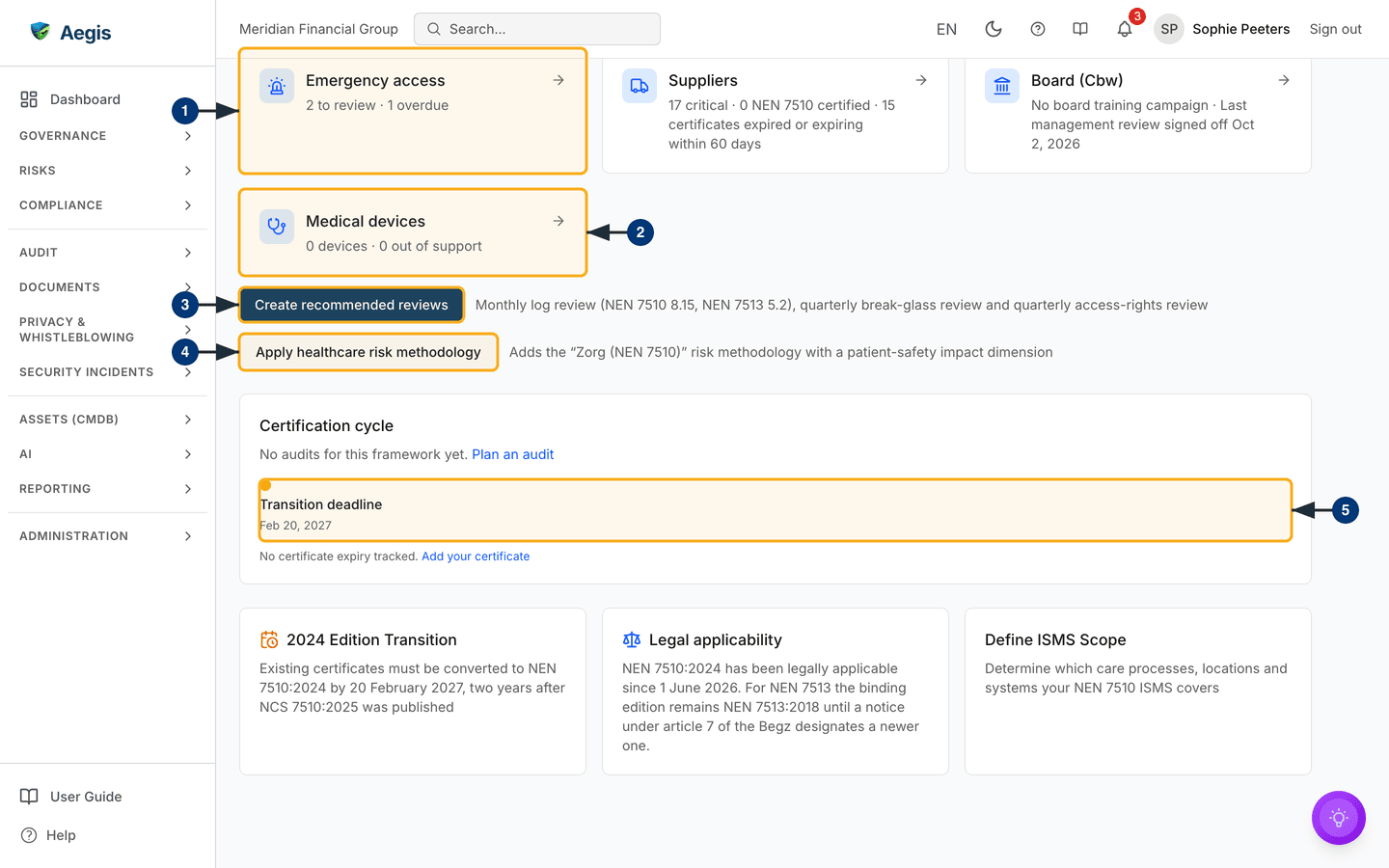
Emergency accesstile reads, for example,2 to review · 1 overdue. Select it to open the break-glass register described below. Around it sitPeriodic reviews(due and overdue reviews in Control Monitoring, or a prompt to create the recommended reviews when there are none yet),Suppliers(critical suppliers, NEN 7510 certified suppliers and certificates expired or expiring within 60 days) andBoard (Cbw)(board training and the last signed-off management review, orNo board training campaignwhen there is none). -
Select
Medical devices. It opens the CMDB machine inventory already filtered toMedical Device. The tile counts the devices and how many are past their end of support; on the captured screen both are 0. -
Select
Create recommended reviews(Manager or Admin). Aegis adds four periodic reviews in Control Monitoring: a monthly log review on NEN 7510 8.15 and NEN 7513 5.2, a quarterly break-glass review on NEN 7510 8.2 and a quarterly access-rights review on NEN 7510 5.18. The first one falls due one interval later. Selecting it again creates only what is missing; when everything exists, a message saysAll recommended reviews already exist. -
Select
Apply healthcare risk methodology(Manager or Admin). Aegis adds theZorg (NEN 7510)risk methodology, with a patient-safety impact dimension, to your risk methodologies. If it already exists, a message says so and nothing changes. -
Read the
Certification cycle. Each NEN 7510 audit appears as a milestone with its audit type (such asStage 2), date and name, next to theTransition deadlineof 20 February 2027. Select an audit name to open it. With no audit yet, as on the captured screen, the line readsNo audits for this framework yet., followed byPlan an auditfor anyone allowed to create audits. Without a certificate on record the line readsNo certificate expiry tracked.;Add your certificatetakes you to the Trust Center settings, where you can track your own certificate privately (see Trust Center).
The emergency access (break-glass) register
Break-glass access is the emergency route a
care worker uses when normal access to a patient system is not possible. NEN
7510 asks you to record every such use and review it afterwards; Aegis expects
that review within 5 working days. Open the register from the
Emergency access tile, or at
/compliance/nen-7510/emergency-access; the link
← Healthcare (NEN 7510) above the heading takes you back to the
hub.
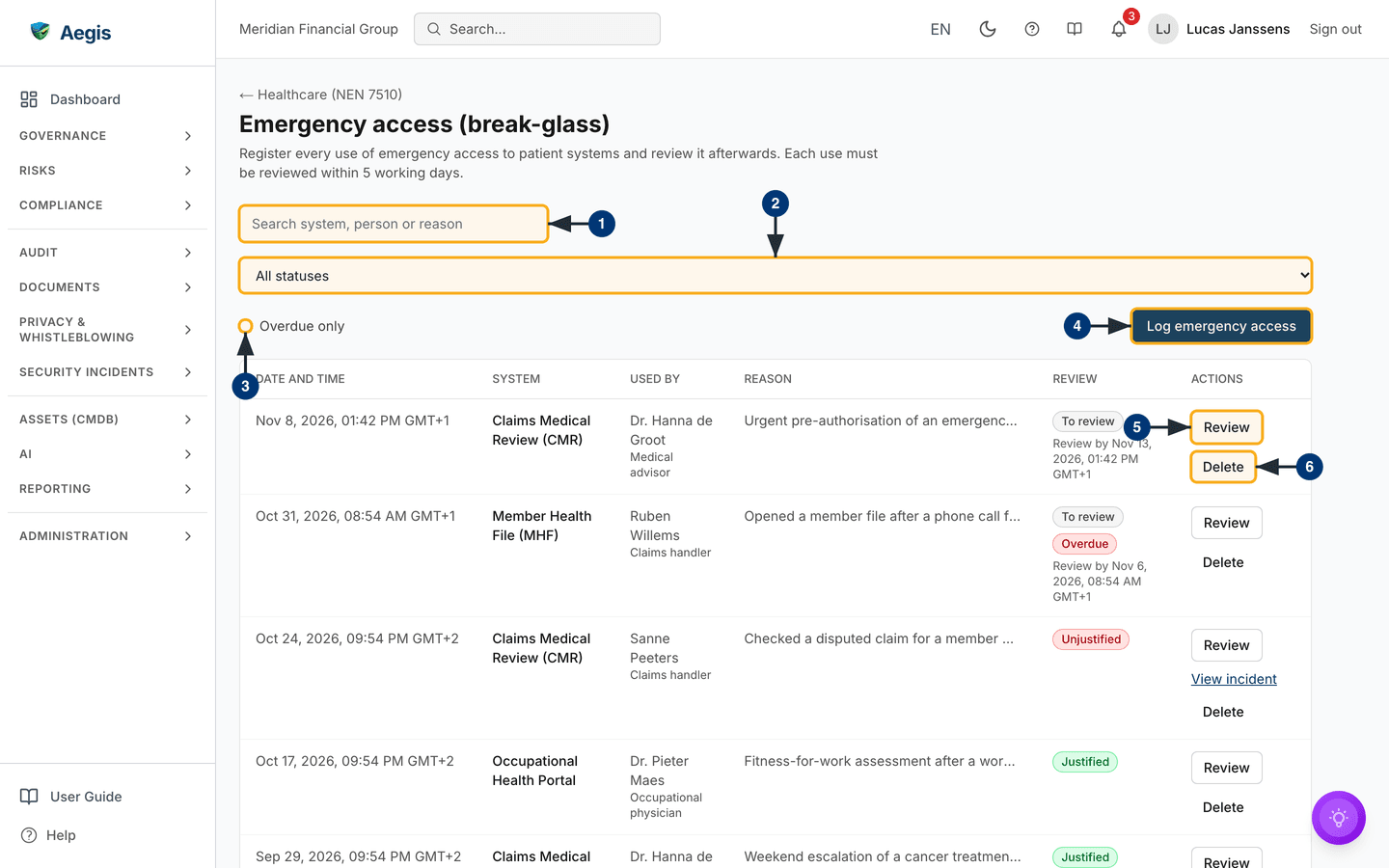
The table has the columns Date and time, System,
Used by, Reason, Review and
Actions. The date and time show in your local time with its time
zone. Used by carries the person's role underneath the name, and a
long reason is cut short in the row. A use still To review shows
Review by … underneath its badge; once that deadline has passed, a
red Overdue badge joins it. Twenty uses show per page, with
Previous and Next underneath. With nothing logged yet,
the register shows No emergency access logged.
-
Type in
Search system, person or reasonto narrow the list. It searches the three text columns. -
Choose a status in
All statuses:To review,JustifiedorUnjustified. -
Tick
Overdue onlyto keep the uses whose review deadline has passed. While it is ticked, the status list is fixed onTo review. -
Select
Log emergency access(Contributor and up) to record a new use. The dialog is described in the next section. -
Select
Review(Manager or Admin) to judge the use. If you logged the use yourself, the button is replaced by a note: another manager has to review it. The button stays on reviewed rows too, so a Manager can revise an earlier judgement. -
Select
Delete(Manager or Admin) only for a mis-entry, for example one that contains patient data. After you confirm, the row leaves the register; its reason, actor and review notes are erased, also where they were copied into a follow-up incident. The entry itself stays in the audit trail.
Log a use
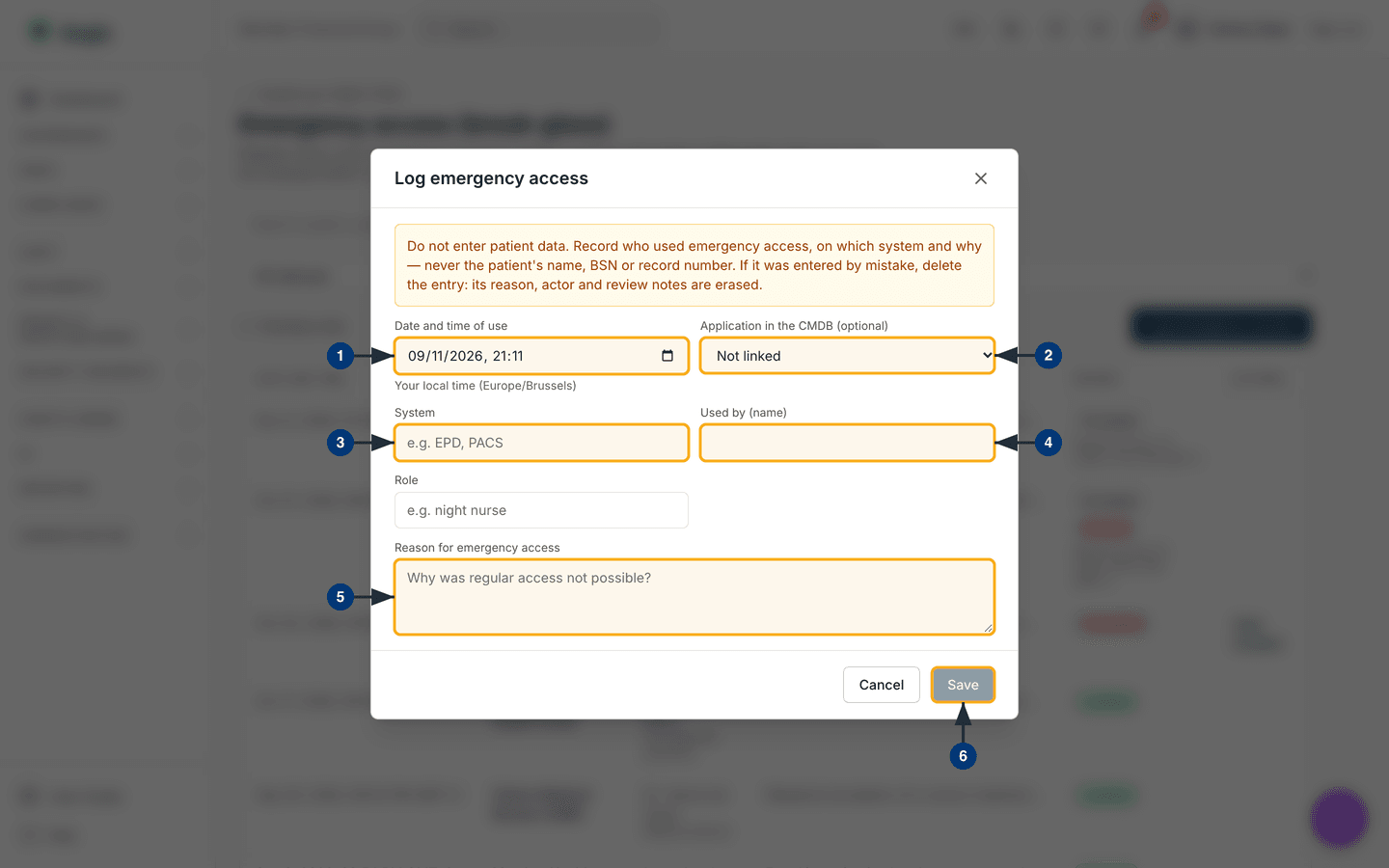
The Log emergency access dialog opens with an amber warning. Read
it first: never enter patient data, so no name, BSN (citizen service number) or
record number. Record who used emergency access, on which system and why.
-
Set
Date and time of use. It starts at the current time and is your local time; the line underneath names the zone, for exampleYour local time (Europe/Brussels). A time in the future is refused. -
Optionally pick the application in
Application in the CMDB (optional). Picking one fillsSystemwith its name, and the register then shows the application's name. It staysNot linkedif the system is not in your software register; the list is unavailable without read access to the CMDB. - Type the
System, for example EPD or PACS. -
Enter who used it in
Used by (name), and add theirRole, for example night nurse. The role is optional. -
Explain in
Reason for emergency accesswhy regular access was not possible. -
Select
Save. It stays greyed out until the date, system, name and reason are filled. The use is added asTo reviewwith its review deadline, and the hub'sEmergency accesstile counts it.
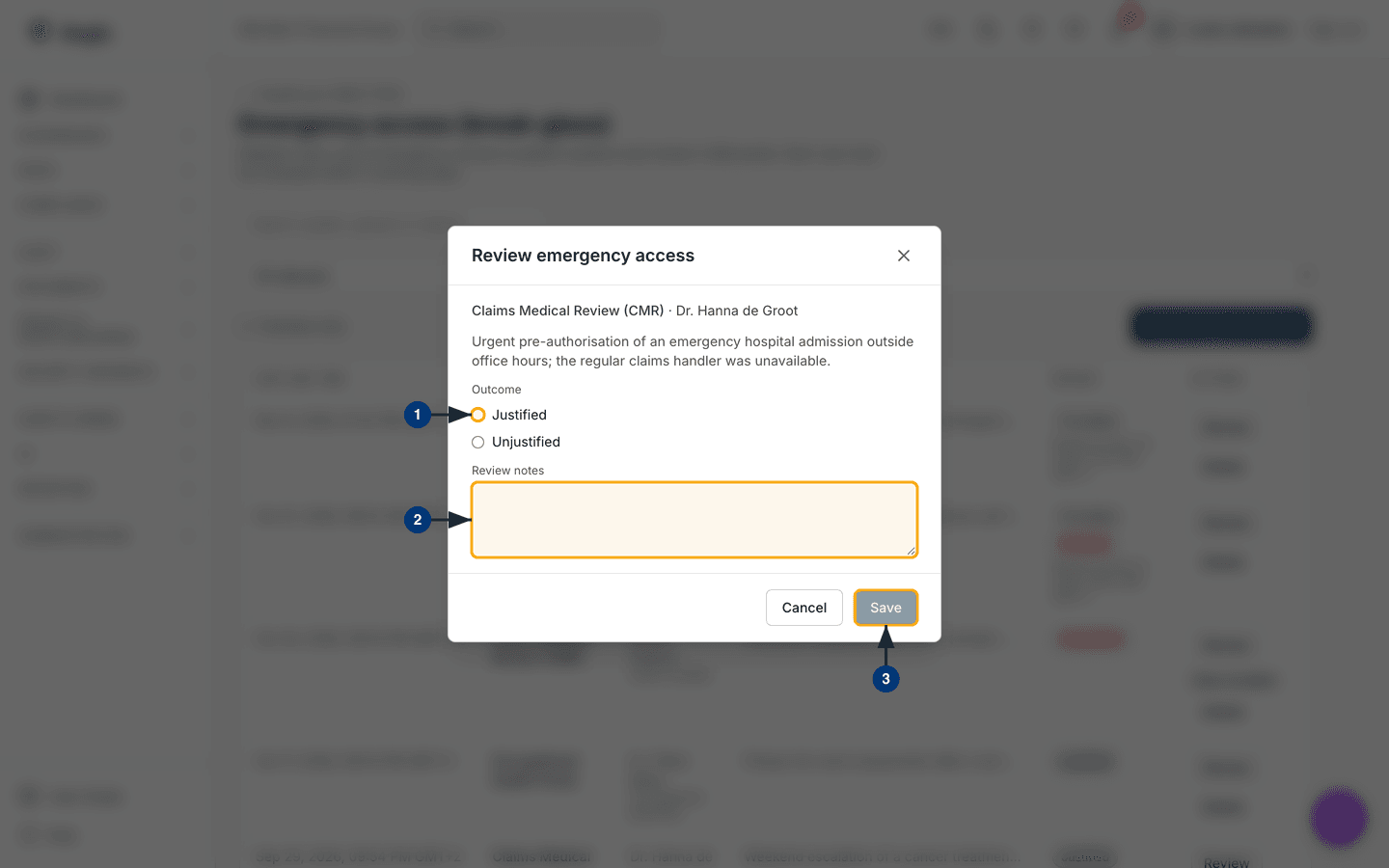
Review a use
-
The dialog repeats the system, the person and the reason. Choose the
Outcome:JustifiedorUnjustified. On a use that was reviewed before, the earlier outcome and notes are already filled in. - Record your reasoning in
Review notes. -
Select
Save; it is greyed out until you choose an outcome. The status badge changes. For anUnjustifieduse, aCreate incidentbutton then appears on the row (where the Incidents module is on and you may create incidents); it opens a follow-up incident with the reason and your notes, and the row then links to it withView incident.
Tips and limits
- The register records uses that someone logs by hand. Aegis does not read the logs of your patient systems, so a use nobody logs never appears here.
- Coverage counts approved, current evidence. It does not judge whether that evidence meets the requirement, and a high figure is not a certificate.
- The certification timeline picks up an audit when its scope includes NEN 7510 controls. Set the audit type when you create the audit, so the milestone carries the right label.
- The hub tiles hide silently when you lack the permission or the module behind them is off. A missing tile is not an error.
Where this connects
Framework controls and the Statement of Applicability live in Compliance frameworks; periodic reviews in Control monitoring; audits and their types in Audits; medical devices in CMDB. The Z-CERT and IGJ duties are explained in Incident reporting, and the NIS2 sector is set in Settings. Suppliers live in Vendors, the board's management review in Management reviews, the incident-reporting template in Workflows and the Zorg methodology in Risks.