GDPR
One workspace for your data-protection records: subject requests, processing activities, impact assessments, processor agreements, transfers, retention and consent.
GDPR (the European Union's data-protection law) places record-keeping duties on
any organisation that handles personal data. This module gathers that work under
one
GDPR entry in the sidebar. It does not replace your legal team's
judgement; it gives you the records and the audit trail to show a
supervisory authority (your data-protection
regulator) that you are accountable.
This chapter is the module reference. For the most common journey worked end to end — a person asking for their data, from inbox to closure — see the full walkthrough in Scenario: handling a data-subject request; HR staff who receive such requests first should start with the HR scenario.
The module is provisioned per tenant. When it is not enabled the entry is hidden and the registers cannot load. Ask your account manager to switch it on.
Who uses it
A Viewer and a
Contributor can open every
register. Creating and editing records needs
Manager or
Admin. Those buttons are absent
rather than disabled for lower roles, which is why the register captures here
show no Add button: they were taken as a Contributor. The two
full-page create forms shown later were captured as a Manager. On the landing
page the same rule hides the Start DPIA and
Add Activity tiles from a Contributor.
A Contributor may still work subject requests, within limits. They can
acknowledge a request that is unassigned or assigned to them. Moving a request
on — Mark Verified, Start Work, completing it,
refusing it, or editing its AI draft — works only on a request assigned to them;
on any other open request the page says
Unassigned — ask a manager to assign it to you before responding or
                        refusing.
Managers and Admins may act on every request. Deciding a DPIA needs the approval
right only Manager and Admin hold.
What's on this screen
The landing page at /gdpr is headed GDPR Compliance.
The Deadline Alerts panel fills the first screen: five pills —
All, DSR, DPA, Consent,
Transfer — above rows that each name a record and the party it
concerns, with the due date underneath and a coloured days marker on the right.
A coloured bar down the left edge of each row shows urgency: red for the most
urgent, then amber, yellow and green. A subject-request line reads as the right
being exercised and the person's email address; an agreement line as
DPA and the supplier; a transfer line as Transfer and
its processing activity.
Scrolling on brings four metric cards — Processing Activities,
Data Subject Requests, Data Processing Agreements,
Consent Records — then the Quick Actions tiles (Handle DSR
and Transfers for everyone; Start DPIA and
Add Activity for Managers and Admins). Below them sit a
Recent Subject Requests panel, which points you to the queue with a
View all link rather than listing requests itself, and a
Compliance Checklist. The module has one sidebar entry, so those
cards and tiles are how you reach its registers.
-
In the sidebar, open
PRIVACY & WHISTLEBLOWINGand chooseGDPR. The landing page opens and the alerts panel loads. -
Select a pill in
Deadline Alerts.Allis active on arrival; another narrows the feed to that one kind of record. - Select an agreement line. It opens that processor agreement's own page, where the expiry date can be updated.
-
Select a transfer line. It opens the transfer, whose
Next Review Dateraised the alert. -
Select a subject-request line. It opens the request. Work red markers first
— that date has passed. On the captured screen an agreement
30 days overdueheads the list, with several requests overdue below it and later ones markeddays remaining. -
The
?in the top bar opens this guide inside Aegis. Scroll on and select a card or tile to open the register behind it.
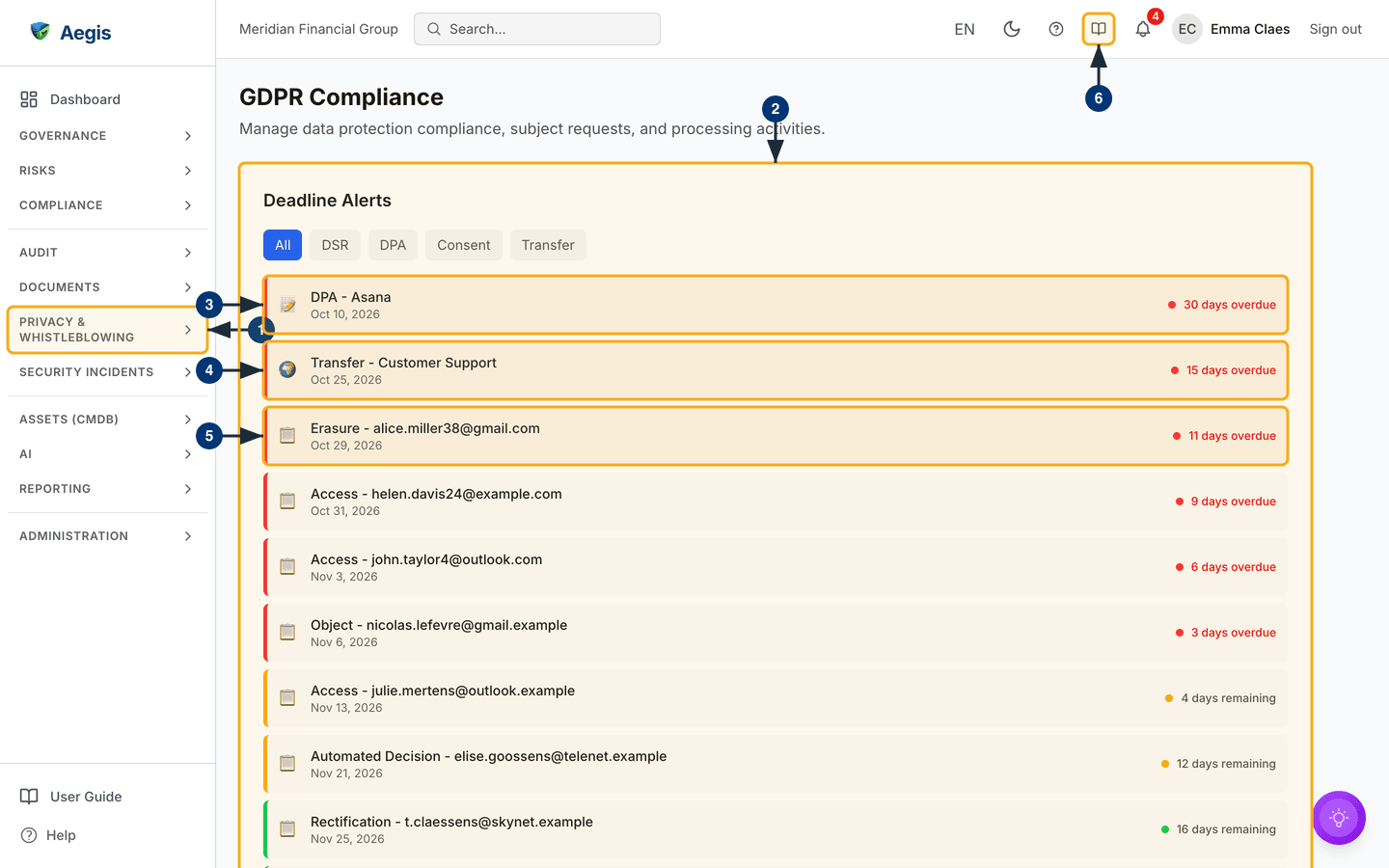
Subject-request, agreement and transfer lines open the record they name. A consent line has no page of its own to open, so it stays a plain line: go to the consent register and search for the person there.
Handling a data subject request
A data subject request (DSR) is a person
asking to see, correct or delete the data you hold about them — or to restrict
it, object, or receive a portable copy, or to challenge an automated decision.
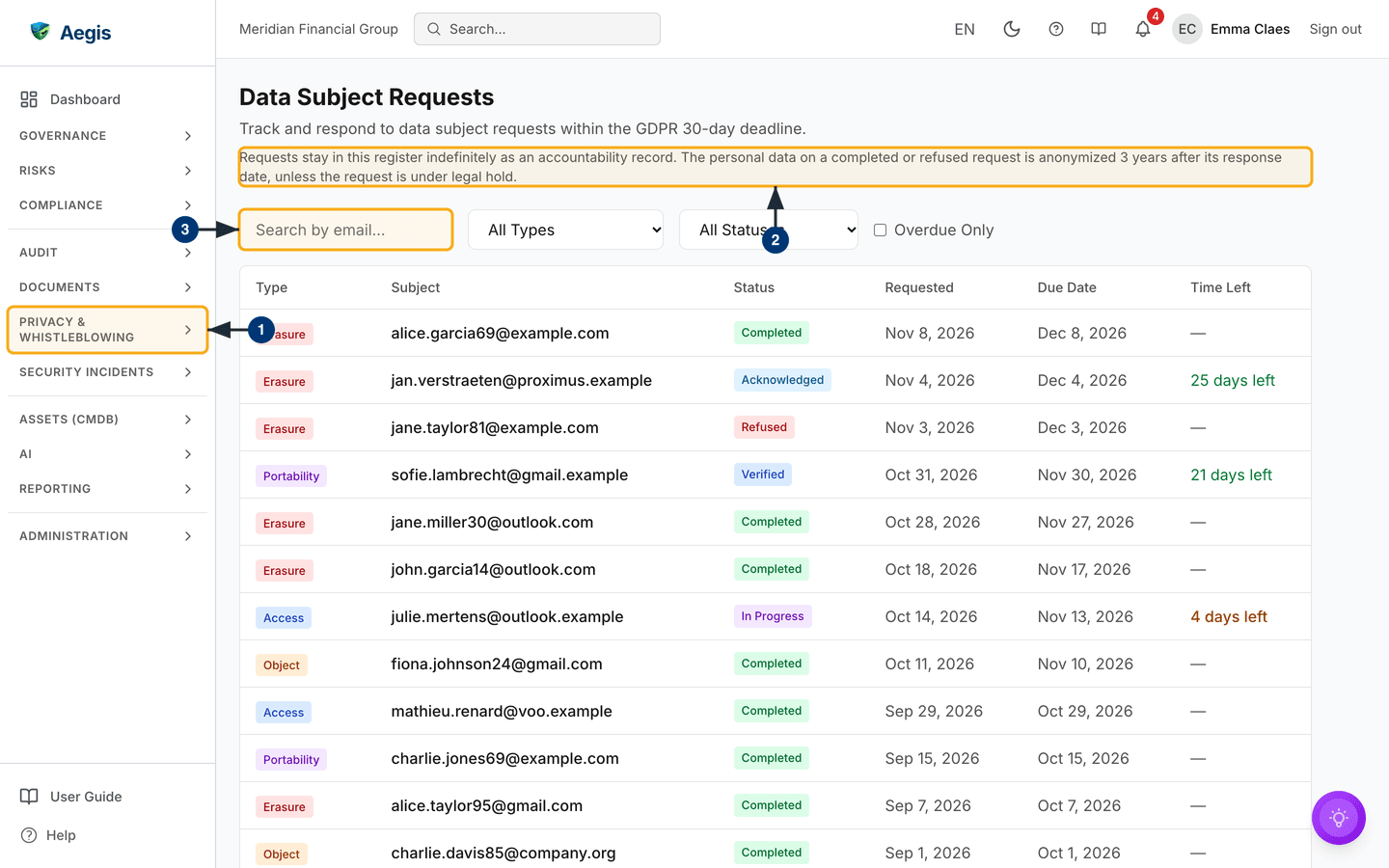
The queue at /gdpr/dsr is headed
Data Subject Requests. Under the heading a short notice states the
retention position, explained under “How long requests are kept” below. Then
come a Search by email… box, All Types and
All Statuses dropdowns and an Overdue Only tickbox,
above a table of Type, Subject, Status,
Requested, Due Date and colour-coded
Time Left. The queue shows 20 requests a page, with page controls
underneath when there are more.
-
Open the queue from the
Data Subject Requestscard or theHandle DSRtile. The sidebar entry underPRIVACY & WHISTLEBLOWINGreturns you to the landing page. - Read the notice under the heading: requests stay in the register indefinitely, and the personal data on a completed or refused request is anonymised three years after its response date unless it is under legal hold.
-
Type part of an email address into
Search by email…. The table narrows as you type, to the requests whose subject address contains it. -
Narrow further with the dropdowns or the tickbox; the filters combine.
All Statusesalso offersOpen (not closed), which shows every request still in play. -
Read
StatusandTime Leftto decide what comes first. A redAcknowledgement overduebadge beside the status means the Article 12(3) acknowledgement deadline has passed without one, even whenTime Leftis still green; aLegal holdbadge marks a request exempt from anonymisation.Time Leftturns amber close to the deadline and red once it has passed. The captured screen shows an acknowledged erasure request with25 days left, a verified portability request with21 days left, an in-progress access request with4 days leftin amber, and completed or refused rows showing a dash. -
Select a row. The request opens on its own page with a details grid and the
Fulfillmentsection described next.
Working a request on its page
The request page carries a Fulfillment stepper:
Pending → Acknowledged → Verified →
In Progress → Completed or Refused. The
details grid shows the request type, the data subject, the dates, the
acknowledgement deadline, the request language where one was recorded, and
Assigned to when someone is assigned. When an administrator has
turned AI off for the organisation, a banner on the queue and on the request
page says the AI steps are paused.
-
Select
Acknowledge Request(shown only whilePending). Aegis records the acknowledgement and its operator before attempting the notification. The delivery panel remains available after reload: send a pending notification only if no attempt has started. An uncertain or stalled attempt is never resent. Check the original outcome or contact the person through another channel, then record your confirmation and a note. Human confirmation is labelled separately from the mail service’s acceptance. -
Advance the request as the work progresses. Once a request is
Acknowledged,Mark Verifiedrecords that the requester's identity has been confirmed; onceVerified,Start Workmoves it toIn Progress. Both need the DSR-handling permission, and each moves the stepper one stage. -
If an
AI-Drafted Responsepanel appears, review it. It shows the suggested reply, a confidence figure, and how many systems and records the data lookup found. UseEdit Draftto correct the text (the panel then showsEdited by reviewer) orReject Draftto discard it, with an optional reason.Approve & Sendis offered only once the request isIn Progress; it records the draft as the response and moves the request toCompleted. -
To close the request with a response you write yourself, select
Complete Manually(offered fromAcknowledgedonwards), type the response you sent (or will send) to the person into the required box, and selectConfirm Completion. The request moves toCompleted— final — and the text is kept on the record. Sending the answer through your normal channel remains your job; file a copy underCOMPLIANCE→Evidence. -
To turn a request down, select
Refuse, type theRefusal Reasonand selectConfirm Refusal. -
If the request uncovers a personal-data breach, log it under
SECURITY INCIDENTS. The 72-hour notification clock is handled there. -
Open
AUDIT→Audit Logto see who moved a request, when, and to what.
| Status | What it means |
|---|---|
Pending |
Logged; no acknowledgement sent |
Acknowledged |
Receipt recorded; check the separate notification delivery status |
Verified |
Identity confirmed by the recorded method |
In Progress |
Being worked on |
Completed |
A response is recorded; final |
Refused |
Turned down with a recorded reason; final |
Expired |
Set automatically once the deadline passes an open request |
Logging a new request
With Manager or Admin rights the queue shows New Request, which
opens the full-page form at /gdpr/dsr/new, headed
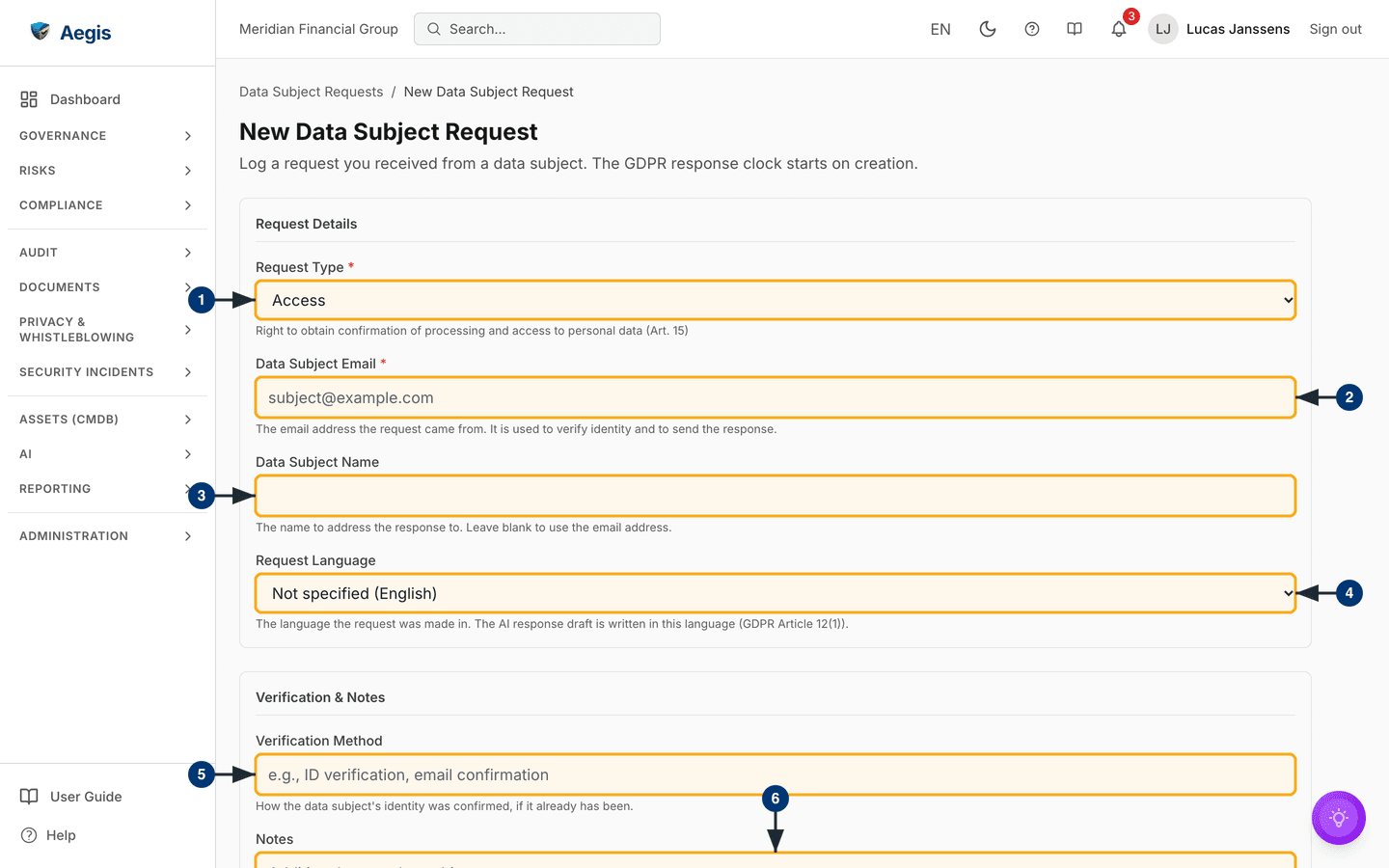
New Data Subject Request. Its subtitle says it plainly: the GDPR
response clock starts on creation. The form has two cards,
Request Details and Verification & Notes, and
every field carries a line of help underneath.
-
Choose the
Request Type.Accessis preselected, and the line under the box explains the right each type exercises — here Article 15. -
Type the
Data Subject Email. It is the address the request came from, used to verify identity and to send the response. -
Optionally add the
Data Subject Name— the name to address the response to. Left blank, the email address is used. -
Set the
Request Languageto the language the request was made in. It readsNot specified (English)until you choose; the list offers English, French, Dutch, German, Spanish, Italian and Portuguese, each in its own name. The AI response draft is written in this language (Article 12(1)). -
Record the
Verification Method— how the person's identity was confirmed, if it already has been. -
Add
Notesfor whoever handles the request. They are internal, never shared with the data subject. Then selectCreate Requestat the foot of the form. The request saves asPendingwith a due date 30 days out, and its detail page opens.
Where your licence includes AI, the organisation has AI switched on, you hold
the right to run AI actions and you have acknowledged the AI transparency
notice, creating the request also starts the AI pipeline in the background. If
any of those is missing, the request is still saved; it does not enter the
pipeline, and you handle it manually. In the pipeline, Aegis looks the person up
across your connected systems, maps what it finds, and drafts a response. The
draft appears on the request page as the AI-Drafted Response panel
described above. If a step fails, the page shows
AI draft not available with the reason, and you handle the request
manually.
Aegis sets the due date 30 days from the moment the record is created, not from the date the request arrived. If it reached you earlier, note the real received date so your team manages the true legal deadline. The acknowledgement is the only message Aegis sends.
How long requests are kept
Aegis never deletes a data subject request. The register is your Article 5(2) accountability record: a supervisory authority asking how you handled the requests you received in a given year has to be able to see them. There is deliberately no delete button and no delete endpoint.
What does expire is the personal data on the request. Three years after the
Response Date, a request whose status is Completed or
Refused is anonymised automatically, overnight:
-
The requester's email address is replaced by a placeholder, and the name,
internal
Notesand recorded response content are cleared. - The cross-connector data subject inventory gathered for the request is deleted and the ingested source email is purged.
- The acknowledgement letter is redacted — the fact that you acknowledged the request, and when, is kept as your Article 12(3) proof.
- The request keeps its type, its dates, its status and its deadline history, so statistics and compliance reports covering past years stay intact.
The date it happened is shown on the request as Anonymized.
A request under Legal hold is never anonymised, whatever its age. A
hold is for when litigation, a supervisory-authority inquiry or an internal
investigation means you may still need the original identifiers. The hold is
shown as a badge beside the status, both in the queue and on the request page.
The request page has no switch for setting or clearing it: the hold is set
through the Aegis API, so ask whoever administers your integrations.
Anonymisation cannot be undone. Once a request has been anonymised, the requester's identity is gone from the register for good, so a hold that should have been set and was not cannot be repaired afterwards.
Building the record of processing activities
A record of processing activities (ROPA) is
the map, required by Article 30, of every activity in which you process personal
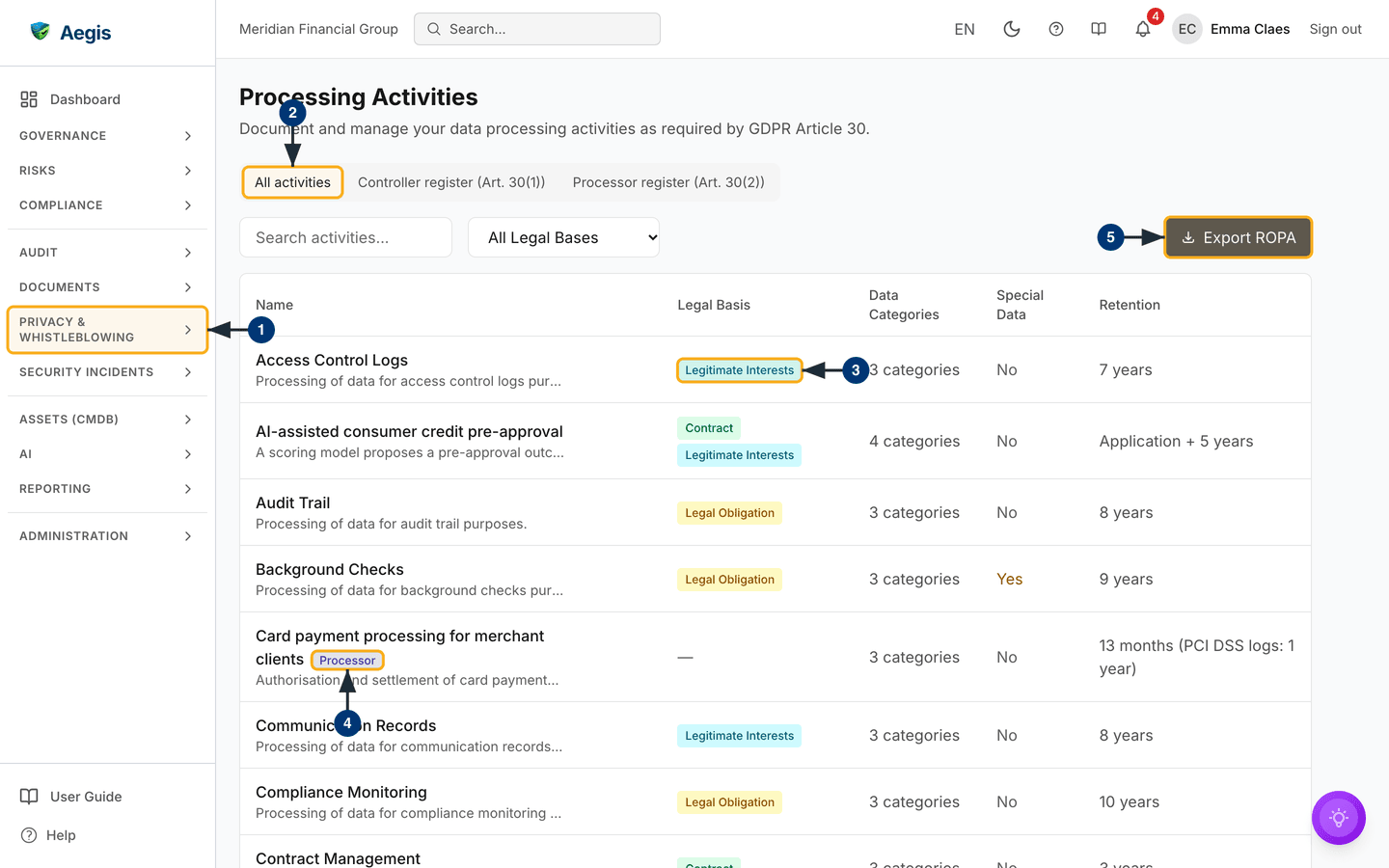
data. The page at /gdpr/processing is headed
Processing Activities. A Register switch sits at the
top (All activities, Controller register (Art. 30(1)),
Processor register (Art. 30(2))). Below it are a
Search activities… box and an All Legal Bases dropdown
on the left and Export ROPA on the right, then a table of
Name (with a one-line description), a coloured
Legal Basis badge for every basis the activity relies on,
Data Categories as a count, a Special Data flag and
Retention. A processor activity carries a
Processor badge beside its name and a dash under
Legal Basis.
-
Open the register from the
Processing Activitiescard.PRIVACY & WHISTLEBLOWING→GDPRin the sidebar takes you back to the landing page. -
Choose a register view.
All activitiesis selected on arrival; the controller and processor views narrow the table to that role. -
Search by name, or pick a legal basis; the filter matches an activity on any
of its bases. On the captured screen
AI-assisted consumer credit pre-approvalshows two badges,ContractandLegitimate Interests. -
Look for the
Processorbadge. The captured screen shows one onCard payment processing for merchant clients, whose legal basis reads as a dash because the basis belongs to the controller you process for. -
Select
Export ROPA. A dialog offersJSON,CSVorPDF; choose a format and aRegister— the controller register holds controller activities only, the processor register has the Art. 30(2) columns — and it downloads. -
Select a row to open the activity: purposes, data categories, recipients,
retention, security measures and transfer safeguards, plus a
Related Datablock counting attached consents and transfers. AYesunderSpecial Datameans Article 9 special-category data. -
With Manager or Admin rights,
Add Activitysits beside the export button and opens the form for name, legal basis, purposes, categories, recipients, retention, security measures and transfer safeguards. The same rights add anActionscolumn with aStart DPIAlink on every row. -
File the export under
COMPLIANCE→Evidenceso an auditor can find the version you relied on.
Role, controller, owner and legal bases
The activity form records who is accountable for the processing, not only what it is. The detail page shows the same fields.
| Field | What it records |
|---|---|
Role |
Controller (the organisation decides why and how the
data is processed; the Art. 30(1) register) or
Processor (it processes on behalf of another
controller; the Art. 30(2) register). Existing activities are
controllers.
|
Controller on whose behalf |
Processor activities only, and required: the controller you process
for, with optional Controller contact details. A
processor activity is not asked for a legal basis or a
legitimate-interests justification; those belong to the controller.
|
Controller entity / Processor entity |
Only when another legal entity, such as a group company, plays that
role for this activity. Left empty, the organisation from Settings
applies; the detail page then marks the controller as
organisation default.
|
Owner |
Pick a user, or type a name for someone without an account. Setting
one clears the other. A deactivated owner is shown as
inactive.
|
Additional legal bases |
Tick every further Art. 6(1) basis the activity also relies on, for
example contract and legal obligation.
Legal Basis stays the primary basis. Whenever
legitimate interests is relied on at all, the
Legitimate Interests Justification is required.
|
The export follows these fields: an Owner column and a per-activity
Controller column, and every legal basis an activity relies on.
Assessing high-risk processing
A data protection impact assessment (DPIA) is
the analysis Article 35 requires before high-risk processing. The page at
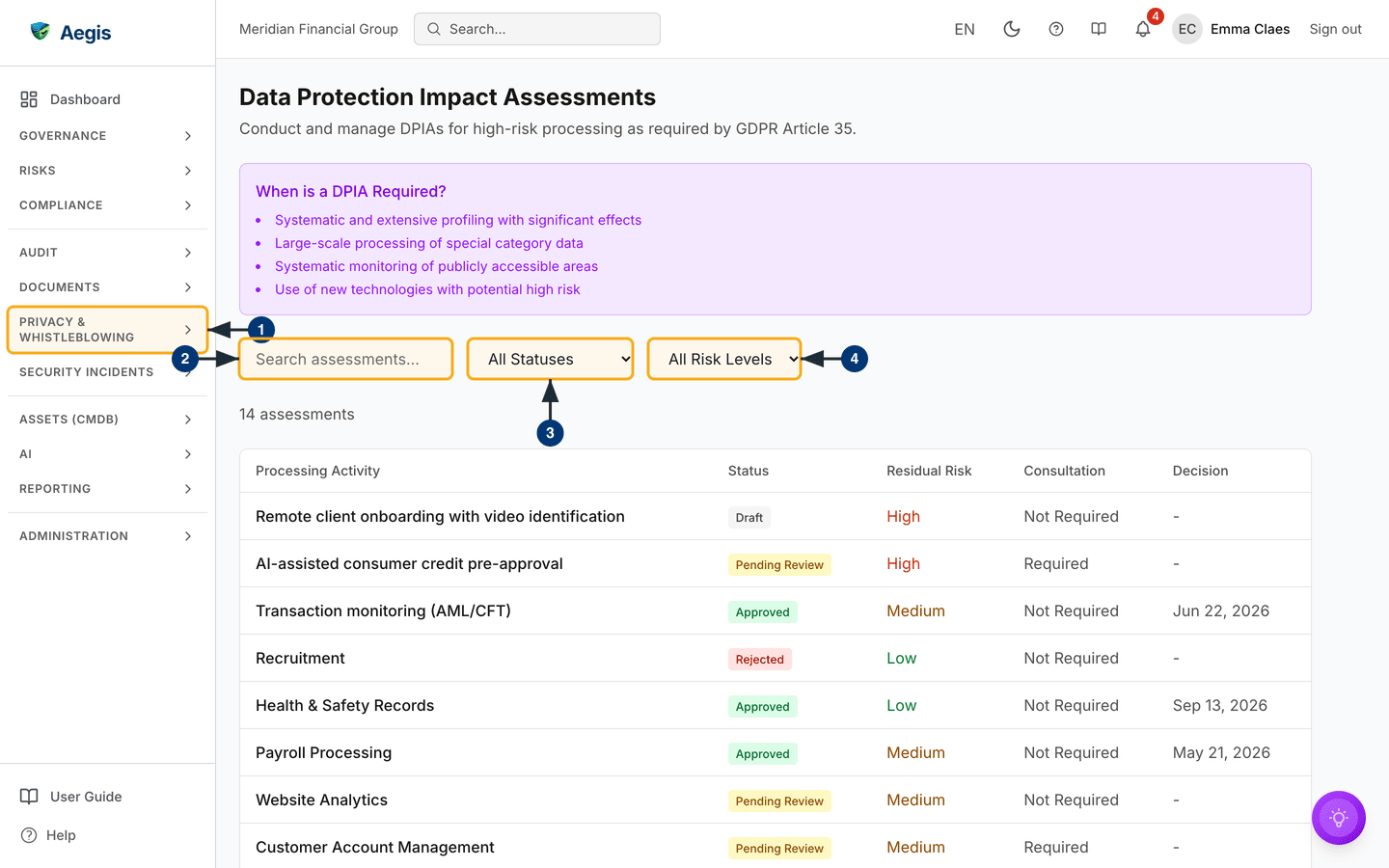
/gdpr/dpia opens with a When is a DPIA Required? panel
listing four triggers, then a Search assessments… box with
All Statuses and All Risk Levels dropdowns, a count —
14 assessments on the captured screen — and the table:
Processing Activity, Status,
Residual Risk, Consultation and Decision,
which shows the approval date once an assessment is approved. Managers and
Admins also see Create DPIA beside the heading and
Start from Processing Activity
beside the count.
-
Open
PRIVACY & WHISTLEBLOWING→GDPR. Managers and Admins take theStart DPIAtile; everyone else reaches the register at/gdpr/dpia. - Search by activity name. The table narrows to the matching assessments, and the count follows.
-
Filter by status —
Draft,Pending Review,ApprovedorRejected. -
Filter by residual risk —
Low,Medium,HighorCritical. Where Article 36 prior consultation applies,ConsultationreadsRequired. - Read the trigger panel first. If none of the four applies, record why instead. Then select a row to open the assessment: necessity, proportionality, risks and mitigations, and its residual risk.
-
Decide it. With Manager or Admin rights the detail page carries
Approve DPIAandReject DPIAon any assessment not yet decided; a rejection asks for a reason. A decided assessment cannot be decided again. -
A high residual risk you accept rather than mitigate belongs in
RISKSas well. Aegis does not raise the risk for you. Keep the signed write-up underCOMPLIANCE→Evidence.
Creating an assessment
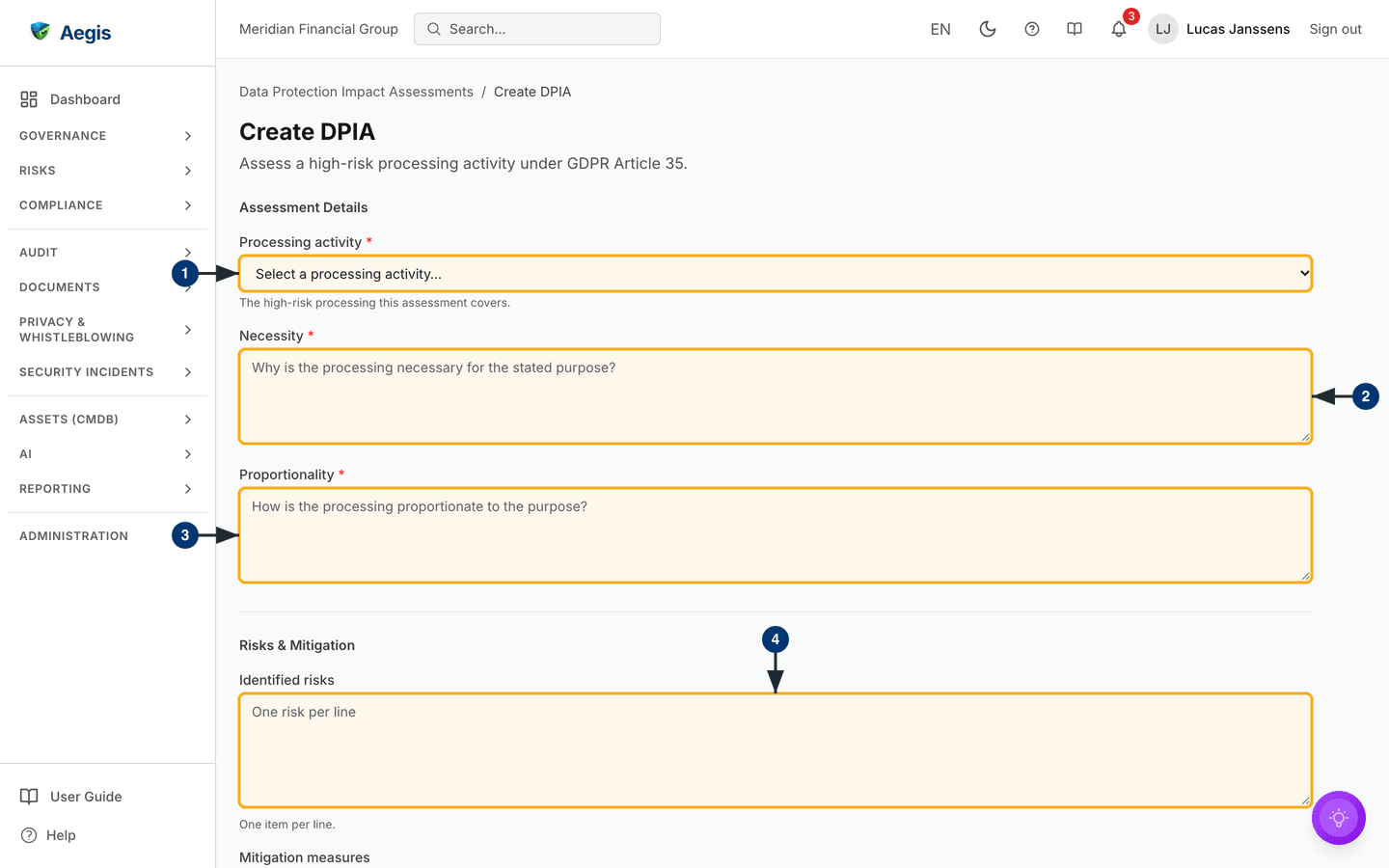
Create DPIA opens the full page at /gdpr/dpia/new,
headed Create DPIA.
Start from Processing Activity takes you instead to the processing
register, where each row's Start DPIA link opens the same form with
that activity already chosen. Every assessment is anchored to one activity, and
an activity can have only one — so build the ROPA first.
-
Select the
Processing activitythe assessment covers. The dropdown lists your recorded activities; with none recorded, the form says so and links you to the register. -
Necessity(required): why the processing is necessary for the stated purpose. -
Proportionality(required): how it is proportionate to that purpose. -
Under
Risks & Mitigation, list theIdentified risksto data subjects — one per line.
Further down, below the captured part of the form:
Mitigation measures, one per line.-
Residual risk— the risk that remains after those measures. -
Under
Review & Consultation, an optionalDPO opinionand a tickbox forPrior consultation with the supervisory authority required. -
Create DPIAsaves it. The assessment opens on its detail page asDraft, ready for review and a decision. If the activity already has an assessment, Aegis refuses and asks you to open the existing one.
Recording processor agreements
A data processing agreement (DPA) is the
contract Article 28 requires with every supplier that processes personal data
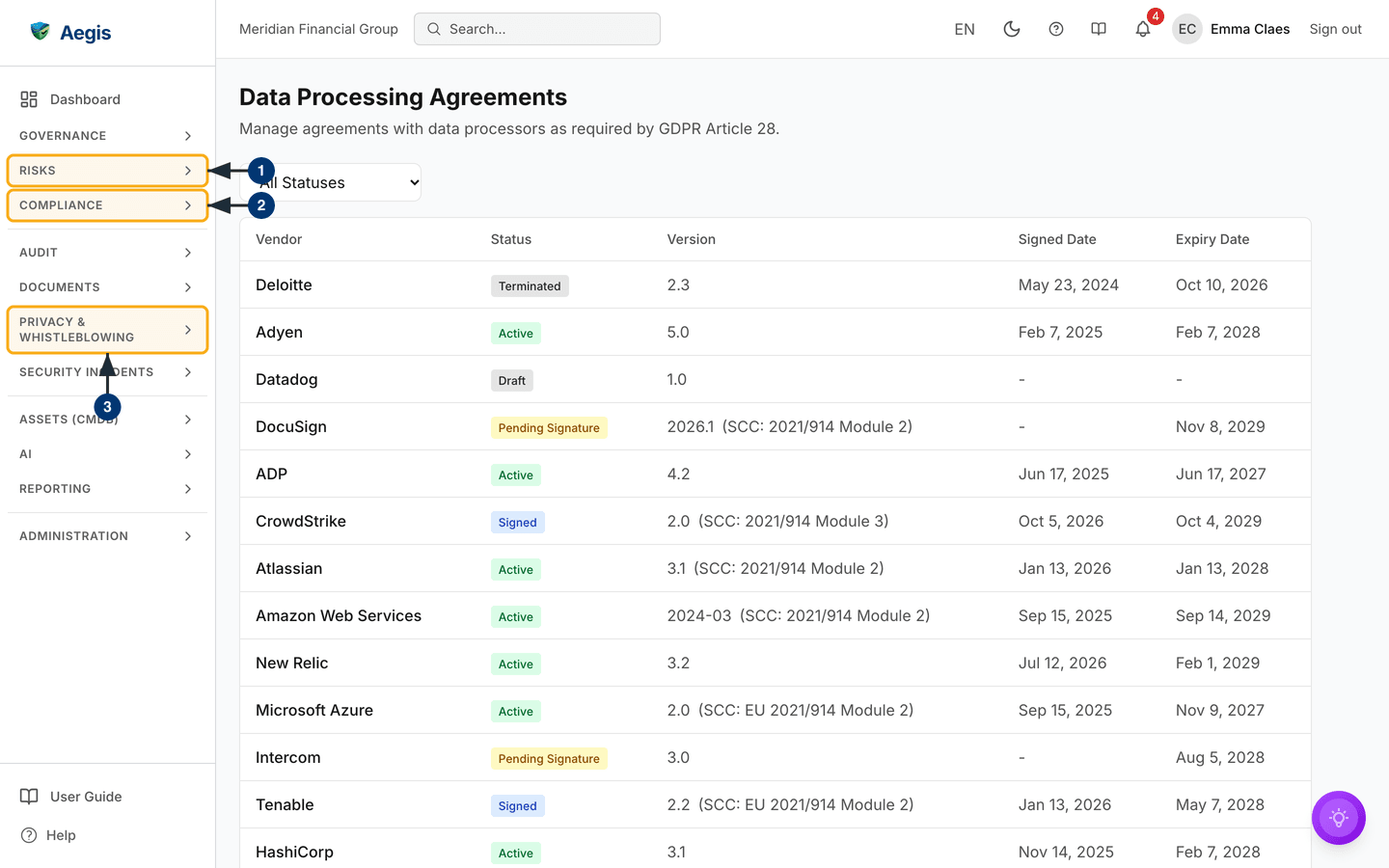
for you. The page at /gdpr/dpa has a single
All Statuses dropdown above Vendor,
Status, Version, Signed Date and
Expiry Date. Version adds the standard contractual
clauses version in brackets where one is recorded, for example
(SCC: 2021/914 Module 2). An active agreement that expires within
30 days shows its expiry date in amber with a warning sign. The captured screen
shows the register filled with agreements in every status; a new tenant starts
on No data processing agreements found.
-
Create the supplier first. Vendors live under
RISKS→Vendors, and an agreement must point at a vendor record that already exists. -
Keep the signed contract itself under
COMPLIANCE→Evidence. This register holds facts about the document, not the document. -
Return to the landing page and select the
Data Processing Agreementscard. The register opens. -
With Manager or Admin rights,
Add Agreementappears beside the filter and opens a dialog: vendor, status, DPA and SCC version, signed and expiry dates, the breach-notification window in hours (leaveBreach Notification (hours)empty when the contract names none: it then readsNot specified, and Aegis does not assume 72 hours), and whether encryption, audit rights and location restrictions are agreed. -
Use
All Statusesto work one slice —Draft,Pending Signature,Signed,Active,ExpiredorTerminated. -
Select a row. The agreement opens on its own page with its details, the
breach window and security terms, any location restrictions, and the AI
metadata screening described below. On renewal, Managers and Admins select
Editand update the dates; the expiry date feeds the deadline alerts on the landing page.Deleteasks for confirmation first.
Transfers out of the EEA
Transfers record when personal data leaves the European Economic Area and the
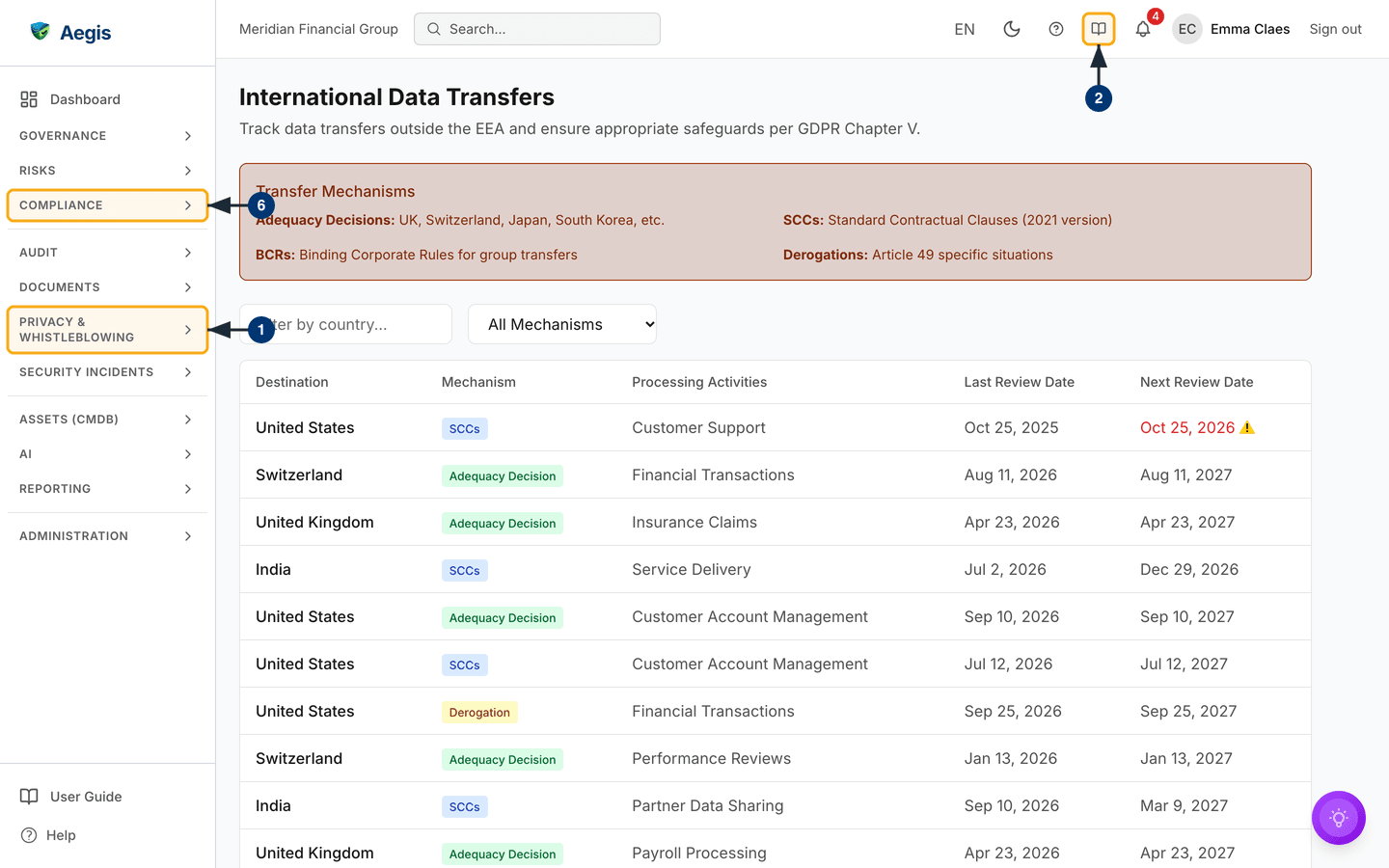
safeguard that authorises it. The page at /gdpr/transfers is headed
International Data Transfers and opens with a
Transfer Mechanisms reference panel — adequacy decisions, standard
contractual clauses (2021 version), binding corporate rules and Article 49
derogations — then a Filter by country… box and an
All Mechanisms dropdown above Destination,
Mechanism, Processing Activities,
Last Review Date and Next Review Date. A next review
date that has passed shows in red with a warning sign; on the captured screen
that is the first row, a transfer to the United States under standard
contractual clauses.
-
In the sidebar, open
PRIVACY & WHISTLEBLOWING→GDPR, then select theTransferstile on the landing page. The register opens. -
Read the mechanisms panel first: the one you pick sets what the record must
prove. Unsure which mechanism applies? The
?in the top bar opens this chapter inside Aegis. -
Type a country into
Filter by country…or pick a mechanism. The table narrows to the matching transfers. -
Keep
Next Review Datecurrent — it is what raises a transfer in the alerts. Select a row to open the transfer. -
Scroll to
Transfer Impact Assessment (TIA). The section appears only where your licence includes the GDPR automation feature.Run TIAqueues an AI-assisted adequacy and Schrems II analysis, which returns an overall risk, a confidence figure and recommendations. -
Once you have read the result, select
Mark as reviewed; the section then shows who reviewed it and when. UseCopy,Export PDForExport DOCXon the TIA, and file the result underCOMPLIANCE→Evidence.
Recording a transfer
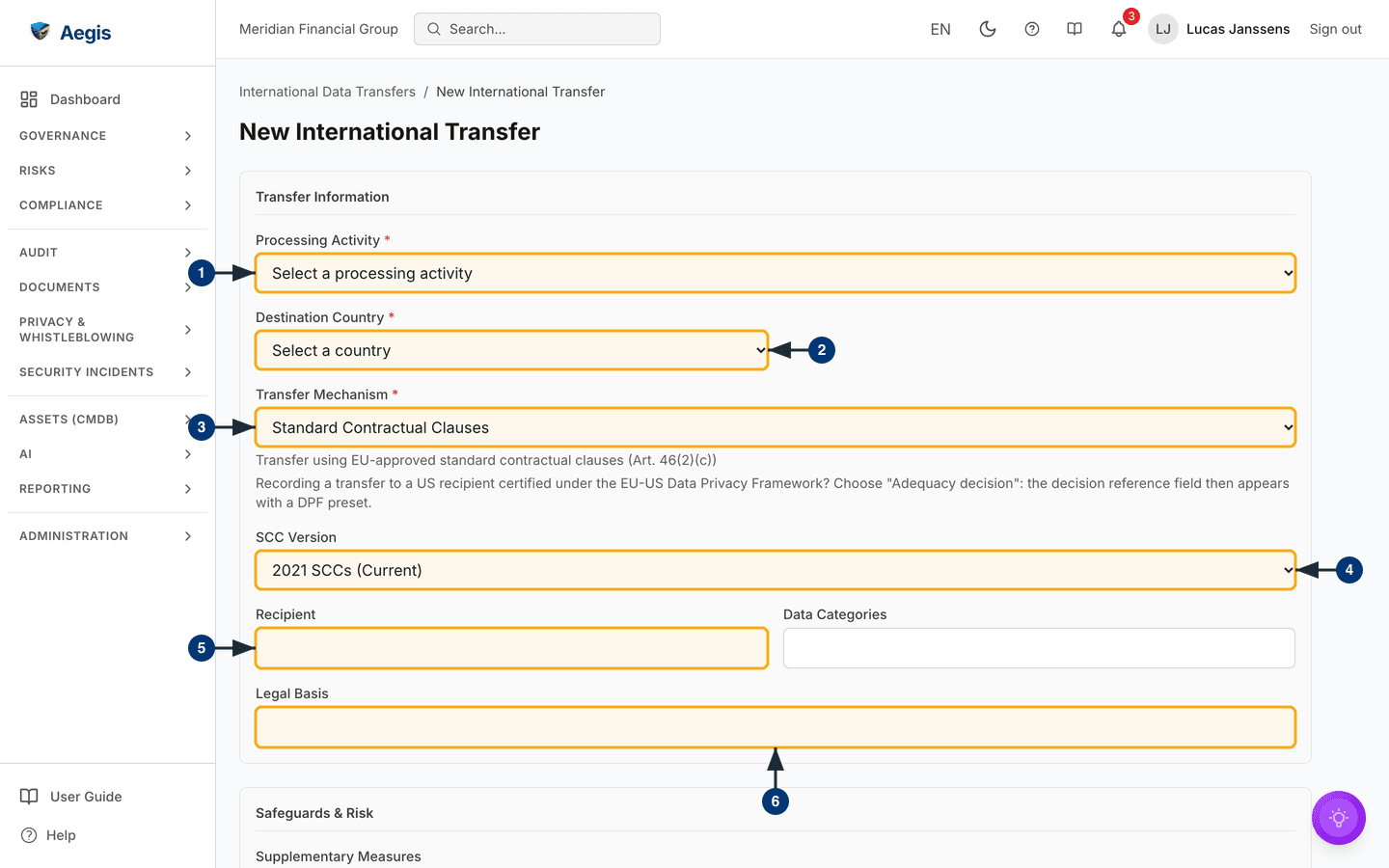
With Manager or Admin rights, Add Transfer opens the full page at
/gdpr/transfers/new, headed
New International Transfer, split into
Transfer Information and Safeguards & Risk.
- Select the
Processing Activitythe transfer belongs to. -
Select the
Destination Country. ChoosingOtheradds a free-text field for the country name. -
Select the
Transfer Mechanism.Standard Contractual Clausesis preselected, with the Article 46(2)(c) reference beneath; an adequacy decision asks for its reference instead. For a United States recipient certified under the EU-US Data Privacy Framework, choose the adequacy decision mechanism (the hint under the field says so). -
Confirm the
SCC Version—2021 SCCs (Current)unless you have a legacy set still in force. -
Name the
Recipient, and fillData Categoriesbeside it. -
Record the
Legal Basis. Then, underSafeguards & Risk, describe theSupplementary Measures(encryption, pseudonymisation) and the risk summary, and save. The transfer opens on its detail page.
Two further fields sit in the form, and in the inline edit on a saved transfer's detail page:
-
Last Review DateandNext Review Date. Both can be entered and cleared; the next review date is what raises the transfer in the alerts. -
With an adequacy decision and a United States destination,
Use preset: EU-US Data Privacy Framework (Decision (EU)
                            2023/1795)
fills in the decision reference. Aegis then asks you to confirm that the recipient holds an active self-certification on the Data Privacy Framework List, and will not save the transfer until you do. The framework covers transfers to the United States only, so the DPF reference is refused with any other destination.
Retention schedules
Retention defines how long each category of personal data may be kept, as
Article 5(1)(e) requires. The register is at /gdpr/retention and is
reached by address — it has neither a card nor a tile on the landing page. A
short panel of retention principles sits above the table, which lists policy
name, retention period, data categories, disposal method and review date, with
an All Methods filter and, for Managers and Admins,
Add Policy, which opens a full-page form at
/gdpr/retention/new. Each policy records the retention criteria, a
disposal method — Deletion, Anonymization or
Archival — and a next review date. Aegis holds the schedule but
deletes nothing when a period ends; the disposal records that prove you followed
it belong under COMPLIANCE → Evidence.
Keeping consent records
Where consent is your lawful basis, Article 7 requires you to show it was freely
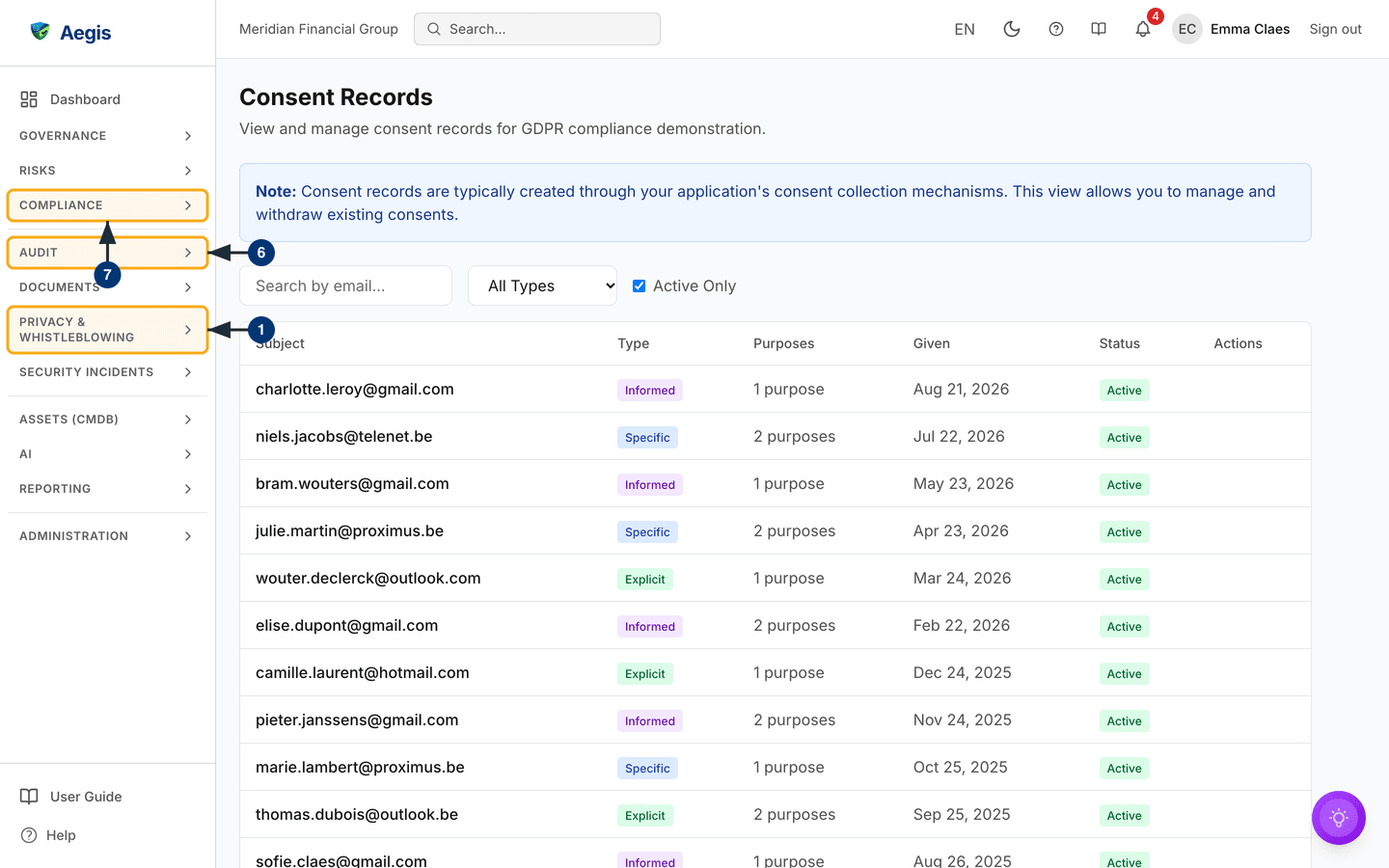
given, specific, informed and unambiguous. The page at
/gdpr/consent opens with a note saying plainly that consent records
normally come from your own application's consent collection, and that this view
is for managing and withdrawing them. A Search by email… box, an
All Types dropdown and an Active Only tickbox — ticked
by default — sit above Subject, Type,
Purposes, Given, Status and
Actions. Type is a coloured badge (the captured screen
shows Informed, Specific and Explicit),
and Purposes is a count. On the captured screen every listed record
is Active and the Actions column is empty, because it
was taken as a Contributor. A new tenant starts on
No consent records found.
-
Open the register from the
Consent Recordscard, reached throughPRIVACY & WHISTLEBLOWING→GDPRin the sidebar. -
Search by email address, or untick
Active Onlyto bring withdrawn records back. The tickbox filters on withdrawal alone, so a consent past its expiry date that was never withdrawn stays in the list either way. -
Select a row to read the full record: activity, purposes, consent type, the
proof and version you recorded, and the metadata captured at the time. Its
badge reads
Active,WithdrawnorExpired. -
With Manager or Admin rights,
Record Consentlogs one by hand — email, activity, type, purposes, dates, proof and version. -
To process a withdrawal, a Manager or Admin selects
WithdrawinActionsand confirms. The status becomesWithdrawn, the time is stamped, and it cannot be undone. -
A withdrawal is a record, not an instruction to your systems: stop the
processing where it happens, then use
AUDIT→Audit Logto prove when. -
The wording and version shown to the person is the proof behind the record —
keep it under
COMPLIANCE→Evidence.
The AI assist
Four AI actions are live in this module where your licence includes them. Each consumes the tenant's AI credits, and each stops when an administrator turns AI off.
-
Draft with AIon a DPIA proposes the Article 35 sections — necessity, proportionality, risks and mitigations — from the linked processing activity, and warns you before replacing an assessment you already have. It is offered only on an assessment not yet decided. -
Run TIAon a transfer produces the adequacy and Schrems II analysis described above. -
Run metadata screening, in theArt. 28(3) AI metadata screeningsection of an agreement's page, checks the agreement's recorded details against the Article 28(3) mandatory clauses. It returns a verdict (Compliant,Partially compliantorNon-compliant), a confidence figure, critical gaps and a clause checklist, withCopyand exports. It never reads the contract text itself, and the section says so: treat it as a triage signal, not a legal review. -
The
AI-Drafted Responseon a subject request, drafted after the cross-system lookup when a request is logged. It shows the reply, a confidence figure and how many systems and records were found.
The first three are Manager or Admin actions. The response draft is reviewed by whoever handles the request. The AI drafts and a person decides: you review, edit and save — or edit, reject or approve the response draft — and the assessor of record is always a named human. Nothing an AI action produces reaches a data subject or changes a record's status until someone acts on it.
Tips and limits
-
Move between registers with the landing page's cards and tiles — except
retention, which has neither and is reached at
/gdpr/retention. Contributors see noStart DPIAtile; the DPIA register is at/gdpr/dpia. - The compliance checklist is a prompt for your DPO, not a score, and its retention line does not update from your data.
- A DPIA and a transfer are both anchored to a processing activity — build the ROPA first. An activity can carry only one DPIA.
-
A
Completed,RefusedorExpiredrequest is locked. To correct a response, log a fresh request and note that it supersedes the earlier one. - The new-request form notes that the deadline can be extended by up to two months for complex requests, as Article 12(3) allows, but no screen records the extension. Note it against the record and manage the extended date yourselves.
-
Approve & Sendon an AI draft records the response and closes the request; Aegis does not email it to the person. Send it through your normal channel. - A request's assignee and legal hold are shown on its page but cannot be changed there.
- There is no bulk export of the request queue. The audit log is the authoritative record of every status change across these registers.
Where this connects
A personal-data breach must reach the supervisory authority within 72 hours where required — handle and time-stamp it in Incidents. Agreements depend on Vendors; residual risks you accept from a DPIA belong in Risks; contracts, exports and write-ups belong in Evidence. The cross-system lookup that gathers what you hold about a person draws on the systems joined up in Connectors. Who may do what here follows Part 3 — What each role can do, and the whole journey runs end to end in When someone asks for their data.