Environmental Metrics
Record per-site environmental figures — water, energy, waste, emissions and turnover — period by period, watch the trend build behind your ESG reporting, and keep the ISO 14001 aspects and objectives registers that those figures measure.
ESG (environmental, social and governance — the non-financial performance a company is increasingly asked to report) starts with measurement. This screen is the measurement half: a register of environmental KPIs (key performance indicators — the numbers you steer by), each one tied to a site (a physical location such as a plant or office), a category, a measurement period and a unit. You record the numbers in their native units — kWh, m³, tonnes — and Aegis charts the trend per series, against a target where you have set one.
Two related registers sit beside it for organisations that run an
EMS (environmental management system — the
ISO 14001 way of managing environmental impact):
Environmental Aspects at /environmental-aspects (ISO
14001 clause 6.1.2) and Environmental Objectives at
/environmental-objectives (clause 6.2). Both are covered at the end
of this chapter. All three appear in the sidebar under Governance.
Who uses it
- Contributor — can record and edit metrics, import them in bulk from a spreadsheet, and add and edit sites.
- Manager — everything a Contributor can do, plus deleting a metric or a site.
- Admin — everything.
- Viewer — can open the page, use every filter, read the trend, view the site list and export, but cannot record, import or change anything.
Environmental Metrics is an add-on: no tier includes it by default. On a tenant without it, the sidebar link is hidden and the route redirects — if you expected it and cannot see it, ask your administrator about your licence.
What's on this screen
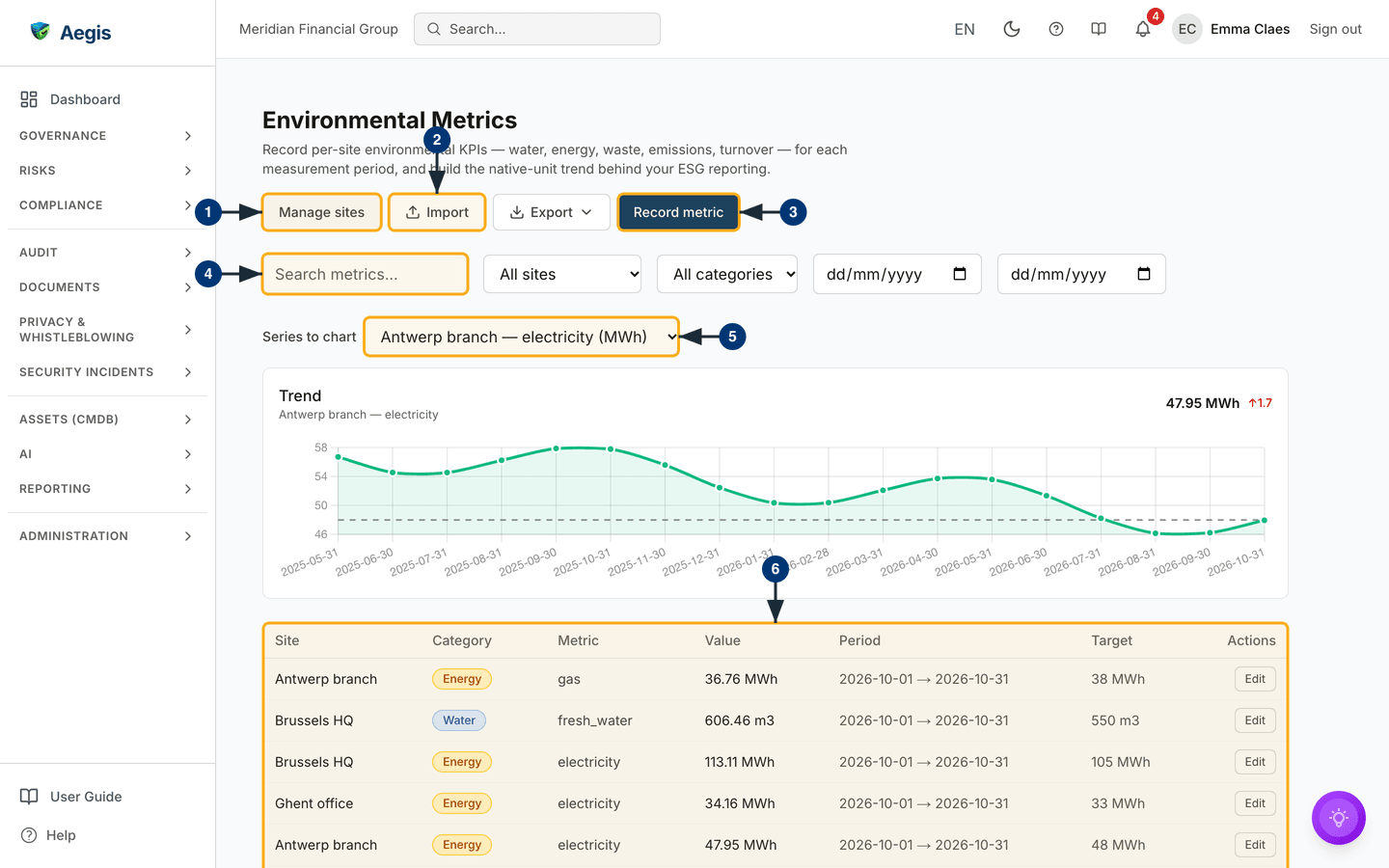
The page header carries the title, a one-line description and a row of working
buttons. Below them sits a filter row; then the
Series to chart picker and the Trend chart; then the
metric table itself, with page controls underneath. The screenshot was captured
as a Contributor, so each row offers Edit but not
Delete. The numbered landmarks:
-
Manage sitesopens the site list — the locations your metrics belong to. Add each plant or office once, with an optional code and country; everything else on the page keys off this list. A site that still has metrics cannot be deleted. -
Importopens the bulk importer for spreadsheet data — see the import section below; a Viewer does not see it. Next to it,Exportdownloads the metrics the filter row currently selects, asExcel (.xlsx)orCSV. -
Record metricopens the form for a single measurement. It is shown only to roles that may record data. -
The filter row: a
Search metrics...box, a site filter (All sites), a category filter (All categories) and aFrom/Todate pair. The table obeys all of them; the trend chart obeys the site, category and date filters, but not the search box. -
The
Trendsection: pick a series withSeries to chart— each option reads as site, metric key and unit, such as the captured screen'sAntwerp branch — electricity (MWh)— and Aegis draws its values over time on the series' own scale, with a dashed line for the target where one is set. Top right of the chart shows the latest value with its unit and an arrow with the change since the previous reading: green when the series is improving, red when it is worsening, taking into account whether higher or lower is better. The picker appears only when there is more than one series to choose from. -
The metric table, one row per measurement:
Site,Category(as a coloured badge),Metric,Value(with its unit),Period(start → end),Targetand, for roles that may change data, a rowEditaction — a Manager or Admin also seesDelete. The table shows 20 rows a page, withPrevious,Nextand aPage x of ycounter below it.
Record a measurement
-
Select
Record metric. Pick theSite— if the list is empty, create a site first viaManage sites. -
Choose a
Category(Water,Energy,Waste,Emissions,TurnoverorOther) and type aMetric key— the series name, such aselectricity. Reuse the same key and unit each period; the trend chart joins measurements into one series by site and metric key. -
Enter the
Value, itsUnit(kWh, m³, t …) and thePeriod startandPeriod endthe measurement covers — a month, a quarter or a year. The end must fall on or after the start. -
Optionally set a
Targetin the same unit, choose anOrientation(Higher is betterorLower is better), and add aNotefor context. SelectSave— the row appears in the table and the series updates.
Edit or delete a measurement
-
Select
Editon the row. The same form opens asEdit environmental metric, filled in with the stored values; change what is wrong and selectSave. The table and the trend refresh together. -
As a Manager or Admin, select
Deleteon the row instead. A confirmation asks whether to delete that metric; confirm and the row leaves the list and the series.
Manage sites
-
Select
Manage sites. A dialog lists every site with itsName,CodeandCountry. A Viewer sees the same list, titledSites, read-only. -
Select
Add siteand give aName, plus an optionalCode(such as an internal plant code) andCountryas a two-letter code such asBE. Save, and the site becomes available in theRecord metricform and the site filter. -
Use
Editon a site row to rename it — the new name shows everywhere the site appears, including the trend series labels. A Manager or Admin can alsoDeletea site, but only once no metrics belong to it; otherwise Aegis refuses and asks you to remove or reassign those metrics first.
Import a spreadsheet
-
Select
Import, thenDownload templatefor the expected column layout — or use your existing workbook: the importer also reads matrix-style sheets (category blocks as columns, years as rows, one site per sheet). TheFile layoutchoice offersDetect automatically,Rows (template columns)and the matrix layout. -
Choose the file and select
Validate. Aegis reports how many rows are valid and lists each faulty row with its reason; blank rows are skipped and counted. Unknown site names are flagged, with a tick-box to create them during the import. Rows that already exist in the register are counted separately and skipped, soImportoffers only the new rows. -
Select
Importto commit. Only valid rows are written; faulty rows are skipped and stay listed so you can fix the file and run it again. If a row fails while being written, the import stops there and tells you how many rows were already created before it.
Empty, filtered and error states
-
No metrics yet. The trend and table give way to an
empty-state panel; roles that may record data see a
Record metricbutton inside it. -
Nothing matches. When the filters exclude every row, the
page says
No environmental metrics match your filters.Clear a filter to see rows again. -
Load failures. If the list cannot load, a red notice offers
Retry. The trend chart loads separately and has its own retry, so a chart failure never empties the table. A series with no readings yet showsNo trend data for this series yet.
Environmental aspects (ISO 14001 clause 6.1.2)
An environmental aspect is an element of your
activities that interacts with the environment — a solvent bath that releases
vapour, a fleet that burns fuel. The register at
/environmental-aspects lists each activity, its aspect, the impact
it causes and how significant that impact is. There is no captured screenshot of
this register in this edition of the guide.
The register table shows Ref, Activity,
Aspect, Impact, Condition,
Life-cycle stage, Site, Significance and
Next review. Filters narrow it by significance (Significant only, Not significant, Not scored), operating condition,
review status, life-cycle stage and site. Export register downloads
the register as Excel or CSV.
-
Select
New aspect. A full page opens titledNew environmental aspect. -
Describe the
Activity, theAspectand theEnvironmental impact, and add aJustification— the reasoning an auditor will read behind the score. -
Classify it:
Aspect category,Impact category, one or moreLife-cycle stages,Impact direction(AdverseorBeneficial),Control or influenceandChange context. Pick aSite(or leave itOrganisation-wide), anOwnerand, optionally, a linked framework control. -
Score significance with
Consequence (1–5),Likelihood (1–5)andMonitoring (1–3), and set theSituation(Normal,AbnormalorEmergency). Aegis shows the resultingEnvironmental importancescore and its band as you go, using the risk register's environmental-aspect method. -
Optionally set a
Review frequency (months)or an explicitNext review date, then selectCreate aspect. The aspect's own page opens.
On the aspect's page you can edit it in place, attach existing evidence from the
evidence locker, see the compliance obligations and environmental objectives
linked to it, and — if you may create risks — use
Promote to risk to create a risk in the risk register with this
aspect's scoring, choosing its risk category and owner. An aspect can be
promoted once. Deleting an aspect removes it from the register but leaves linked
evidence and any promoted risk in place.
Environmental objectives (ISO 14001 clause 6.2)
The register at /environmental-objectives holds the targets your
EMS works towards, each with an owner, a target date and — ideally — the metric
series from this chapter's measurement register that measures it. There is no
captured screenshot of this register in this edition of the guide.
Its table shows Reference, Objective,
Status (Planned, In progress,
Achieved, Missed or Cancelled),
Site, Metric, Progress and
Target date, filtered by status, site and indicator category.
-
Select
New objective. A full page opens titledNew environmental objective. -
Give a
Title, aDescription, aStatus, anOwnerand aTarget date. LeaveSiteempty for an objective that applies across the organisation. -
Bind the metric: choose an
Indicator categoryand aMetric keytogether — one without the other cannot measure progress — then theBaseline value,Baseline date,Target value,UnitandDirection(Higher is betterorLower is better). The target must differ from the baseline, and the baseline date must fall on or before the target date. -
Select
Create objective. The objective's page opens with its progress card, and you can link the environmental aspects it addresses.
Progress is read from the measurements recorded on /esg for the
same site, category and metric key. The progress card says plainly when it
cannot measure: no metric is bound, no measurements exist yet, no baseline or
target is set, the objective is organisation-wide while several sites record
that metric, or the objective's unit differs from the series' unit. Each message
offers the fix — for example Set a site or
Correct the unit.
Who can change the EMS registers
Both registers follow the same ladder as the metrics: a Viewer reads only; a Contributor creates and edits aspects and objectives; a Manager or Admin can also delete them. Unlike Environmental Metrics, they carry no separate licence flag: they appear when your Aegis operator has switched on the environmental management module for your tenant.
Tips and limits
- Consistency beats precision. A trend only means something when the same series is measured the same way each period. Agree the metric keys and units once, then hold to them.
- One unit per series. A series is site plus metric key, and it takes its unit from the latest reading. Changing the unit under the same key mixes scales on one chart — start a new key instead.
- Native units, no conversion. Aegis stores and charts what you enter. It does not convert kWh into CO₂ equivalents or aggregate across units — bring converted figures in as their own series if you need them.
- Measurement is not a report. This register feeds your ESG reporting; the written report itself is produced elsewhere.
- The trend ignores search. The chart follows the site, category and date filters, not the search box, so a search narrows the table without changing the chart.
Where this connects
- Reports and Board Reports — where the numbers recorded here end up in front of leadership.
- Risks — environmental findings that need managing belong in the risk register; a significant aspect can be promoted there directly.
- Evidence — the locker that aspect evidence is attached from.
- Roles overview — who can record, import and delete, in full.