GitHub
Import GitHub security alerts: Dependabot and code-scanning alerts as risks, secret-scanning alerts as security signals.
GitHub flags weak spots in your code: vulnerable dependencies (Dependabot), exposed passwords and keys (secret scanning) and risky code patterns (code scanning). This connector brings those alerts into Aegis so they are assessed, owned and followed up like any other risk, and so an exposed secret is reviewed by a person in the security signal inbox (the queue where a reviewer accepts, merges or dismisses each alert a connector reports) before it becomes an incident.
At a glance
| Direction | Into Aegis. |
|---|---|
| What it brings in |
Open Dependabot and secret-scanning alerts of the GitHub
organisation you name, and code-scanning alerts of one repository
when a sync names that repository. A sync needs an organisation:
without one it stops with an
Organization not configured error.
|
| Where it lands | Dependabot and code-scanning alerts become risks; secret-scanning alerts go to the security signal inbox for review. |
| Credentials and permissions |
A GitHub OAuth app (client ID and secret) requesting the scopes
security_events and repo; an administrator
signs in once with Authorize with GitHub.
|
| Owner of imported records |
A sync you start yourself gives its risks to you. Scheduled and
webhook syncs give them to the connector's
Default owner of imported risks. Signals have no owner
until a reviewer accepts one.
|
| When it runs | On demand with the sync button on the connector page or through the API, on a sync schedule, and when the inbound GitHub webhook fires. |
| Set it up |
/connectors/github, by people allowed to configure
connectors, on a plan that includes the connector.
|
Who uses it
- Admin and Manager open the page, save the configuration, authorise GitHub, test the connection, start a sync and disconnect the connector.
-
Contributor and
Viewer cannot open
/connectors/github; Aegis sends them away with an access-denied notice. They still see the risks the connector creates in Risks, within their normal access.
The page only works when the GitHub connector is part of your organisation's plan; otherwise every save and sync is refused.
What's on this screen
The page opens under the breadcrumb Connectors / GitHub, with the
title GitHub Security Connector and one line explaining that
security alerts are synced as risks and incidents. Once a configuration has been
saved, a link below that line,
Map the statuses and fields of synced tickets →, opens the mapping
editor for this connector; the note under it says the mapping only shapes the
tickets the connector feeds into security processes. On the captured screen
nothing is saved yet, so the link is absent.
From top to bottom the page then shows:
-
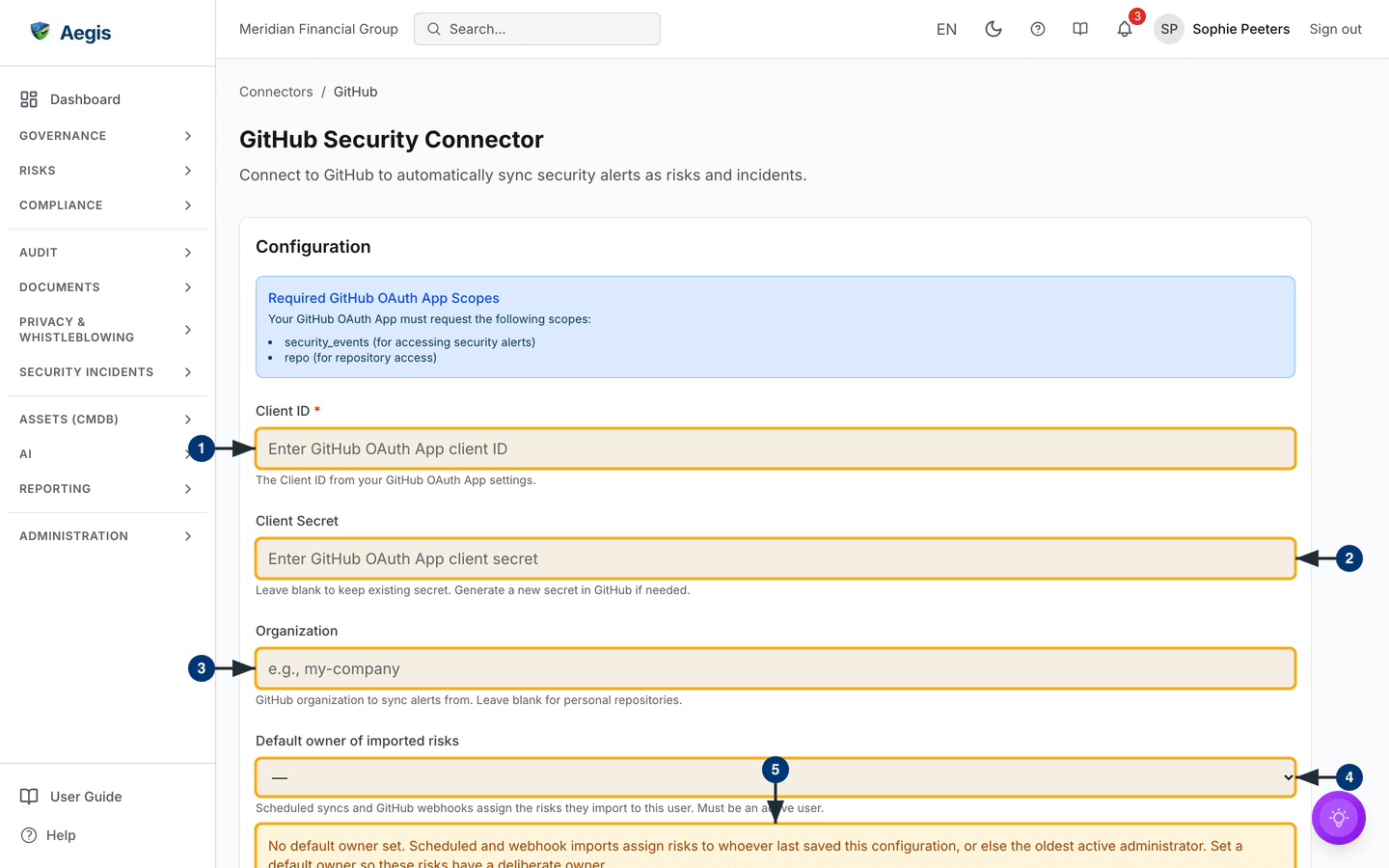
Configuration— a blue note,Required GitHub OAuth App Scopes, listingsecurity_events(for accessing security alerts) andrepo(for repository access), then the fieldsClient ID(marked required),Client Secret,OrganizationandDefault owner of imported risks, each with a one-line hint beneath it. While no default owner is chosen, an amber note sits under that field. The card ends withSave Configuration, which stays disabled until a client ID is entered. -
Connection Status— a coloured dot and status word, and the next action (see “Authorise and test the connection” below). -
Security Alert Sync— only once the connection test succeeds (see “Run a sync from the page” below). -
Disconnect connector— only once something is configured, and only for people allowed to delete connectors. -
Setup Instructions— five numbered steps for creating the OAuth app in GitHub, including the exactAuthorization callback URLto enter there. -
Supported Alert Types— how each alert type maps into Aegis: Dependabot alerts to risks with CVE links, secret-scanning alerts to the signal inbox, code-scanning alerts to risks.
The captured screen shows the page before anything has been saved: the
Configuration card with empty fields, — in the owner list and the
amber note starting at the bottom edge. The cards below it are further down the
page.
Setting it up
First create an OAuth app in GitHub (Settings > Developer settings > OAuth Apps) and set its callback URL to the address the
Setup Instructions card shows. Then open
/connectors/github. The Configuration card starts with
a blue note listing the OAuth app scopes GitHub must grant, followed by the
fields below.
-
Paste the OAuth app's
Client ID, the only required field. As soon as it holds text,Save Configurationbecomes available. -
Enter the
Client Secret. Once saved it is shown as asterisks; leave the field blank to keep the stored secret. -
Enter the GitHub
Organizationto import from. The field hint offers to leave it blank for personal repositories, but a sync currently needs an organisation and stops without one. -
Choose the
Default owner of imported risks— the active user who receives the risks that scheduled syncs and GitHub webhooks bring in. The list offers the people in your user directory. - Read the amber note under the field if it is showing: with no default owner, scheduled and webhook imports go to whoever last saved the configuration, or else the oldest active administrator. The note disappears as soon as you pick an owner.
Select Save Configuration at the foot of the card. The button reads
Saving... while it works; if the save fails, a red message appears
at the top of the form. After a successful save the mapping-editor link appears
under the page title and the connection card asks you to authorise.
Authorise and test the connection
-
In
Connection Status, read the orange note: OAuth authorisation is required to connect to GitHub. SelectAuthorize with GitHub. Your browser goes to GitHub, where you approve the app, and returns to the connector page. -
Select
Test Connection. The button readsTesting..., then the status changes. On success a green box showsConnected to GitHubwith the GitHub user, the organisation and how many repositories are accessible, and aRe-authorizebutton appears next to the test button. -
If the test fails, a red box gives the reason. If the last sync failed, a
separate red box,
Last recorded error, shows that error and when it happened, even when a fresh test succeeds.
These cards are below the part of the page in the captured screen, so no screenshot shows them.
Run a sync from the page
The Security Alert Sync card appears once the connection test
succeeds. It lets you choose what one manual sync imports. It was not on the
captured screen, so no screenshot shows it.
-
Under
Select alert types to sync:, tick the sources.Dependabot Alerts(creates risks with CVE links) andSecret Scanning Alerts(sent to the signal inbox for review) are ticked by default;Code Scanning Alerts(creates risks) is not. -
Under
Minimum severity to sync (for Dependabot and Code Scanning):, tick the severities to include:Critical,High,Medium,Low. Critical and High are ticked by default. Only the ticked levels are imported; secret-scanning alerts are not filtered by severity. -
Select
Sync Now. The button readsSyncing...and a progress line says security alerts are being synced from GitHub. When it finishes, the sync history below records how many items were created, split into Dependabot risks, new secret signals and code-scanning risks, or the error that stopped the sync. -
Select
Review in the security signal inbox →to open/incidents/signalsand decide the new secret-scanning signals.
Once the connector has synced, the sync history shows
Last successful sync: with the date and time of the last completed
sync, and it still does after a reload. Only a connector that has never synced
reads No sync history yet. The list of individual runs is kept for
this visit only; the audit log records every sync.
Each risk created this way is owned by you. It lands in the
Security Vulnerabilities risk category, with its impact taken from
the alert's severity. A Dependabot risk's likelihood follows the CVSS score (a
standard 0–10 vulnerability score) where GitHub gives one; a code-scanning risk
starts with a low likelihood. Adjust both in
Risks
once someone has assessed the alert.
Disconnect the connector
-
In the
Disconnect connectorcard, read what disconnecting does: it deletes the stored GitHub configuration and credentials, and the sync schedules and mappings that use it. Records already imported stay in Aegis. -
Select
Disconnect. A confirmation dialog asks you to confirm. -
Confirm with
Disconnect. Aegis removes the configuration and returns you to/connectors. You can configure the connector again later.
Tips and limits
- A scheduled or webhook-triggered sync imports organisation-wide alerts: Dependabot alerts of critical and high severity, and open secret-scanning alerts. A schedule can be limited to Dependabot only or secret scanning only. Its risks are owned by the connector's default owner. Without one, or when that user can no longer sign in, they go to the person who last configured the connector, or the longest-standing active administrator when that person can no longer sign in either. The connector page recommends setting a default owner. An alert already imported is not imported again.
-
Code-scanning alerts are imported only for a single named repository. The
page's sync does not name one, so ticking
Code Scanning Alertsthere creates no risks; a sync through the API that passes a repository does import them. Schedules never import code scanning. - Only open alerts are imported. A risk counts as already imported while it exists; if it has been deleted, a later sync can import the same alert again.
- The OAuth app's callback address must match the one shown on the connector page exactly.
-
The
Organizationhint mentions personal repositories, but a sync without an organisation fails. Always fill in the organisation.
Where this connects
Imported risks are worked in Risks; signals in Incidents. Sync schedules and the general connector lifecycle are covered in Connectors; the issue-tracker counterpart is Jira.