Access from outside Aegis
Some Aegis pages are made for people without an account — a reviewer or reader invited by email, an external auditor, an IT supplier asked for evidence, a whistleblower, or anyone taking the public readiness check. This chapter is written for those visitors, from the link onwards.
If someone sent you a link into Aegis, you do not need an account, a password or any software — a normal browser is enough. Which page you land on depends on the kind of link, so find yours below. Nothing you are shown reaches beyond exactly what was shared with you.
Who uses it
- Visitors without an account — invited reviewers, readers, auditors and suppliers, plus anyone on the public pages. Each invitation opens one document, one whistleblowing case, one audit engagement or one evidence request, and nothing else.
-
The inviting side —
Admin and
Manager hold the permission to
invite outside people. At
/collaboration/external-collaborators(External Collaborators) they issue document and whistleblowing-case invitations, and list and revoke every grant, audit engagements included. Auditor invitations are issued from the audit engagement itself and supplier requests from the control they concern. The page needs the Collaboration module; anyone else is sent to the unauthorised page. See Collaboration.
What's on this screen
The public pages share one plain frame: no menu, no sign-in button, a single
centred card or form, and a footer line reading
Powered by Aegis — AI-Powered Compliance Command Center. Two of
them were captured for this chapter.
-
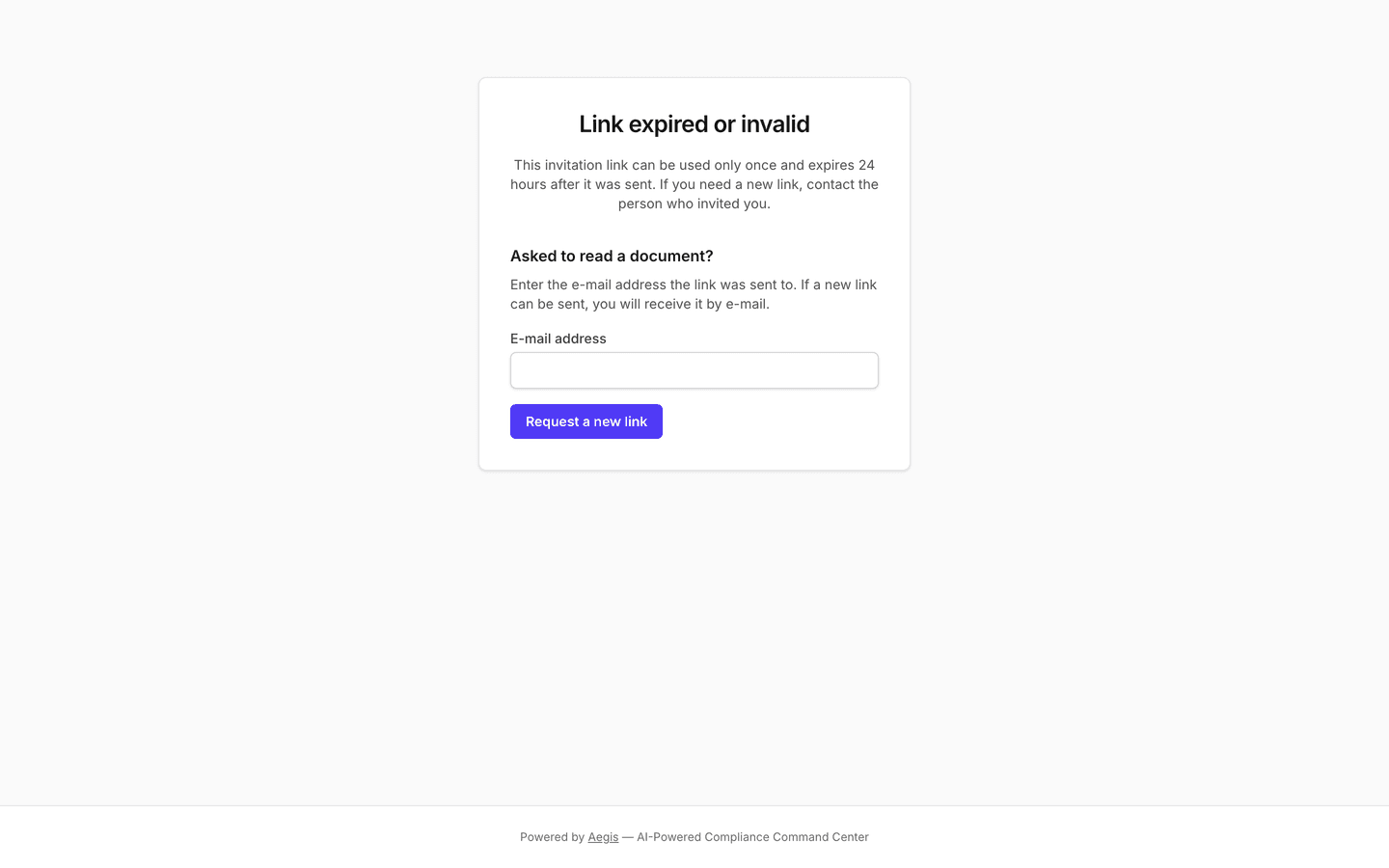
The expired-link page
(
/external-collab/expired) — a card headedLink expired or invalidwith one sentence on how invitation links work. Below it, a second block headedAsked to read a document?holds anE-mail addressfield and aRequest a new linkbutton. -
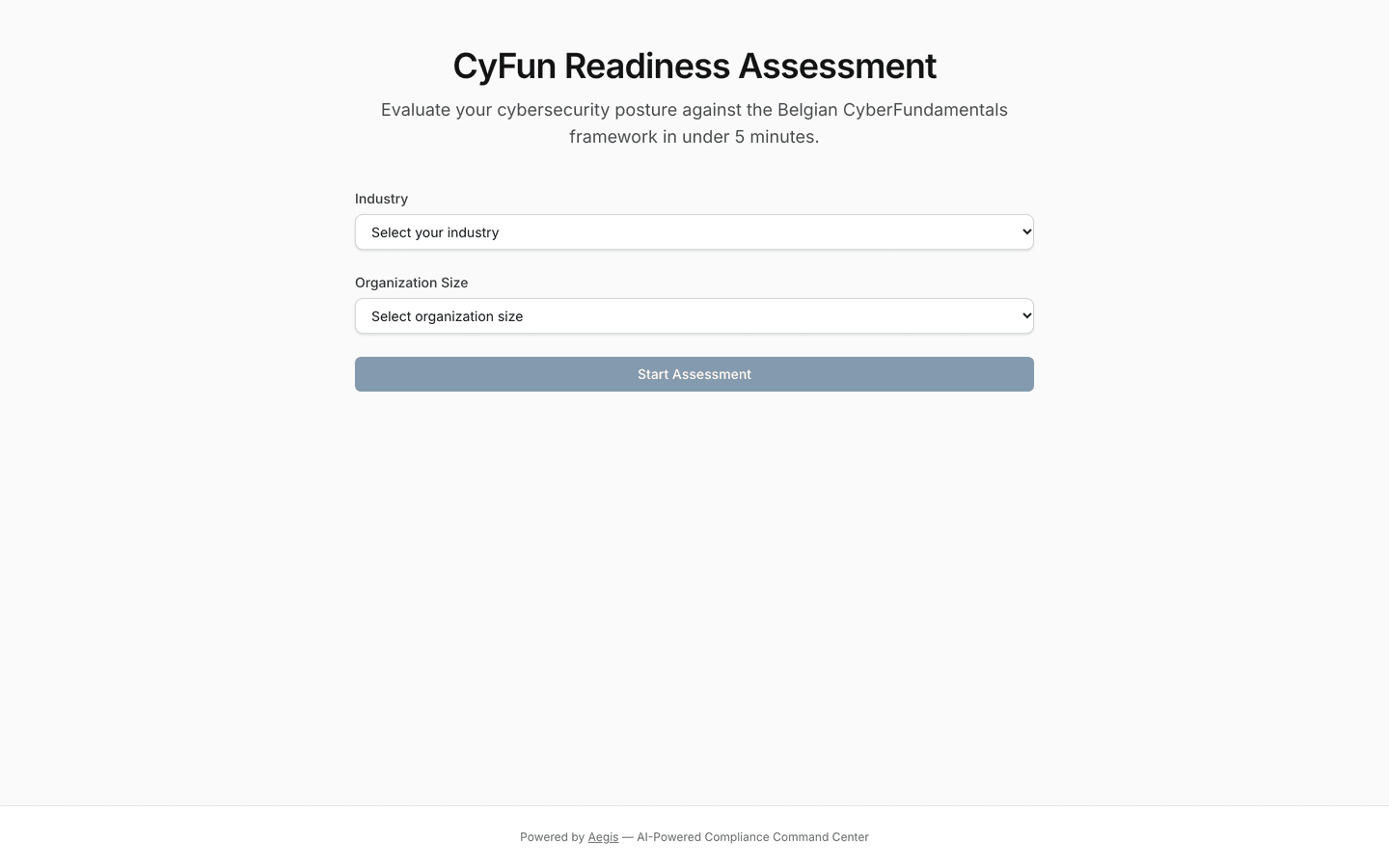
The CyFun readiness check (
/assess/cyfun) — the titleCyFun Readiness Assessment, a subtitle promising an evaluation "in under 5 minutes", two drop-downs (IndustryandOrganization Size) and a full-widthStart Assessmentbutton, greyed out until both drop-downs are chosen.
Opening any invitation link
Every emailed invitation — document, audit engagement, evidence request — starts the same way. It carries a magic link (a sign-in link that proves who you are by your mailbox, replacing a password).
-
Open the link from the email. A small page headed
Open your invitationappears, explaining that the one-time link is only used when you continue. -
Select
Continue. Aegis uses up the link, signs you in for this one item and takes you straight to it. If anything about the link is wrong, you land on the expired-link page instead.
Mail-security tools (link scanners, previews) open every link in an email
before you do. Because the link is only spent when a person selects
Continue, a scanner cannot use up your invitation.
Invited by email to a shared document
An Aegis user can invite an outside person — a lawyer, an auditor, a supplier — to read one specific document, and optionally to comment on it or approve it.
-
Open the link and select
Continuesoon after the email arrives — it can be used once, and by default it expires 24 hours after it was sent (the invitation pages state your organisation's actual lifetime). It lands you directly on the shared document. -
The document page shows the title and details — type, status, owner,
version, last updated — above the full text, with your own access spelled
out as capabilities:
Can view,Can comment,Can approve. -
If you were invited with comment access, a
Commentssection sits beneath the text: write inAdd a commentand selectPost comment. Your feedback is visible to the team that invited you. -
If you were invited as an approver, a
Review statussection lists the document's reviews. On an open review you can decide, it offersApprove,Request changesandReject. Your decision is recorded against the document's review. With view-only access, both sections say plainly that commenting or approving is not enabled on your invitation.
If the document behind the invitation has been removed, or your access has
changed, the page shows Document unavailable and asks you to
contact the person who shared it.
Asked to read and confirm a document
Some organisations ask outside people — contractors, temporary staff — to read a policy or procedure and confirm they have read it. This is a read-and-confirm invitation: it shows the last approved version only, never a working draft, and it has no comment or review sections.
-
Open the link and select
Continue. The approved version of the document opens. Where the owner wrote one, aWhat changed in this versionbox sits beneath the text. -
At the bottom, the
Confirm you have read this documentbar shows theVersionand anyDeadline, with a notice that your IP address is stored as evidence of your acknowledgment, and for how many months. -
Select
Send code. A six-digit code is emailed to the address the invitation was sent to; it is valid for 15 minutes. -
Enter it in
Confirmation codeand selectConfirm. AReading confirmedpanel shows the version, the time and a reference, and a receipt is emailed to you. If the code is wrong or has expired, selectSend a new code.
When a link has expired or was already used
A used, mistyped or out-of-date link lands on one page only, headed
Link expired or invalid: "This invitation link can be used only
once and expires 24 hours after it was sent. If you need a new link, contact the
person who invited you." The page deliberately says nothing about why the link
failed. Readers of a read-and-confirm document can ask for a fresh link
themselves:
-
Under
Asked to read a document?, type the address the link was sent to inE-mail address. -
Select
Request a new link. The button readsSending…, then a green note replaces the form: "Thank you. If a new link can be sent to this address, it is on its way." - Check your inbox. If your read-and-confirm invitation is still live, a fresh one-time link arrives. If it was revoked or has lapsed — or you were invited to comment, approve, audit or upload — nothing is sent, and the recovery is to ask your contact for a new invitation.
The confirmation reads the same for every address, so the page never reveals whether an address is known. Requests are rate limited; if yours fails, the form says "Your request could not be sent. Try again in a moment."
Invited as an external auditor
If an organisation invites you to one of its audit engagements, the email's link
signs you in and opens that engagement at /auditor/engagements/….
You need no account or password, and the link works for that one engagement
only.
-
Read the engagement — its stage, audit period and
framework, the controls in scope with their testing progress and tester, and
the evidence linked to it.
Downloadsaves an evidence file;Download engagement package (PDF)saves the whole engagement. -
Request evidence — fill in
What do you need?, optionallyDetailsand theRelated control, then selectSend request. The request showsAwaiting responseuntil the organisation provides a record (Provided, and you can then download it) or declines with a reason (Declined). -
Discuss — ask questions with
Send messageand read the organisation's replies in theDiscussionthread.
/auditor (Your audit engagements) lists every open
engagement you have been invited to with the same email address, with its stage,
audit period and a count of open and fulfilled evidence requests. Each one opens
through its own invitation link. Access ends when the invitation expires, when
the organisation revokes it, or when it closes the engagement; after that the
link leads to the expired-link page described above.
Invited as an IT supplier to upload evidence
An organisation can ask a supplier for the proof behind one of its controls. The
invitation opens one evidence request at /supplier/requests/….
-
Open the link and select
Continue. TheUpload evidencepage names who asked and, underRequested for, the control's reference and title, any message, and the due date ("Please upload before …"). -
Under
Files, choose your files. The help line states the limit: up to the number of files the request allows, 50 MB each — PDF, Office documents, images, text or archives. -
Select
Submit files. A thank-you note replaces the form. The organisation reviews the files before it uses them.
You can submit once. After that the request is closed and the link stops working, so put every file in the same submission. Ask your contact for a new request if you missed one.
Reporting a concern (whistleblowing)
The whistleblowing intake is also public and account-free — and it is
deliberately anonymous, which is a different promise from the invited access
above. It has its own chapter written for reporters:
Report a Concern. In short: you submit
through the public form, receive a case key, and return with that key to read
replies from the handler — no email address required at any point. Separately,
an organisation can invite an outside specialist into a single case by email;
that invitation follows the same Continue step described above and
opens only that case.
The public CyFun readiness check
/assess/cyfun is an open self-assessment against CyberFundamentals
(CyFun, the Belgian cybersecurity framework
behind many NIS2 obligations). Anyone can take it — no account, and nothing you
enter touches the organisation's compliance data.
-
Answer the short profile first — choose your
IndustryandOrganization Size— so the reading of your score fits your context.Start Assessmentbecomes available once both are set. -
Work through 15 questions, five per page, spanning the six CyFun functions:
Govern, Identify, Protect, Detect, Respond, Recover. Each answer is one of
Not implemented,Partially implemented,Mostly implementedorFully implemented; a counter shows the page and how many you have answered, andNext(orSee Resultson the last page) unlocks when the page is complete. -
Your score appears immediately — an overall readiness score with a band
(
Strong,Moderate,DevelopingorEarly Stage) and aScore by Functionbreakdown.Retake Assessmentstarts again. -
For a fuller report, select
Get Full Report. A form asks forFull Name,Work EmailandCompany; selectSend Reportand aCheck your emailmessage confirms it.
The public check uses a simplified subset of CyFun and scores it in your browser. Only if you ask for the full report are your name, email, company, profile and scores sent, and they are kept as a report request, apart from any compliance data. The full framework work — controls, evidence, maturity levels — happens inside Aegis, in CyFun Maturity.
If the organisation hosting the page has not licensed CyFun or has switched it off, the page shows a "framework not available" notice instead of the questions.
Showing Aegis pages inside another site
Aegis pages cannot be embedded in a frame on another site — a SharePoint page,
an intranet portal or a wiki. As protection against clickjacking, every page is
sent with
X-Frame-Options: DENY and the content-security rule
frame-ancestors 'none', so the browser shows an empty or refused
frame instead. Link to the page instead: the reader opens it in Aegis, signs in
if needed, and sees only what their role allows. The one exception is the
dedicated Microsoft 365 embed below.
Aegis inside Microsoft 365
Aegis carries an embed surface for Microsoft 365 (/embed/m365/…)
that SharePoint and Teams are allowed to frame. It shows real data for the
signed-in person: a
Dashboard view with the top-line compliance figures, a
Risks view of open and in-progress risks, a Tasks view
of the work assigned to you, and a Policies view of the policies in
force, with policies you still have to acknowledge listed first and a read-only
detail for each. In Teams, a configuration dialog picks which view a tab shows.
The embed needs your organisation's SharePoint connector entitlement, and every
view still checks your own permissions. For anything beyond reading, use the
full browser application.
Tips and limits
- Magic links are personal. Forwarding one is like handing over a signed pass — and since each link works once, the recipient would consume yours. Ask the inviter to invite the other person directly.
- Your document session itself eventually expires; the emailed link does not sign you in forever. When the page stops responding to you, request a fresh link rather than retrying the old one.
- Only read-and-confirm invitations can be renewed from the expired-link page. For every other invitation, a new link comes from the person who invited you.
- For the inviting side: invitations, their capabilities and their revocation are managed inside Aegis, and every external comment and decision lands in the same collaboration records as internal ones — see Collaboration.
Where this connects
- Report a Concern — the public whistleblowing intake, step by step.
- Whistleblowing — the internal case-handling side.
- Collaboration — where internal users invite outside people and see the comments and approvals they leave.
- Policies and Procedures — where read-and-confirm requests are set up and acknowledgments are tracked.
- Audits and Scenario: preparing for an external audit — the organisation's side of an auditor engagement.
- Evidence — where supplier uploads are reviewed.
- CyFun Maturity — the real framework work behind the public check.