Whistleblowing
A confidential channel where anyone can report a concern, and a case workspace where authorised investigators triage, assign and work each report without learning who sent it.
Whistleblowing in Aegis has two sides that never meet. There is a
public intake page, open to anyone with no sign-in, where a
person describes a concern and may choose to leave no name. And there is the
case workspace at /whistleblowing, where a small
group of senior staff work each report. The design follows the
EU Whistleblower Directive (a European law,
2019/1937, that obliges organisations to offer a safe reporting channel and
protects the people who use it). The reporter's statement and any contact
details are encrypted at rest (scrambled in
storage so they cannot be read without authorisation), and revealing an identity
is a separate, permission-gated, recorded action.
Who uses it
The public intake page has no role — it is for anyone, inside or outside your
organisation. Where the module is switched on for your organisation, any
signed-in colleague can also reach it from the left menu, under
Privacy & Whistleblowing → Report a concern.
Inside Aegis, the case list and case detail are gated on the whistleblowing read
permission, not on a role.
Manager holds every case
permission in the table below by role, and
Admin holds them too. A
Contributor or
Viewer has no access by role: the
route checks the read permission on the server before the page is built, so a
Contributor without it who opens /whistleblowing never reaches the
case list. The exception is a colleague given the read permission through an
active permission group. Those colleagues receive the notification when a new
case arrives, open the case from its link, and are let through to the case list
and case detail like a Manager. The Whistleblowing entry in the
left menu, though, is shown only from Manager upwards, so a permission-group
holder reaches the cases from the notification link or by typing the address.
That narrow access is itself a protection for reporters.
| Action | Permission | Who has it |
|---|---|---|
| Submit a report | None — public, no sign-in | Anyone |
| View cases | whistleblow:read |
Manager, Admin; anyone given it through an active permission group |
| Change status, reply, attach files | whistleblow:update |
Manager, Admin |
| Assign an investigator | whistleblow:assign |
Manager, Admin |
| Reveal reporter identity | whistleblow:view-identity |
Manager, Admin |
A reporter may submit a concern without giving any contact details — that report is genuinely anonymous and there is nothing to reveal. Where someone does give a name, it is encrypted and hidden by default; an investigator sees it only by choosing to reveal it, which needs the identity permission, asks for confirmation first, and is recorded. Take care never to copy reporter-identifying details into other records, messages or reports.
What's on this screen
The intake page is served at /whistleblow/intake and needs no
account. To keep the channel separate from your everyday Aegis address, it
accepts reports only at its own dedicated web address — a
whistleblow. host. Open the same path on the main application
address and the form is not shown at all.
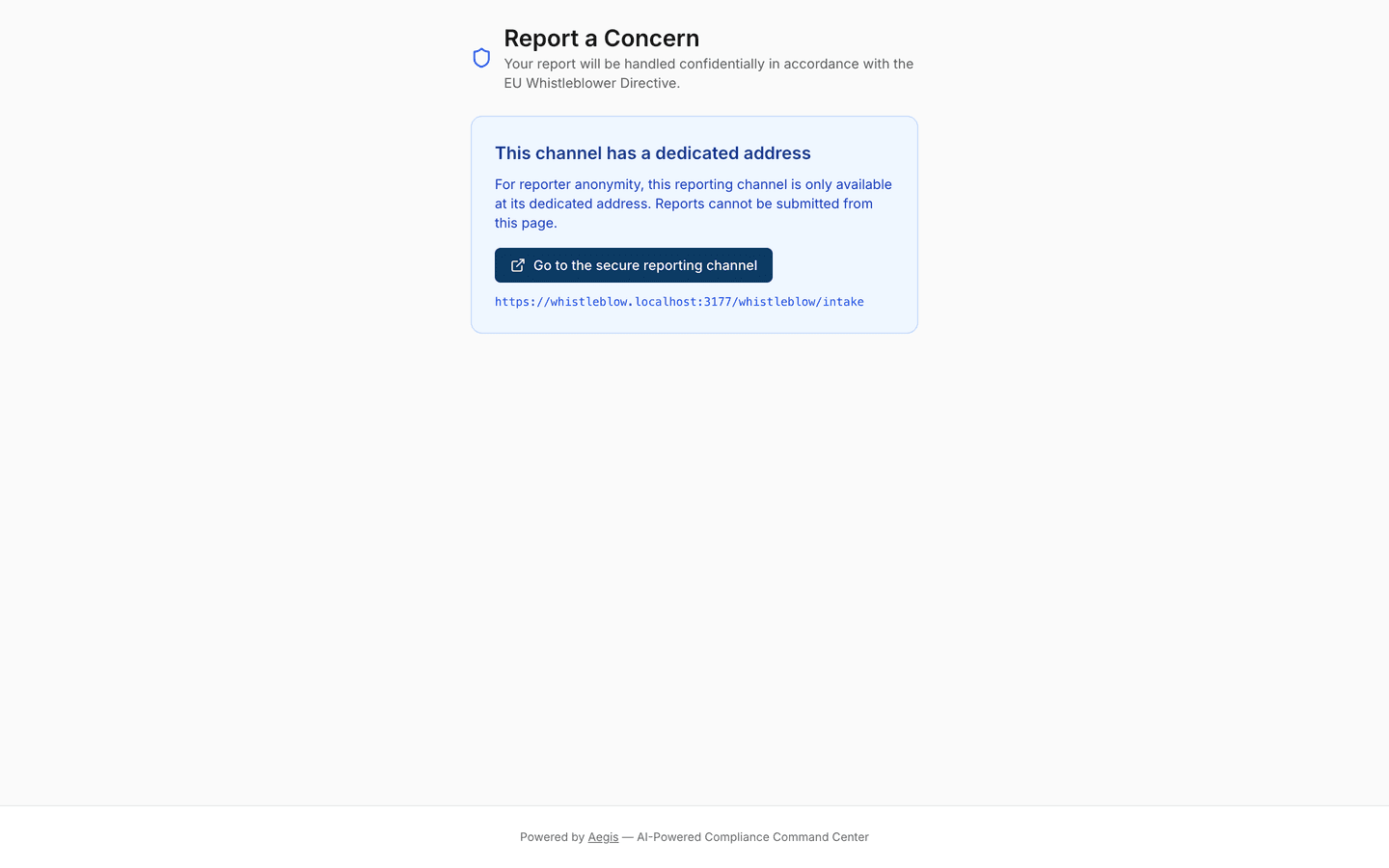
That is what the screenshot below captures. At the top, a blue shield sits
beside the heading
Report a Concern and the line about confidential handling under the
EU Whistleblower Directive. Below it, a blue-bordered notice headed
This channel has a dedicated address explains that reports cannot
be submitted from this page, and offers a dark
Go to the secure reporting channel button with the full dedicated
address printed in plain text underneath it — on the captured screen, an address
on the local test host. A Powered by Aegis line closes the page.
There is no navigation, no menu and no sign-in link anywhere on it — by design,
a reporter sees nothing but the channel. The follow-up page at
/whistleblow/return behaves the same way: opened on the main
address, it shows the same kind of notice under its own heading,
Check Report Status, saying that report status cannot be checked
from that page.
-
Read the notice under
This channel has a dedicated address. It confirms you are on the right service but the wrong address, and that a report sent from here would not be accepted. -
Select
Go to the secure reporting channel. The browser moves to the dedicatedwhistleblow.address, where the reporting form itself appears in place of this notice. - If you would rather not follow a link, copy the address printed underneath the button and open it yourself. It is the same destination, shown in full so nothing is hidden.
When you advertise the channel — on an intranet page, a poster, a supplier
contract — publish the whistleblow. address. That is the one
that accepts reports. The intake, follow-up and reporter case pages are all
kept out of search-engine indexes.
Reporting a concern
On the dedicated address the same page shows a short form on a narrow card: a
Category dropdown, a What happened? box, a bordered
Your identity (optional) panel and a full-width submit button, with
a Check Report Status link beneath it for reporters who are coming
back. That form is not among this chapter's screenshots, so the steps below
describe it without a figure;
Report a concern covers the reporter's side
in full.
-
Open the
Categorydropdown, which starts onSelect a category, and choose the type of concern:Fraud,Harassment,Discrimination,Safety,Anti-Money Laundering,Data Protection,CorruptionorOther. The chosen value replaces the placeholder. -
In the
What happened?box, describe the concern in your own words. The prompt text asks for dates, locations and the people involved where you can give them. The box accepts a long account — up to 50,000 characters. -
Optionally fill in the bordered
Your identity (optional)panel, which holds four boxes —Name,Email,PhoneandRelationship to the organization. A note above them says that giving your identity is voluntary and that anything entered is encrypted. Leave all four blank and the report carries no identity at all. -
Select
Submit Report. The button stays disabled until both a category and a statement are present, and readsSubmitting...while it works. On success a greenReport Submittedpanel replaces the form, showing theCase NumberandRecovery Codewith aCopy to clipboardbutton and an amber warning that the code is shown once. The button changes toCopied!only when the copy really worked; if the browser refuses it, a red line asks you to select the two values and save them yourself. If the submission fails, one red line readsWe couldn't submit your report. Please try again.and the form keeps what you typed. -
Leave the panel when you have saved both values. A
Check Report Statuslink sits at the bottom. Any way off the page — that link, reloading, closing the tab or going back — first opens aLeave this page?dialog reminding you that the values cannot be shown again; chooseI have saved them, continueto go, orStay on this pageto keep them in view.
The case number and recovery code together are the only way back into the report. There is no account, no password and no reset: lose the code, and the reporter can no longer read replies or add to that case. Copy both before leaving the page.
Following up as a reporter
The reporter returns at /whistleblow/return, headed
Check Report Status. This page is not among this chapter's
screenshots either, so the steps describe it from the live page.
-
Type the case number into the first box — its placeholder shows the expected
shape,
WB-A3F9K2— and the recovery code into the second. -
Select
Access Report. The button readsVerifying...while it checks. If either value is wrong, one red line readsInvalid case number or recovery code.and nothing else changes; there is no clue as to which of the two was wrong. A different line appears when the problem is not the code: one asks the reporter to check their connection, and another to wait a few minutes and try again when the portal could not check the details. -
Once verified, the page shows a
Backlink, the case number, the lineYour report statuswith the current stage, and the sameMessagesthread you write into — each entry labelledReporterorInvestigatorand time-stamped. A one-line reply box with a send button sits below it; if a reply fails, the text stays in the box so it can be sent again. AtClosedorPurgedthe reply box is gone and the thread is read-only.
What's on this screen (the investigator case list)
Authorised investigators work cases from /whistleblowing, reached
from the left menu under Privacy & Whistleblowing →
Whistleblowing. For a Manager, an Admin or a permission-group
holder the screen opens with the heading Whistleblowing and the
line EU Whistleblower Directive (2019/1937) compliance. There is
deliberately no "new case" button: cases exist only because
someone used the public channel. Beneath the heading sit two dropdowns —
Status and Category — and below them the case table,
with a column each for Case Number (a link into the case),
Category, Status (shown as a pill),
Assigned Investigator (a dash where nobody is assigned) and
Legal Hold (a badge only where a hold applies). Where more than one
page of cases exists, a footer shows the total and Previous /
Next buttons. With no cases, the table is replaced by a shield and
the message No cases —
There are no whistleblowing cases to display. While the cases load,
grey placeholder rows stand in for the table. If loading fails, a red panel
reads Failed to load cases. with a Try again link, so
a failure is never mistaken for an empty queue.
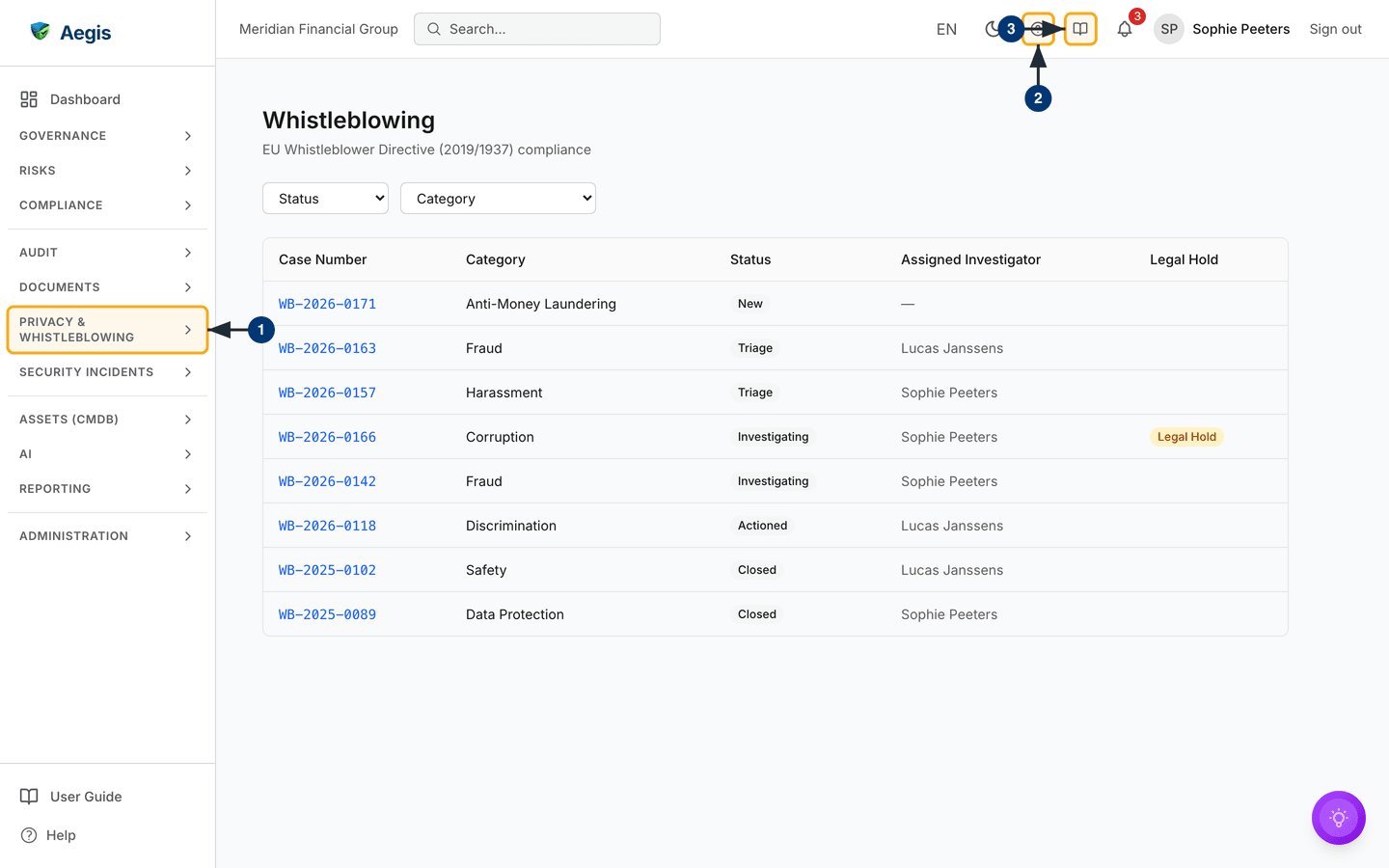
The screenshot below shows the list as an Admin sees it on the demo data. On the
captured screen the table holds eight cases, from a
New anti-money-laundering report with no investigator yet (the dash
in that column) through cases at Triage,
Investigating and Actioned to two at
Closed, and one Investigating case carries the amber
Legal Hold badge. Case numbers follow the pattern WB-,
the year and a running number. All eight fit on one page, so no paging footer is
shown. The usual Aegis frame sits around it: the left menu with its module
groups, and the top bar with your organisation's name, search, language, theme,
the two help buttons, the notification bell, your name and
Sign out.
-
In the left menu, open the
Privacy & Whistleblowinggroup. It expands to showGDPR,Whistleblowing(from Manager upwards) andReport a concern. SelectWhistleblowing: the page opens with its heading and the two filters, grey placeholder rows stand in for the table for a moment, and then the case table fills in. A permission-group holder who does not see the entry opens the link in a new-case notification instead, and lands on the same list. - Select the round help button in the top bar. A help panel slides in from the side with the topics for this page and a search box, without leaving the case list.
- Select the open-book button beside it to read this chapter of the User Guide inside Aegis. It opens the guide at the chapter for the screen you are on.
Someone without the read permission never sees this list. Because the page
checks the permission on the server, a Contributor or Viewer who opens
/whistleblowing without it is sent to a page with a large
403, the heading Access denied, the line
You don't have permission to access this page. If you think this is a
                        mistake, contact your administrator.
and a single Go to Dashboard button. No case data is loaded, so
that person cannot tell whether any cases exist at all. This is the expected
behaviour, not a fault; if you believe you should have access, ask an
administrator to review your role — see
What each role can do.
Filtering the case list
-
Open the first dropdown, labelled
Status, and pick one ofNew,Triage,Investigating,ActionedorClosed. The table reloads with matching cases and paging returns to the first page. -
Open the second dropdown, labelled
Category, and pick a concern type. The two filters combine, so aTriageplusFraudselection shows only cases that are both. Re-selecting the first entry in either dropdown — the one that readsStatusorCategory— clears that filter again. - Select a case number in the first column to open the case. Nothing else in the row is clickable.
Working a case
A case number opens the detail page at
/whistleblowing/<case>. The header carries a shield, the case
number, a status pill, the category and — where one applies — an amber
Legal Hold badge, with the Change Status button at the
top right. The wider left column holds up to three panels:
Reporter Identity (present only if you hold the identity
permission), Reporter Statement and Messages. The
narrower right column holds Case Detail — assigned investigator and
Retention Until date, with the
Assign Investigator control below them — and
Attachments. This page is not among the captured screenshots for
this chapter, so the steps below describe it without a figure. A case address
that does not exist, or a case that was deleted, shows
This record does not exist or was deleted. with a
Back to list link instead of an empty shell.
-
Move the case on. Select
Change Statusat the top right. A short list drops down containing only the moves that are valid from where the case stands now, and choosing one updates the case and confirms with a brief message. Escape or a click elsewhere closes the list without a change. The control disappears entirely atClosedand atPurged, where no move by hand remains. -
Assign an investigator. In the
Case Detailpanel, selectAssign Investigator. A scrollable list of colleagues drops down; picking one sets them as the assignee, and their name then shows both here and in theAssigned Investigatorcolumn of the list. -
Read the reporter's account. The
Reporter Statementpanel shows the decrypted statement as it was written, with the reporter's own line breaks preserved. Where a report carried none, it readsNo statement provided.On aPurgedcase it says instead that the statement was destroyed when the case was purged under the retention policy. If the statement, the messages or the attachments cannot be loaded, that panel readsCould not load this section. Reload the page to try again.rather than presenting the case as empty. -
Reply to the reporter. Type into the box labelled
Reply to the reporterunder theMessagesthread — its prompt reminds you that the message is added to the retained case record — and selectSend Message(or press Ctrl+Enter, Cmd+Enter on a Mac). AMessage sentconfirmation appears and your message joins the same thread the reporter sees on their follow-up page, labelledInvestigatorwith the sender's name; theirs are labelledReporterand tinted blue. Until anyone writes, the panel readsNo messages yet. On aClosedorPurgedcase the box is replaced byMessages cannot be sent on a closed or purged case. -
Add supporting files. Select
Add Attachmentin the attachments panel and choose a file — up to 50 MB, and only a PDF, image, text, CSV, e-mail, ZIP or Office document. A larger file or another type is refused with a message before anything is uploaded. The file is encrypted on the server before it is stored. Uploaded files are listed by name and size with a download button; a file not yet scanned for malware, or whose scan failed, carries a badge and an amberopen with carenote, and a file the scan blocked has no download button at all. Where none exist the panel readsNo attachments. On aClosedorPurgedcase the upload control is replaced byAttachments cannot be added to a closed or purged case.If object storage has not been configured for this deployment, the message names the setting an administrator needs to fix. -
Reveal the reporter's identity, if you must. In the
Reporter Identitypanel, select the amberView Reporter Identitybutton. A confirmation asks you to acknowledge that viewing the identity will be logged as the directive requires. Confirm, and Aegis decrypts and shows whatever the reporter supplied —Name,Email,Phone,Relationship. Where the reporter stayed anonymous, the panel readsThe reporter chose to remain anonymous.On aPurgedcase the panel offers no reveal and says the identity was destroyed by the retention purge; where a case's encryption key no longer exists, it says the identity can no longer be decrypted. A refused reveal readsYou don't have permission to view the reporter's identity., too many attempts ask you to wait and try again, and any other failure leaves the panel closed withCould not decrypt the reporter identity. Please try again.
The case stages
A case moves through a fixed set of stages, and the
Change Status menu offers only the moves that are permitted from
the current one. The path is not a one-way line — investigation can step back to
triage, and a case can be closed early. Closed is the last stage
anyone sets by hand: Purged is reached only by the retention job,
once the case's retention date has passed.
| Stage | Moves available from here |
|---|---|
New |
Triage |
Triage |
Investigating, Closed |
Investigating |
Actioned, Triage, Closed |
Actioned |
Closed, Investigating |
Closed |
None by hand — the retention job moves it to
Purged when its date passes
|
Purged |
None — the case is at its end |
The AI assist
There is none here, and that is deliberate. Whistleblowing is a human-only workflow in Aegis: no AI triage, no automatic routing, no machine reading of a reporter's statement. Every status change, assignment, reply and identity reveal is a decision a named person makes, and the record shows who made it.
Tips and limits
- Cross-case access is prevented by construction. A reporter's link is checked against one specific case before the page loads, so editing the address to another case is refused and sent to a generic expired-link page that says nothing about why.
-
Case content does not live forever. Each case shows a
Retention Untildate — set to seven years from the day the report arrived — and a background job purges cases that have passed it, in line with the directive's data-minimisation expectations. The job only purges a case that is already atClosed; one still open is skipped and left as it stands, so an old case does not disappear mid-investigation. ALegal Holdbadge marks a case that must be preserved past it: while the hold is on, the case cannot be purged and itsRetention Untildate is pushed out indefinitely; lifting the hold sets the date back to seven years from the report's arrival. There is no button for the hold yet — the badge is display-only, and the flag is set through the case API, so ask an administrator to apply or lift one. - The reporter's error messages are deliberately vague — a failed submission or a wrong recovery code says only that it did not work. That protects the channel, but it also means a reporter with a genuine problem has nothing to quote back to you.
- The permissions in the table above are separate, so an investigator can be given case access without the ability to reveal identities. Opening the queue at all requires the read permission — held by Manager and Admin, or given to a named colleague through a permission group; a Contributor or Viewer without it sees nothing of the queue.
-
The module is also licence-gated. If whistleblowing is not in your
organisation's plan, a Manager still reaches the page and sees the heading
and the two filters, but in place of the table a panel reads
Feature not available on your planwith aView Plansbutton. That is a licensing state, not an empty queue. - A channel supports your obligations under the directive; it does not discharge them. Acting on what is reported, protecting the reporter from retaliation, and meeting the acknowledgement and feedback deadlines remain your organisation's responsibility.
Where this connects
The reporter's side of this channel is written up separately in Report a concern — share that chapter, not this one, with people who may need to use the channel. Every identity reveal, status change and assignment is recorded; The audit log explains how that trail works. Reporter contact details are personal data, and the retention thinking here mirrors the rest of GDPR. Who can open a case at all is set by role — see What each role can do. Where a report turns out to describe a security event rather than misconduct, it will usually be worked on as an incident as well, and a matter that names a colleague may also involve HR.