Management Reviews
Plan, run and sign off the periodic meetings where leadership looks at the quality management system's real evidence and decides what changes — with each review kept as an auditable record.
A management review is the fixed point in a management system where leadership steps back and judges whether the system is working: what the audits found, what customers said, which non-conformities are open, and what should change next. ISO 9001 (the international quality-management standard) requires them at planned intervals in clause 9.3, and prescribes what goes in (clause 9.3.2, the inputs) and what must come out (clause 9.3.3, the outputs — decisions and actions). This register holds one record per review, from scheduling through sign-off, so the evidence an auditor asks for first is always in one place. It is part of the Compliance module; if your organisation does not have that module, the page and its data are not available.
Who uses it
- Contributor — can schedule a review, edit its inputs and outputs, record and update its decisions, run the AI assist, and move it through its lifecycle, including signing it off.
- Manager — everything a Contributor can do, plus deleting a review or one of its decisions. In practice a Manager or above usually chairs the review.
- Admin — everything.
-
Viewer — can read every review
and download its evidence PDF, but sees no
New management reviewbutton, noLifecycle statuspanel and noAdd decisionbutton, and cannot change anything.
What's on this screen
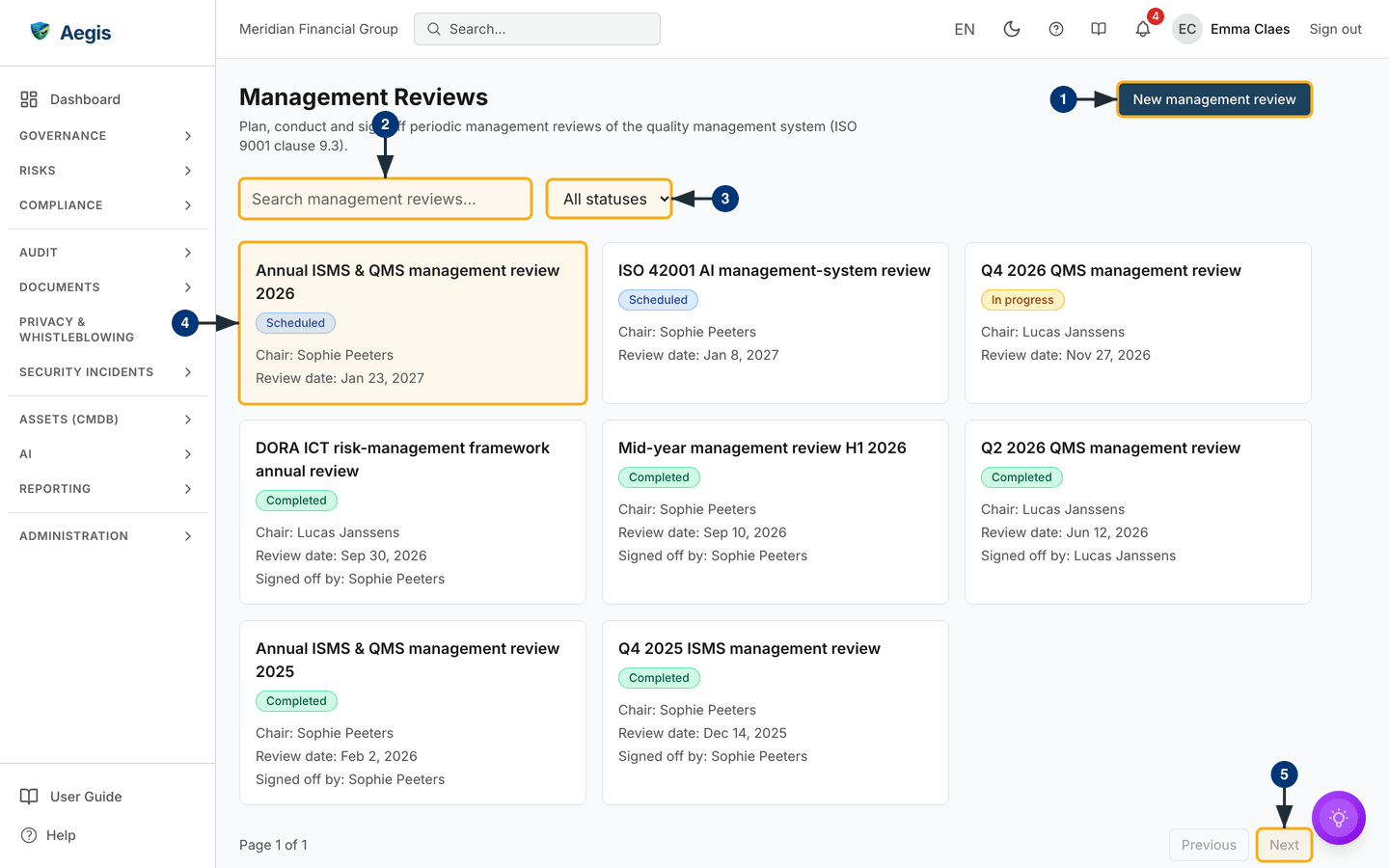
The page opens with the title Management Reviews and a one-line
description, with the New management review button on the right.
Below that sit a search box and a status filter. The register itself is a card
grid, up to three cards across on a wide screen: each card is one review, with
its title, a status badge (Scheduled, In progress or
Completed), the chair, the review date and — once completed — who
signed it off. A page counter and Previous and Next
buttons sit below the grid; each page holds up to 20 reviews. The captured
screen shows eight demo reviews on a single page, from completed reviews of 2025
and 2026 to ones scheduled for early 2027.
-
The
New management reviewbutton, top right, opens the scheduling form described below. -
The search box (
Search management reviews...) filters the grid by review title as you type. -
The status filter (
All statuses) narrows the grid toScheduled,In progressorCompletedreviews. - The cards themselves — selecting one opens that review's detail page, where the inputs, outputs, decisions and sign-off live.
-
The
NextandPreviousbuttons page through the register; they are greyed out when there is no further page, as on the captured screen.
When the register is empty, the grid is replaced by a
No management reviews yet message with a
New management review button (for roles that may create). When a
search or status filter matches nothing, the page says
No management reviews match your filters. — clear the search or set
the filter back to All statuses to see the full register again.
Schedule a review
-
Select
New management review. TheSchedule management reviewform opens. It asks for aTitle(for exampleQ2 2026 QMS management review) and aReview date, both required, and offers aChair— the person leading the meeting — and aSummaryfor the overall conclusion. - Below those, the form lists the clause 9.3.2 input fields and the clause 9.3.3 output fields. You can leave them empty for now; they can be prepared any time before the meeting.
-
Save. The review always starts as
Scheduled— there is no status choice on the create form — and its card appears in the grid.
Prepare, run and sign off
Open the card to reach the detail page. Under a
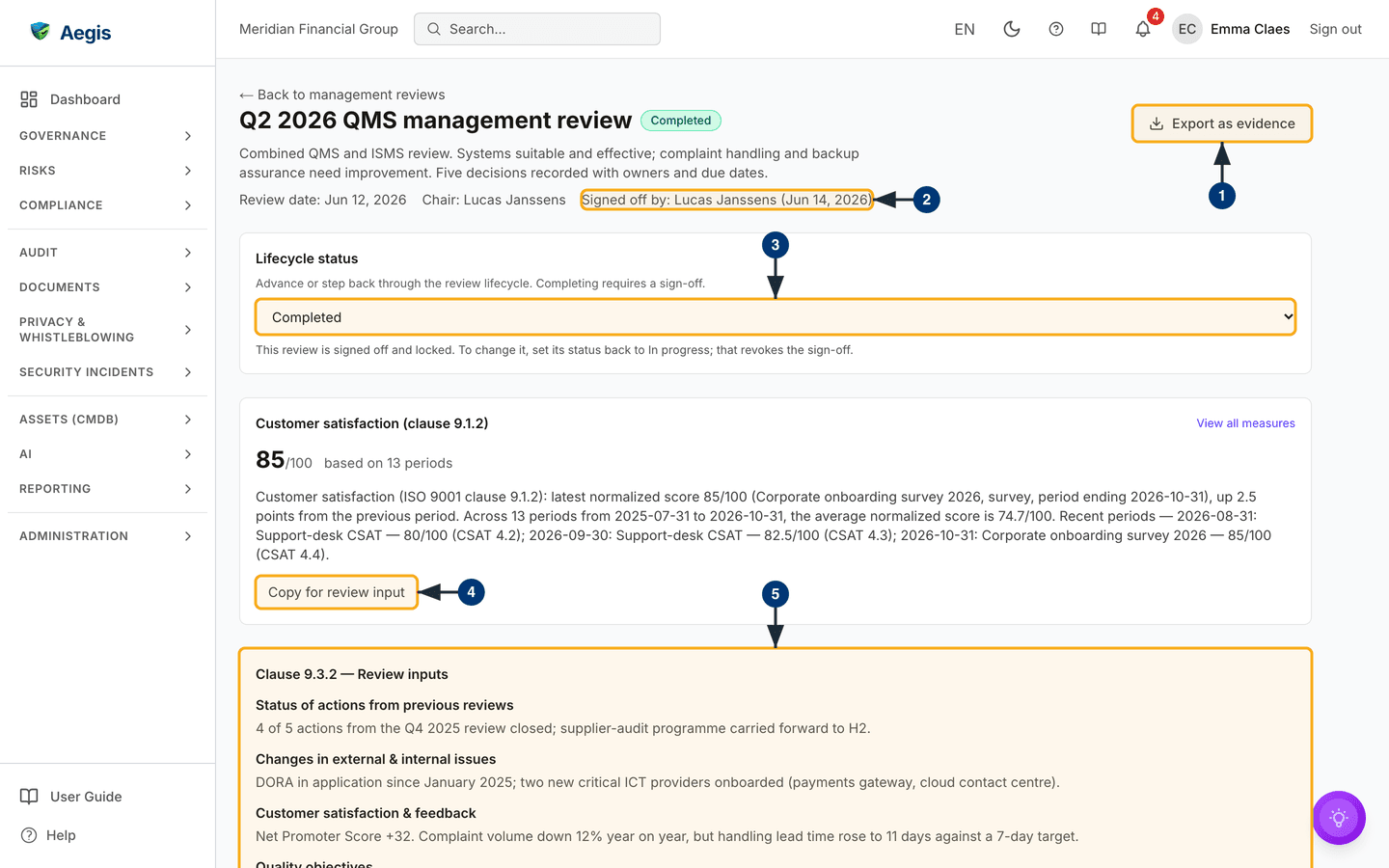
Back to management reviews link, the header shows the title with
its status badge, the summary, and a line with the review date, the chair and —
once signed off — the signer and sign-off date. Below the header come the
Lifecycle status panel, the customer-satisfaction panel, and then
the page is organised around the clause headings —
Clause 9.3.2 — Review inputs (status of previous actions, changes
in issues, customer satisfaction and feedback, quality objectives, process
performance, non-conformities and corrective actions, audit results, and so on),
Clause 9.3.3 — Review outputs (improvement decisions, changes to
the QMS, resource needs) and
Clause 9.3.3 — Decisions & follow-up. Only the input and output
fields that hold text are shown. Fill the inputs before the meeting, record the
outputs and decisions during or after it, then close the loop with a sign-off.
The captured screen shows a completed, signed-off demo review, seen as a
Contributor, so it is in its locked state: only
Export as evidence appears in the action row. On a review that is
still Scheduled or In progress, the row also holds
Assemble inputs with AI and Edit. A Manager or above
also sees Delete, whatever the review's status.
-
Select
Export as evidenceto download the review as a PDF — review details, summary, inputs and outputs. The download is recorded in the audit log; attach the file to the relevant evidence record yourself. Every role that can read the review can export it. -
Check the sign-off line in the header. Once a review is
completed it reads
Signed off byfollowed by the signer's name and, in brackets, the date the sign-off was stamped. -
Use the
Lifecycle statusselect to move the review toIn progresswhen preparation starts, and toCompletedonce the meeting is done. It only offers the next or previous step — a review cannot jump fromScheduledstraight toCompleted. ChoosingCompletedopens aSign off and completeconfirmation that records you as the signer; selectSign off & completeand Aegis stamps the date. The completed review is then locked, and a notice under the select says so. -
In the customer-satisfaction panel, read the measured score
and trend, then select
Copy for review inputto copy its one-paragraph narrative to your clipboard for pasting into the review.View all measuresopens the Satisfaction Measures register it comes from. The panel appears only when satisfaction data has been recorded. -
Work through the clause 9.3.2 input sections, replacing
drafts and blanks (via
Edit) with what leadership actually reviewed. On the captured screen the first sections readStatus of actions from previous reviews,Changes in external & internal issues,Customer satisfaction & feedbackandQuality objectives.
Completing requires at least one clause 9.3.3 decision. Until one exists,
the
Completed option is unavailable and the panel shows:
Record at least one clause 9.3.3 decision, or state why this review
produced none, before completing it.
The rules also accept a written rationale for a review that took no
decisions, but the current screens offer no field for it — in practice,
record the decision first.
Record decisions and follow-up
Further down the page, record the clause 9.3.3 outputs. The
three free-text output fields (Improvement decisions,
Changes to the QMS, Resource needs) hold the
narrative. The Clause 9.3.3 — Decisions & follow-up section
turns it into something that can be traced:
every decision needs an owner, a due date and — before it counts as
verified — evidence that it worked. This section sits below the part of the page the screenshot shows.
-
Select
Add decision. TheRecord a decisionform asks for aCategory(Improvement,QMS changeorResource need) and theDecisiontext, both required, and offers aRationale, anOwner, aDue date, anEffectiveness verificationnote and aLinked non-conformity. -
Save. The decision appears in a table with the columns
Decision,Category,Owner,Due date,Follow-up statusandEffectiveness. A new decision always starts asOpen. Linking a non-conformity shows its title under the decision and also links the non-conformity back to this review, so the chain can be followed from either end. -
As work progresses, select
Editon the row and move theFollow-up statusthroughOpen,In progress,DoneandVerified. A step back is allowed, andCancelledis available from any step beforeVerified.Verifiedneeds the effectiveness verification evidence recorded first; theEffectivenesscolumn then readsVerified byand a name, andNot yet verifieduntil then. -
A Manager or above can remove a decision with
Deleteon its row, after a confirmation.
Outputs that need their own follow-up also belong in the register that owns them (a risk, a non-conformity, an action item), with a short pointer here.
Reopen a signed-off review
-
On a completed review, set the
Lifecycle statusback toIn progress. ARevoke sign-off and reopenconfirmation names the original signer and date, and warns that the signature will be permanently removed. -
Select
Revoke sign-off & reopen. The sign-off is cleared,Editand the AI assist return to the action row, and completing the review again needs a new sign-off.
The AI assist
Assemble inputs with AI drafts the clause 9.3.2 inputs from real
evidence already in Aegis: the customer-satisfaction trend, recent mock audits,
the open non-conformity register, risk posture and control-monitoring results.
Each drafted section is shown for editing first — nothing is saved until you
select Apply & save. Sections with no supporting evidence are
left blank and say so, rather than being invented; a tenant with little linked
evidence will see mostly blanks. If a review already has inputs, the drafts are
merged with them, and the dialog warns you to check the fields before applying.
If an evidence source could not be read, the dialog warns that a blank section
may mean the source failed rather than that there is nothing to report. The AI
gathers and drafts; the chair reviews and decides.
The button appears only while the review is not completed, and only for roles allowed to run AI actions (not Viewers). It needs the AI assist enabled for your organisation and uses AI credits. Inputs applied from an AI draft keep an AI mark on the detail page and in the exported PDF.
Tips and limits
- The register does not run the meeting. Aegis holds the record; the conversation happens in the room. A review whose outputs are empty will read as a meeting that decided nothing.
- Sign-off is deliberate friction. A completed review is locked: its content cannot be edited and the stamp cannot be changed. Only stepping the review back reopens it, which revokes the sign-off, and that remains visible in the audit log.
-
Decisions outlive the meeting. The decisions register stays
editable after sign-off, so owners can keep moving their follow-up through
to
Verifiedwithout reopening the review. -
Search covers titles only. Give reviews titles that name
the period and scope, such as
Q4 2026 QMS management review, so they are easy to find. - Review at planned intervals. Most organisations run one to four a year. Schedule the next one as an output of the last.
Where this connects
- Non-Conformities — the open register is a standing review input, and a review decision can be linked to a non-conformity.
- Satisfaction Measures — the source of the customer-satisfaction panel and its copyable narrative.
- Mock Audit and Audits — audit results feed clause 9.3.2.
-
Evidence — where the PDF from
Export as evidencebelongs once downloaded. - Control Monitoring and Risks — two more of the inputs the AI assembles from.
- Audit Log — where exports, status changes and sign-off revocations are recorded.