Scenario: HR duties in Aegis
HR meets the compliance programme at four moments — a joiner, a leaver, the training round, and the day a data-subject request lands in the HR mailbox.
This chapter follows Hannah, an HR officer. She is not a compliance specialist and does not need to be: her HR system remains the place where people are hired, moved and offboarded, and Aegis reads from it rather than replacing it. What Aegis adds is the compliance view of her work — an employee register the auditors trust, a training record, a policy acknowledgment trail — and one legal duty that must never sit in a mailbox: the data-subject request (DSR — a person exercising their GDPR rights over the data you hold about them).
Who you are in Aegis
An HR officer typically holds
Contributor — enough to open
the employee register at /hr, read the training record, and log
records. The register is read-only for everyone, so a
Viewer can open
/hr too and sees the same table. The one-time setup — registering
the HR provider on Settings → HR Integrations, authoring
offboarding templates, setting the privacy switches — needs
Manager or
Admin, and logging a DSR needs
Manager too. The job-title table
in What each role can do covers the
neighbouring roles.
If /hr shows a short notice that HR integrations are not available
on your current plan instead of the register, the HR Integrations feature is not
part of your organisation's licence; that is a licensing matter for your Admin,
not a role gate.
What's on this screen
HR sits in the Administration group of the left menu,
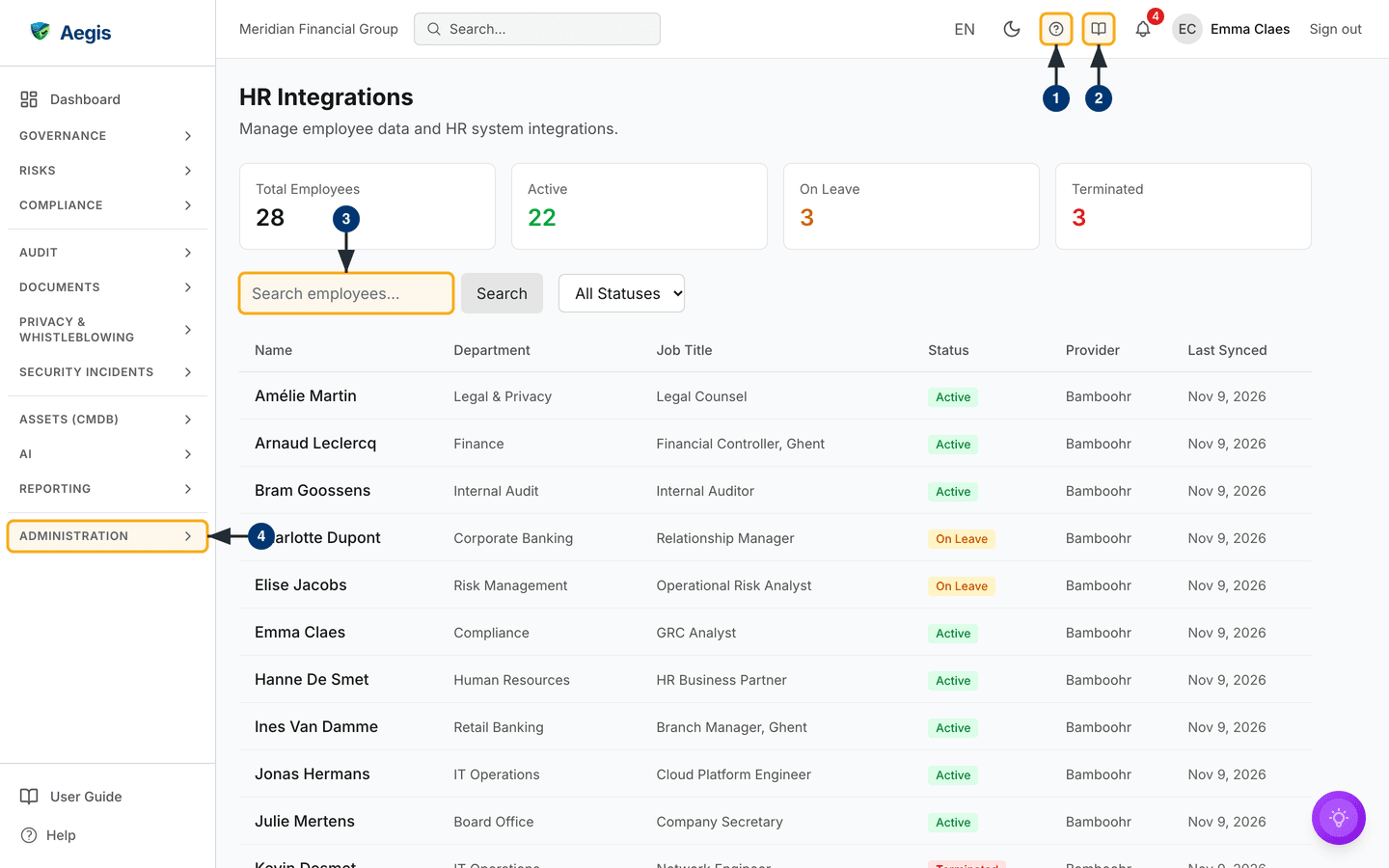
at /hr. The page is titled HR Integrations. From top
to bottom:
-
Header. The title and a one-line description. A Manager or
Admin also sees a
Manage HR connectionsbutton on the right, which opensSettings → HR Integrations. The captured screen was taken as a Contributor, so the button is not shown there. -
Four counter cards —
Total Employees,Active(green),On Leave(amber) andTerminated(red). They refresh whenever the table reloads. The captured screen shows 28 employees: 22 active, 3 on leave and 3 terminated. -
Filter bar — a
Search employees...box with aSearchbutton, and anAll Statusesmenu that narrows the table toActive,On LeaveorTerminated. -
The table, 20 rows per page —
Name,Department,Job Title,Status(a coloured badge),Provider(the HR system the row came from; BambooHR on the captured screen) andLast Synced. AnEmailcolumn appears only when a Manager has switched onShow personal emailin the HR privacy settings; it is off by default, which is why the captured screen has no email column. The same settings can hideDepartmentandJob Title.
The table is synced from your HRIS (the human-resources information system that
already holds your staff records). Nothing is typed in here, and rows have no
actions: a correction is made in the HR system and arrives on the next sync. On
a new organisation the table is empty until the provider is registered and the
first sync has run; a Manager or Admin then sees a button in the empty state
that leads to Settings → HR Integrations. The full walkthrough of
this screen, including registering the provider, is
HR Integrations.
A joiner arrives
Hannah hires a new analyst. The record is created in the HR system as always; her Aegis duties are the compliance wrapper around it.
-
Let the sync bring the person in. After the next sync run,
the new row appears on
/hrwith anActivebadge and the date of that sync run underLast Synced. If the counters have not moved, check theLast Synceddates and ask whoever operates your instance when the sync last ran — it is an on-demand job, not a schedule, and there is no button on/hrthat starts it. - Ask an Admin for an Aegis account only if the job needs one. Most staff never sign in. If the role does need access, name the right role when you ask — Viewer for read-and-acknowledge duties, Contributor for day-to-day record work. Aegis is invitation-only; there is no self-registration.
-
Point the joiner at their reading and training. Policies
marked with required readers expect an acknowledgment from each new person,
and the induction security-awareness course should end as a
Completedrow in Security Awareness. Scenario: an ordinary working week is written for the joiner's side of exactly these steps — it makes a good welcome-pack link.
A leaver departs
Departures are where auditors look hardest: an account that outlives its owner is a standing finding. The leaver is processed in the HR system; in Aegis, Hannah checks the trail it leaves.
-
Confirm the register caught it. After the sync, the
person's row shows a red
Terminatedbadge. PickTerminatedin theAll Statusesmenu to list only leavers. The row stays — deliberately — so an auditor can see the person was in scope while employed, for as long as the retention window underSettings → HR Integrationsallows (365 days after the end date unless a Manager has changed it). -
Look for the erasure request Aegis opened. Where your
licence includes GDPR automation, the sync that first sees the person as
terminated also creates an
Erasurerequest for their email address in the DSR queue, with statusPendingand a 30-day due date. Its notes say it was auto-created from an HR offboarding event and carry the employee's name, HR identifier and offboarding date. It deletes nothing by itself: the privacy team reviews and works it like any other request. If an open erasure request already exists for that address, no second one is created. -
Ask an Admin to deactivate any Aegis account the leaver held.
Deactivation blocks sign-in and revokes open sessions at once, while the
person's records and audit history stay intact. It is done from
Settings → Users, described in What each role can do. -
Work through your offboarding checklist. If a Manager has
authored active offboarding templates under
Settings → HR Integrations, their steps are copied as a numbered checklist into the notes of that automatic erasure request — so the checklist travels with the leaver's case. Carry the steps out in your real systems: the checklist records your intended process; Aegis does not tick off or run the steps for you.
Between sync runs, /hr can miss recent joiners and still show
recent leavers as Active — and the automatic erasure request
for a leaver is not created until a sync sees the termination. Before you
rely on the register for an access review or a training population, check
the Last Synced column and confirm when the sync last ran.
A data-subject request lands in the HR mailbox
A former employee writes: "Please send me everything you hold about me." HR is a natural first landing place for these — the sender knows HR held their file. The law gives your organisation one calendar month from receipt, and the clock starts when the request arrives, not when the right person finally sees it. Hannah's duty is not to answer it; it is to get it into the queue the same day.
- Do not reply with data, and do not sit on it. Confirming receipt is fine; sending personal data before identity is verified is itself a breach. Note the date the request actually arrived.
- Hand it to your privacy lead or DPO (data protection officer — the person formally responsible for GDPR) with the original message and the received date. If your organisation runs its DSR queue in Aegis, this is the person who logs it.
-
If you hold Manager rights, log it yourself. Open
GDPRin thePrivacy & Whistleblowinggroup, thenData Subject Requests, thenNew Request. A full page opens at/gdpr/dsr/new. Choose theRequest Type, enter theData Subject Email, and optionally the person's name, the request language and the verification method. Put the true received date inNotes— Aegis counts the 30-day deadline from creation, so the earlier legal date must be written down. SelectCreate Request; the request's own page opens. A Contributor sees the queue but not theNew Requestbutton. - Expect questions back. Whoever works the request will need HR's help — what the personnel file holds, why it is kept, how long the retention schedule runs. The request's own page tracks the deadline; the countdown in the queue is the shared clock.
Before handing over or logging anything, it is worth checking that the request is not already in the queue — a leaver's erasure request may have been opened automatically, and a former employee may have written to more than one address.
-
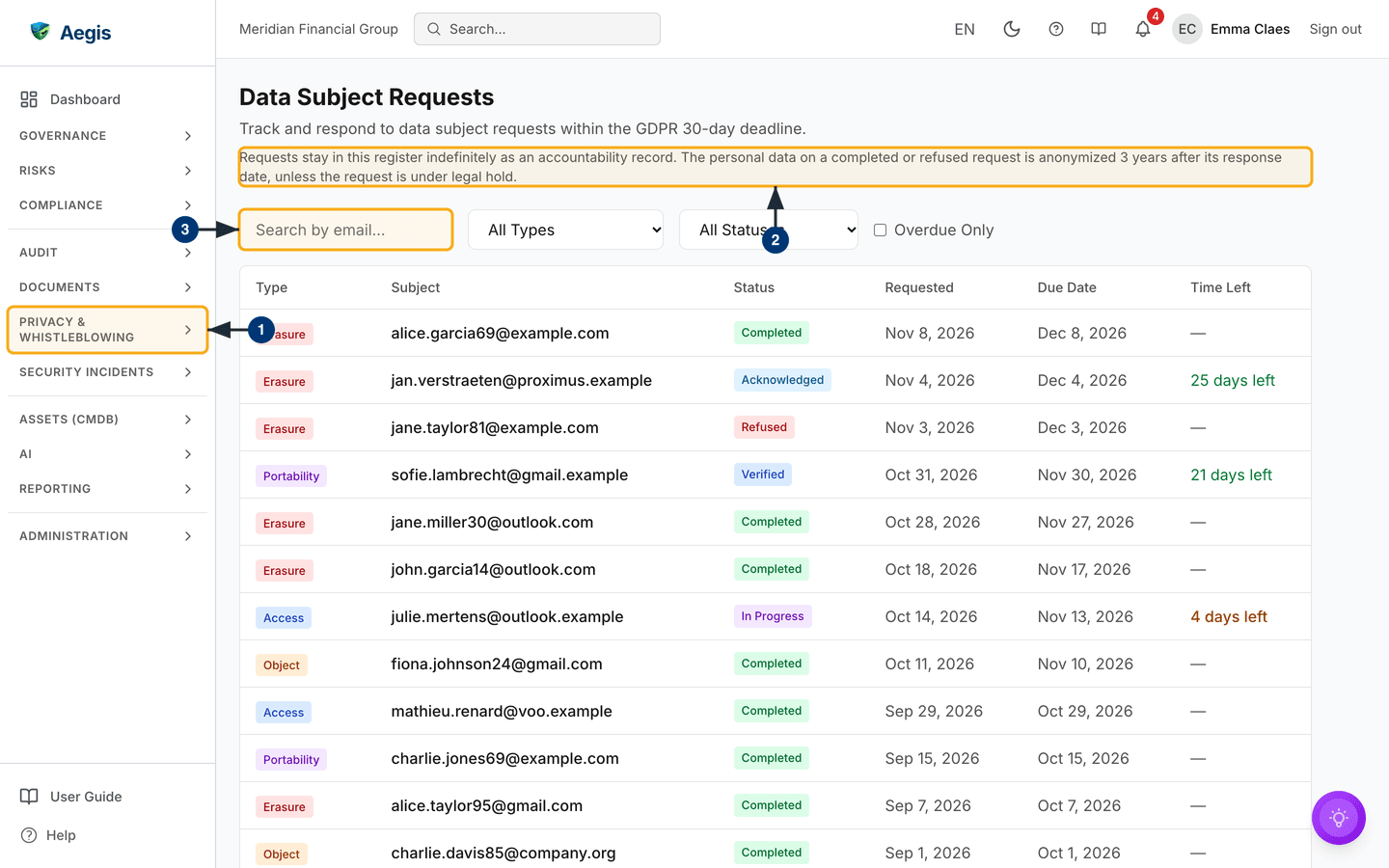
Open the queue. Expand
Privacy & Whistleblowingin the left menu, thenGDPRandData Subject Requests. The/gdpr/dsrpage opens with the request table. - Read the retention notice under the title. Requests stay in the register indefinitely as an accountability record; the personal data on a completed or refused request is anonymised three years after its response date, unless the request is under legal hold.
-
Search by the person's email address. Type it into
Search by email.... The table narrows to that person's requests; theAll TypesandAll Statusesmenus and theOverdue Onlytick box narrow it further. Each row showsType,Subject,Status,Requested,Due DateandTime Left; a finished request shows a dash instead of a countdown. Select a row to open the request's page.
The full journey — acknowledgment, identity checks, gathering the data,
responding or refusing — is the
data-subject request scenario, with the module
reference in GDPR. A useful detail for HR: the GDPR
module's data-subject lookup searches the synced employee register by email, so
every row on /hr is personal data your organisation holds and must
be able to account for.
Tips and limits
-
Employee rows on
/hrdo not open into personnel files — there is no per-person detail page, training history or document store behind a name. The personnel file stays in your HR system. -
Training completions can be imported in bulk against a campaign (CSV of
email,completed_at, optionalscore) — useful after an induction round. See Security Awareness. -
The HR privacy settings on
Settings → HR Integrationsact on the copy of the data held in Aegis. After each sync, terminated rows whose end date is older thanRetain terminated-employee records (days)are removed from the register (a terminated row with no end date is kept). WithAnonymize records on offboardingswitched on, a leaver's synced record has its personal identifiers cleared when the automatic erasure request is created, and the policy-reading history keeps its rows but drops the person's name and email. Records in your HR system itself follow your own retention process there. - An offboarding detected by the sync can also start any automation workflow built on the HR offboarding trigger. See Workflows.
- A concern raised to HR about harassment or discrimination may belong in the whistleblowing channel instead of an HR file — it carries legal protections a mailbox does not. See Report a Concern.
Where this connects
The screens behind this chapter: HR Integrations, Security Awareness, GDPR, Workflows and Settings. The joiner's own view of their duties is Scenario: an ordinary working week; the request you handed over continues in Scenario: handling a data-subject request. Roles and account management are covered in What each role can do, and terms glossed in brackets are in the glossary.