Auto-Incident Rules
Build rules that open an incident on their own when a connector event matches conditions you have set — so a known signal becomes a tracked incident without anyone watching a feed.
An auto-incident rule (a saved set of match conditions plus a template for the incident it should raise) sits between your connectors and the Incidents module. When a connector delivers an event — a cloud-security detection, an endpoint alert, a webhook (a message one system pushes to another) — Aegis checks it against every enabled rule, and a match creates an incident from the title, severity, category and tags you chose. This page is where you create, edit, test, enable, disable and delete those rules.
Rules are tenant-level configuration, so the page sits behind the settings permission — and because a broad rule can open many incidents quickly, each rule carries its own deduplication, rate-limit and cooldown controls.
Who uses it
-
Admin Full access — view the
list, create and edit rules, run the dry-run test, toggle rules on or off,
and delete them. The route checks
settings:update, the same permission the underlying API enforces. -
Manager
Contributor
Viewer No access. The link is
absent from the left menu, and opening
/incidents/auto-rulesdirectly sends you back to the Incidents list rather than showing an error. These roles still work the incidents rules create — they cannot change the rules.
The page belongs to the Incidents module. If that module is not provisioned for your organisation the menu entry is hidden, and typing the address in does not help: the rules API refuses the request, so no rules load. Settings shows which modules you have.
What's on this screen
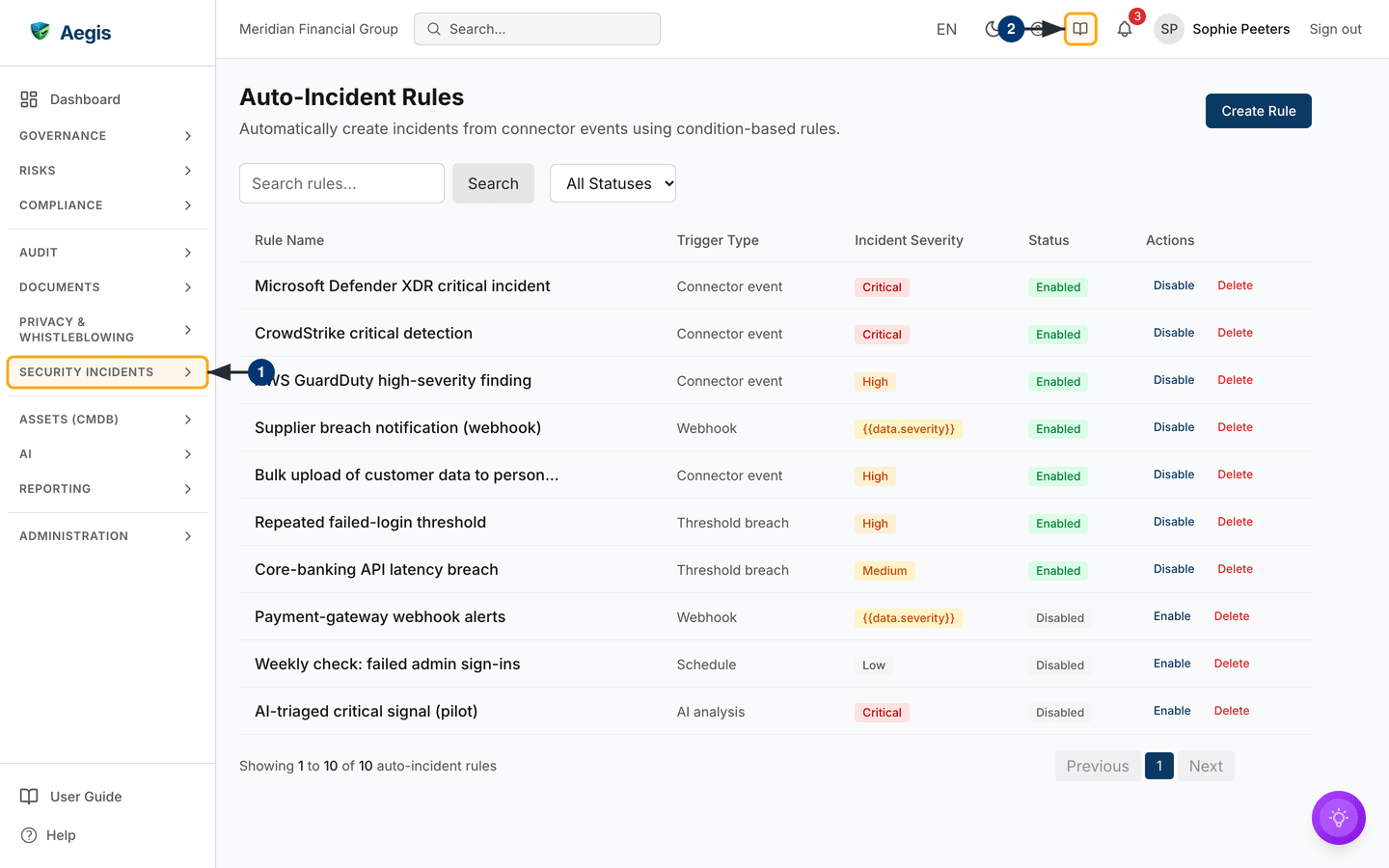
The page is headed Auto-Incident Rules, with the line
"Automatically create incidents from connector events using condition-based
rules." beneath it. On the right sits Create Rule, the only way to
start a new rule. Below that is a single-row filter bar: a
Search rules... box with a Search button, and an
All Statuses dropdown that narrows the list to
Enabled or Disabled rules.
Everything below is the rules table. It shows Rule Name and
Trigger Type as plain text, Incident Severity and
Status as coloured pills, then Actions with a per-row
Disable link on an enabled rule (or Enable on a
disabled one) and a red Delete link. A long rule name is cut short
with an ellipsis. Clicking elsewhere on a row opens it for editing. Rules are
listed in priority order — lowest number first, newest first among equals — so
the table reads in the order Aegis evaluates them.
Trigger types and severities appear as readable labels —
Connector event, Threshold breach,
Critical, High — with severity coloured red for
Critical, orange for High, amber for
Medium and grey for Low. A rule whose severity is
taken from the event shows its template instead, such as
{{data.severity}}, in an amber pill (see "Severity from the event"
below). Under the table a footer counts the rules — "Showing 1 to 10 of 10
auto-incident rules" on the captured screen — with Previous, page
number and Next buttons; the list pages at twenty rows.
The captured screen shows the demo organisation's ten rules: seven enabled and three disabled, covering connector events, webhooks, threshold breaches, a weekly schedule and an AI-analysis pilot. On a tenant with no rules yet, the table area shows an empty state — "Nothing here yet" — until the first rule is saved.
To find a rule, type into the Search rules... box under the heading
— not the Search... box in the top bar, which searches the whole
application. The list narrows after a short pause to rules whose name or
description contains the text; Search applies it at once. Pair it
with the All Statuses dropdown to show only enabled or only
disabled rules.
-
Open
SECURITY INCIDENTSin the left menu and chooseAuto-Incident Rules. The group expands to showIncidents,Reporting,Security SignalsandAuto-Incident Rules; the last is admin-only, andReportingneeds Manager or above. -
The
?button in the top bar opens the in-app help for a reminder of how conditions or dedupe windows work while you build a rule.
Create a rule
Selecting Create Rule opens the
Create Auto-Incident Rule dialog — a long, scrolling form in four
parts: what the rule is, what it matches, what incident it produces, and how
much noise it may make. Rule Name and
Incident Title Template are required (marked with a red asterisk);
miss either and a red message appears at the top while Aegis scrolls that field
into view.
-
Enter a
Rule Nameyou will recognise in the list — the placeholder suggests "e.g. Critical CrowdStrike Alerts". -
Choose a
Trigger Type—Connector event,AI analysis,Threshold breach,Webhook,ScheduleorManual.Connector eventis the default and the only type the connector pipeline evaluates — the others are stored on the rule but reached only through the API, so a rule set to one of them will not fire from a connector. -
Add an optional
Description, and a comma-separatedSource Typeslist such ascrowdstrike, aws-guarddutyto limit the rule to those sources. Left empty, it accepts any source. -
Build the match in the
Conditionspanel (next section). Left empty, the rule matches every event that reaches it — rarely what you want. -
Fill in the incident template.
Incident Title Templateaccepts placeholders in double braces, so{{data.title}} - {{data.hostname}}yields "Malware detected - srv-web-01" from the event itself. SetIncident Severity(Mediumby default), and optionallyIncident Categoryand a comma-separatedIncident Tagslist. -
Set the noise controls: tick
Deduplicate matching events(unticked on a new rule), optionally name theDedupe Fields (optional)that identify the same event —data.alertId, say — and give aDedupe Window (seconds). Cap the rule withMax Incidents / Hour, pause it withCooldown (minutes), and order evaluation withPriority— lower numbers run first. ThePrioritybox shows a grey 0 as its placeholder, but a blank box stores 50, the middle of the 0–100 range the server accepts. -
Leave
Rule enabledticked to start it straight away, or clear it to save the rule dormant. SelectCreate Ruleat the foot of the dialog: it closes and the new rule appears in the table.Cancelcloses it without saving.
A rule with no conditions, no source types and no deduplication acts on
everything that reaches it. Start tight — one or two conditions, a dedupe
window, a sensible
Max Incidents / Hour — then loosen it once you have watched it
work.
Build the conditions
The Conditions panel is a visual builder, not a text box. It opens
as one blue AND group labelled "All must match" holding a single
empty row; switch the group dropdown to OR and it turns orange and
reads "Any can match". Reset
beside the panel heading clears the tree back to one empty group, and the line
beneath it repeats the warning: leave it empty and every event matches.
-
Click the field box in a row. A suggestion list drops down with common event
paths —
severity,data.hostname,data.title,data.technique,sourceTypeand more — each described. Pick one, or type your own dotted path. -
Choose the operator:
equals,contains,starts with,greater than,in list,matches regex,is emptyand the rest. The value box adapts —in listtakes a comma-separated list,is emptyhides it. -
Enter the value, then use
Add Conditionfor another row in the same group, orAdd AND Group/Add OR Groupto nest a sub-group — that is how you express "this and that, or the other thing". The smallNOTbutton inverts a row, and the×icon removes it.
Edit a rule and test it
Clicking a row opens the same dialog headed
Edit Auto-Incident Rule, pre-filled and with one panel create mode
lacks: Test Rule. It evaluates the saved rule against a sample
event and reports what would have happened, creating nothing.
- Click the rule's row. The dialog opens with every field populated; change what you need.
-
Scroll to
Test Ruleat the foot of the form. The box starts with a worked sample event in JSON — a severity, a hostname and a title. Edit it to resemble a real one. -
Select
Run Test. A green box reports "Matched — an incident would be created." with anIncident previewline showing the title the rule would produce, or a grey box reports "No match — no incident would be created." The test runs against the last saved version of the rule, not unsaved edits on screen, and anything that is not a JSON object is rejected before it is sent. -
Select
Save Changesto keep your edits, orCancelto discard them. The test result is never saved — it is a dry run only.
Enable, disable or delete a rule
-
Select
Disableon a live rule, orEnableon a dormant one. TheStatuspill flips and a confirmation appears — "Rule disabled" or "Rule enabled". A disabled rule stops matching but keeps every setting. -
Select
Deleteto remove a rule. A dialog headedDelete Rulenames it — "Delete the rule ...? This cannot be undone." — and waits. - Confirm to delete, or close the dialog to keep the rule. A "Rule deleted" confirmation appears and the row leaves the table. Incidents it already created stay in the Incidents list.
How a rule actually fires
Aegis hands a delivered connector event to a background job rather than
evaluating rules on the request itself, so a busy source cannot slow the
receiver down. The job checks the event against your enabled
Connector event rules whose Source Types include the
event's source (or are left empty), in priority order — lowest number first —
and a matching rule can still be held back by its own controls, checked in this
order.
| Control | Holds the incident back when… |
|---|---|
Deduplicate matching events |
an event with the same identity already opened one inside the dedupe
window. The identity comes from Dedupe Fields when set;
otherwise from the source ID, the event's own id, or a fingerprint
of the whole event.
|
Max Incidents / Hour |
the rule has already opened that many in the past hour. |
Cooldown (minutes) |
the rule is still waiting after the incident it last created. |
Two other sources feed the same rules directly. Microsoft Purview data-loss
events (see
Data Loss) are checked only against rules that name
purview in Source Types — a catch-all rule with no
source types is skipped for them — and the first rule that creates an incident
stops the evaluation, so one event yields at most one incident. Changes found
between Microsoft Entra ID directory
snapshots are checked as connector events with the source entraid.
Severity from the event
A rule's severity does not have to be fixed. A rule created outside this dialog
— through the API, for example — can store a template such as
{{data.severity}}, as two webhook rules on the captured screen do;
when it fires, Aegis reads the event's value and maps critical,
high, medium or low — or a 1–5 score,
where 5 is Critical, 4 High, 3 Medium and 1–2 Low — to the incident severity.
Anything it cannot read becomes Medium. The dialog's
Incident Severity dropdown offers only the four fixed levels, so it
cannot display a template: on such a rule, choosing a level replaces the
template with that fixed severity.
Tips and limits
-
The test is a genuine dry run — it reports the match and previews the title,
but never opens an incident. It appears only once a rule is saved, so create
first, then reopen to test. It weighs the conditions alone: a "Matched"
result is not a promise of an incident, because dedupe,
Max Incidents / HourandCooldown (minutes)are not applied to a test. -
Source Types,Incident TagsandDedupe Fieldsare comma-separated lists, and the numeric boxes take whole numbers. On a new rule, leavingMax Incidents / HourorCooldown (minutes)empty means no limit rather than zero, and an emptyDedupe Window (seconds)is stored as 3600 seconds (one hour) — the value its placeholder shows. -
If a rule never fires, work backwards: check it is
Enabled, that its trigger type isConnector event, that itsSource Typesmatch what the connector sends, and that the connector is delivering at all. Then test it with a real event. - This page manages rules, not incidents. What a rule creates is triaged and closed in Incidents; rule changes, toggles, deletions and test runs are recorded in the Audit Log.
Where this connects
- Incidents — where the incidents these rules open are tracked, assessed and closed.
- Connectors — the sources whose events the rules match against.
-
Data Loss — Purview data-loss events that only
rules naming
purviewturn into incidents. - Workflows — automating what happens once an incident exists.
- Incident Reporting — regulator deadlines for qualifying incidents.